
How do I use the Video content?
What is the video content
The video content can be used to add videos to your exam questions, allowing for a deeper and more accessible learning experience.
How to set the video content
Step 1
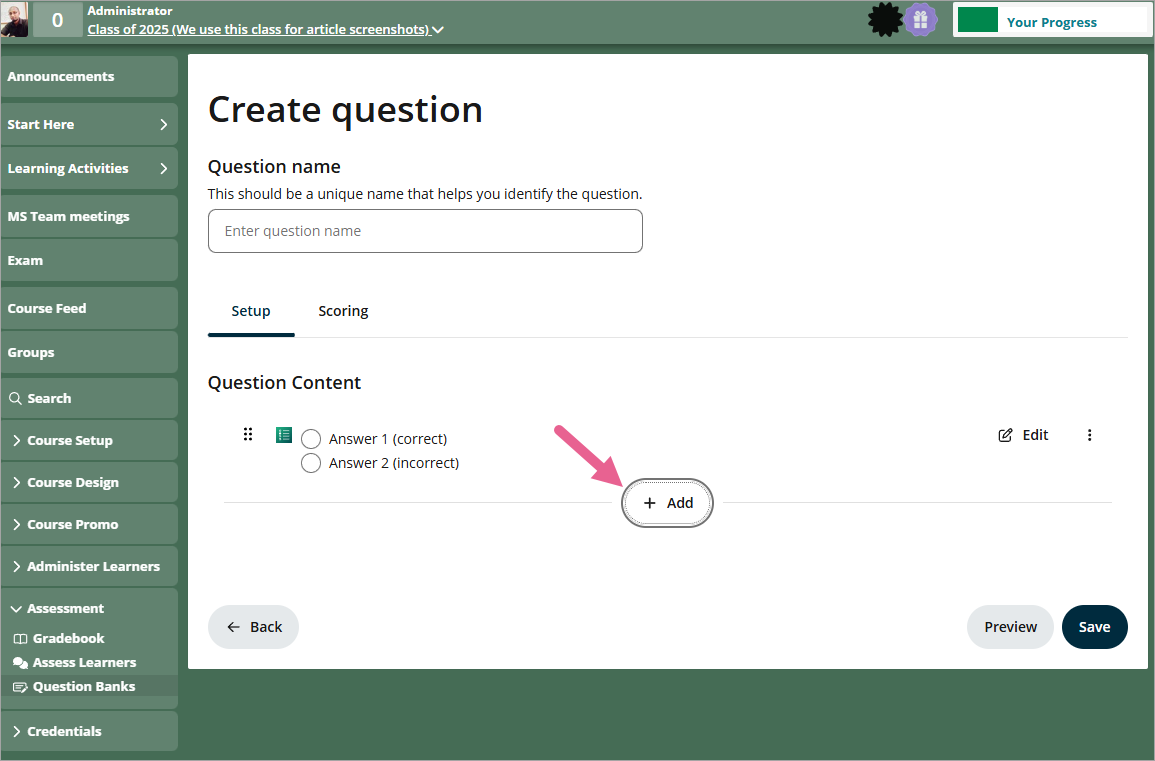
To add new video content, click on +Add.
Step 2
Click on the video icon.

Step 3
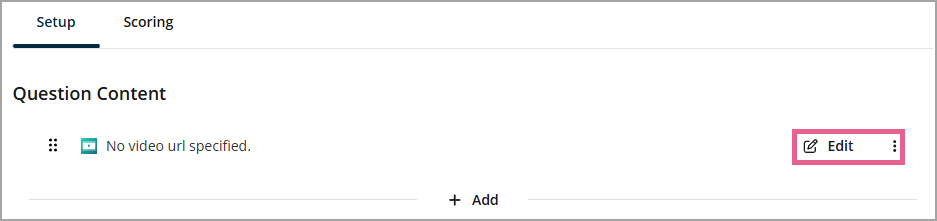
After adding the video content type, you will see the message "No video url specified". Click Edit to upload a video file.
Step 4
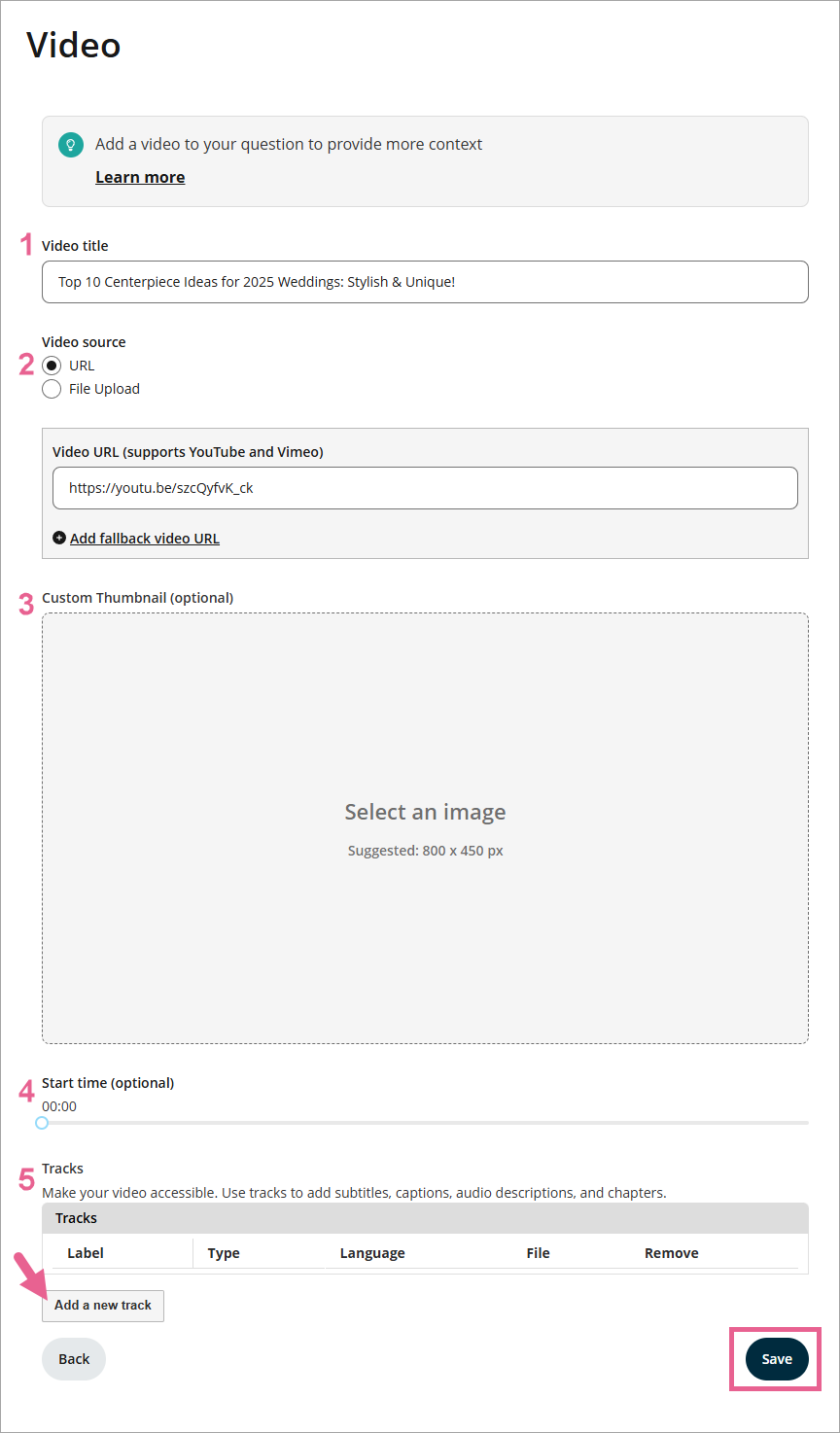
1) Add a title for your video.
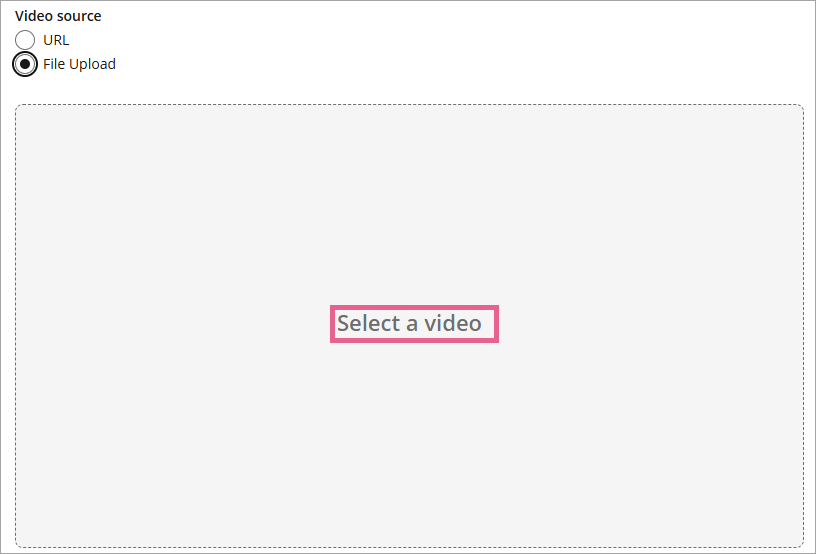
2) Choose your video Source. You can choose from URL or File Upload. Choose the URL option if you'd like to share a video from YouTube or Vimeo. Choose File Upload if you'd like to share a video file from your computer.
a) URL
If you choose URL, copy the link to the video you'd like to share and then paste it in the text box. If you click on Add a fallback video URL, it will create a new line allowing you to add a secondary video link in case the learner(s) cannot access the first URL for any reason.

b) File Upload
If you chose File Upload, click within the grey box that says "Select a video" and then choose a file from your computer. Once the video has finished uploading, click Save.
3) This section allows you to upload a new thumbnail image for your video. The thumbnail is the image displayed before the user clicks play.
To upload a new thumbnail, simply click within the grey box that reads "Select an image" and choose an image from your computer. We recommend uploading a thumbnail sized 800 x 450 pixels for the best results.
4) In this section, you can drag the dot at the start of the grey line in order to adjust where your video playback begins. For example, if I were to drag the point to the 2-minute mark, the video would begin playing from 2 minutes in.
5) Tracks are what you can use to make your video accessible. Use tracks to add subtitles, captions, audio descriptions, and chapters.
OpenLearning supports tracks in WebVTT (.vtt) format only. You can learn how to make such tracks using these helpful links here and here. You can also learn through other resources such as YouTube tutorials and Google search.
To add a Track, click on Add a new track at the bottom of the setup section. In the new pop-up window, choose the type of track (subtitles, captions, audio descriptions, or chapters), the language, and upload your track file. You can also label the track to help you stay organized and keep tabs on which files you've already uploaded.
Step 5
Click the Save button to save your video content.