
OpenLearning AI Assistant - Quiz Generator

What is the AI Quiz Generator?
The AI Quiz Generator is a built-in AI assistant tool that automatically creates quiz activities for your course pages based on your inputs. You choose a quiz template and provide a few details about your topic, and the AI assistant drafts a ready-to-use quiz for you. It's currently available as a Beta feature.
How to set it up
On your course page, select Add quizzes in the AI Assistant tool and browse the available quiz templates — there are 9 to choose from. Click See more to view all templates. Select the template that best fits your goal.
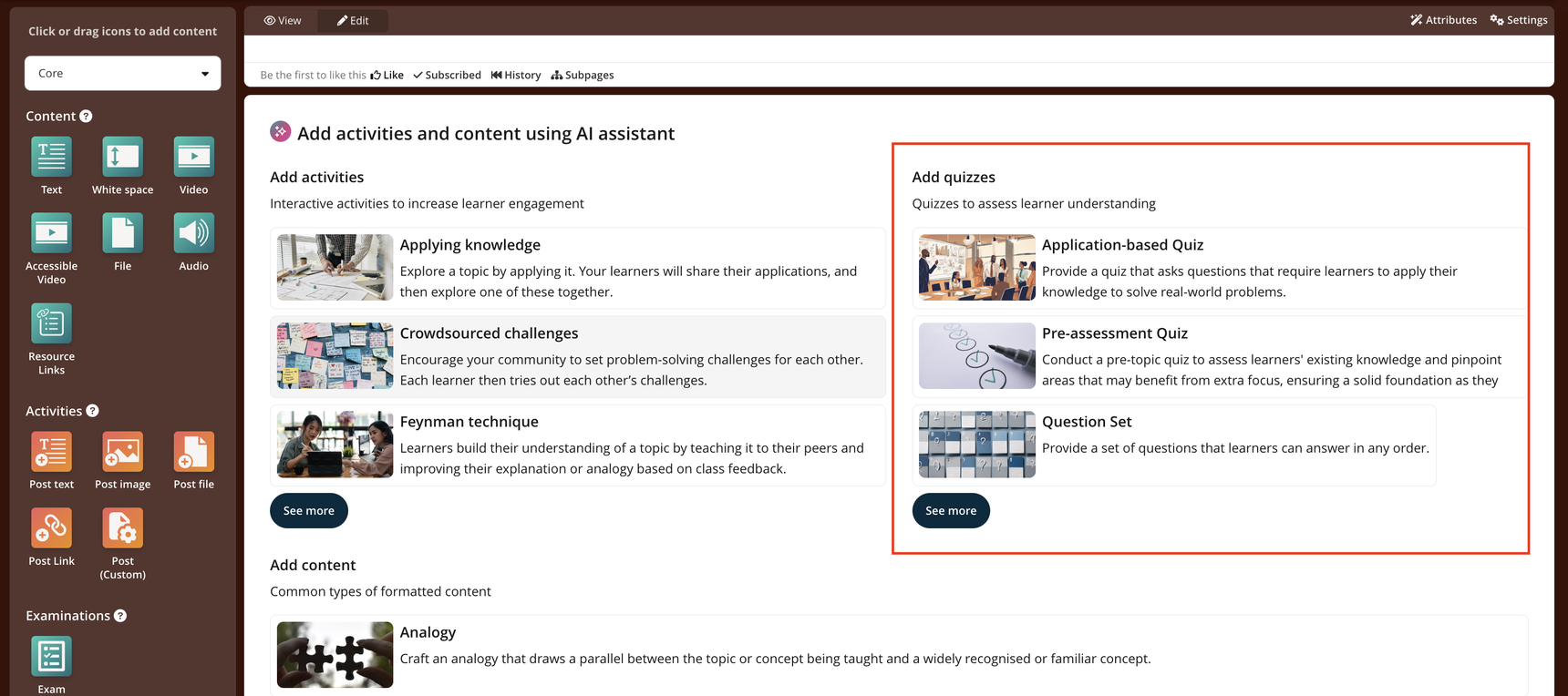
In the AI assistant panel, review your selected template, then fill in the description of how to create the quiz field to give the AI any specific instructions.
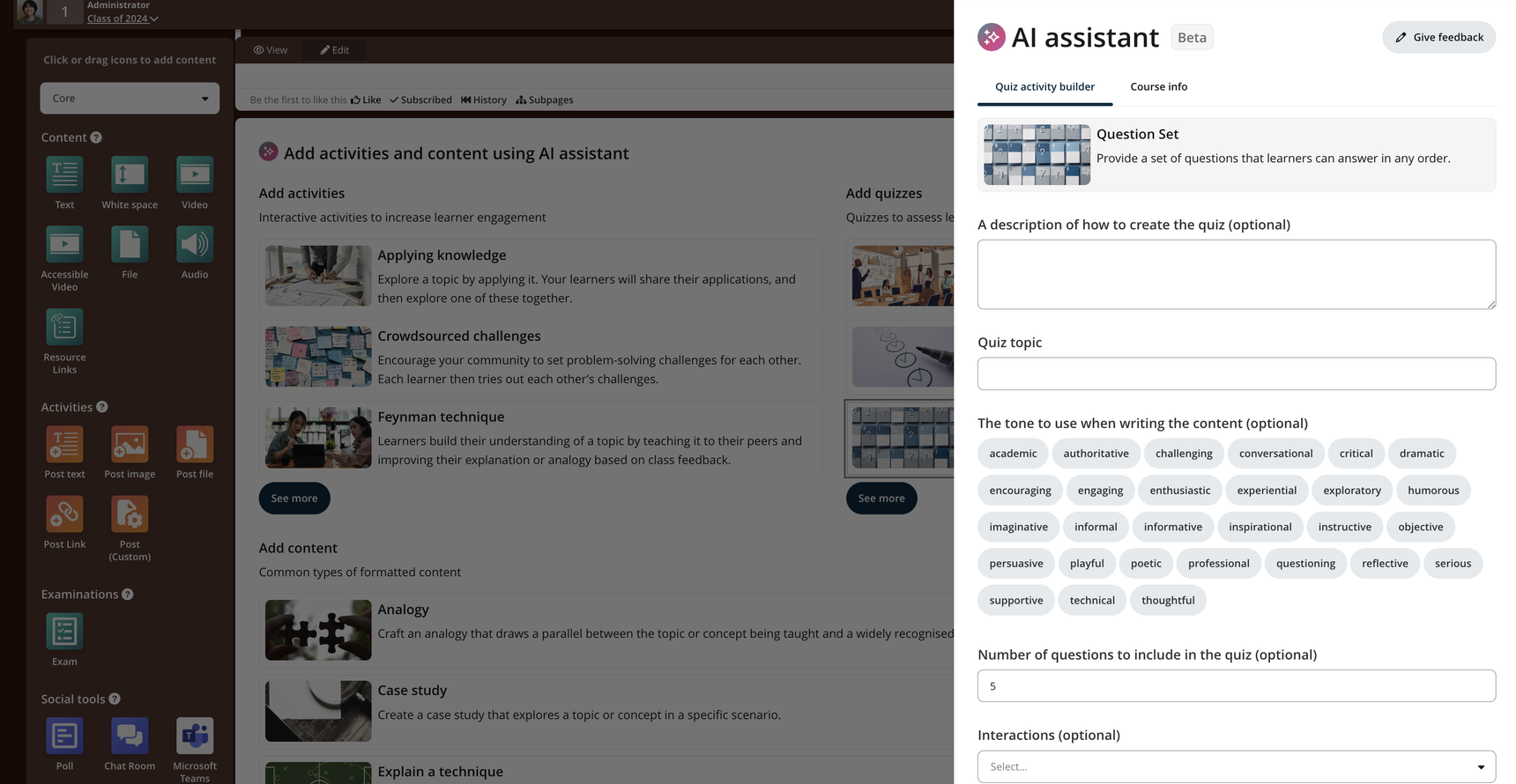
Enter your Quiz topic, then select a tone from options (e.g. conversational, professional, engaging, etc), and set the number of questions to include in the quiz.
Under Interactions, use the Select… dropdown to choose your preferred question type: multiple choice, short answer, number answer, or categories.
Under Additional context, tick either or both options as needed:
- Use content on this page as context: the AI will reference your existing course page content
- Upload supporting PDF document: upload a PDF (max 5MB) for the AI to use as a reference
- When you're ready, click Generate to create your quiz.
- You will then be shown a screen to review the generated output. You can choose to discard or keep the content.
Good to know
- Most fields are optional. Only the Quiz topic is required. The more detail you provide, the more tailored your quiz will be.
- PDF uploads have a size limit of 5MB. Make sure your document is under this limit before uploading.
- The AI Quiz Generator is currently in Beta, which means it's still being refined. Use the Give feedback button in the AI assistant panel to share your experience and help improve the feature.