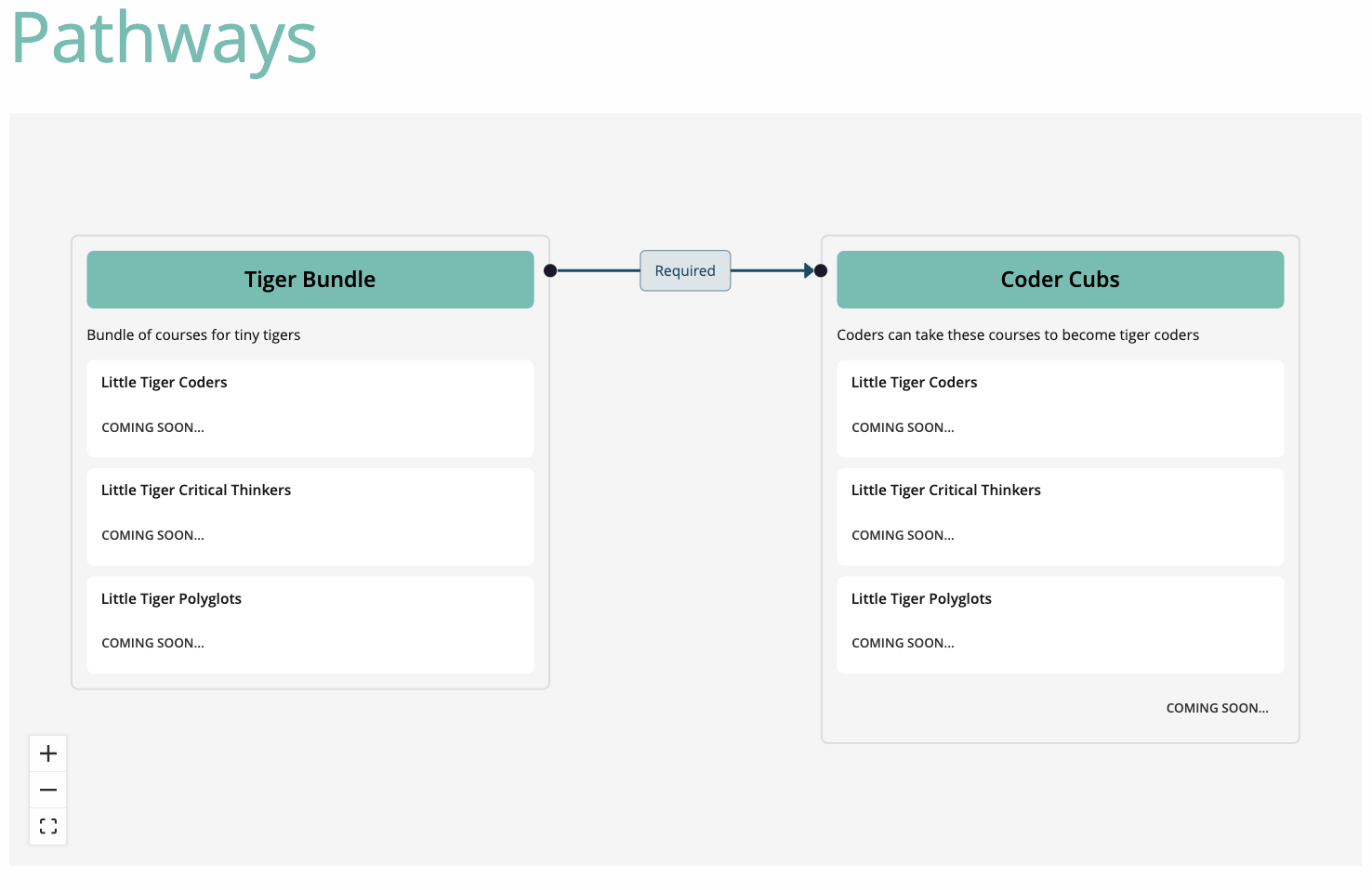
Pathway Builder
What is the Pathway Builder?
The Pathway Builder lets you link programs together to define how learners progress from one program to another.
Using the Pathway Builder, you can:
Show required or optional linked programs
Create clear learning pathways across multiple programs
Indicate prerequisites or suggested progression
Visualise how programs relate to each other
The Pathway Builder helps learners understand what they should take next and help institutions design structured, meaningful journeys rather than isolated programs.
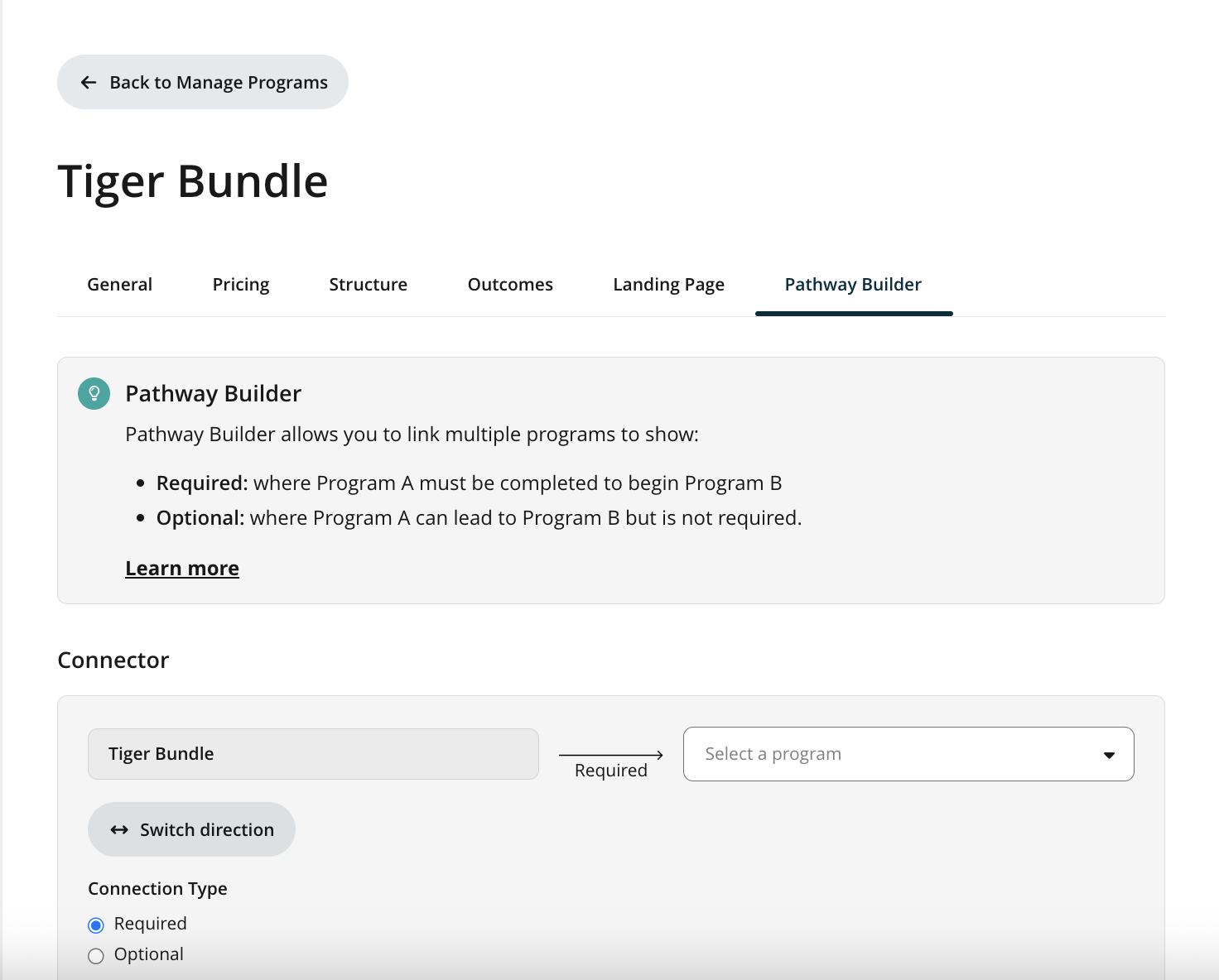
How do I set up connections between programs?
You can set up connected programs from within a Program’s settings.
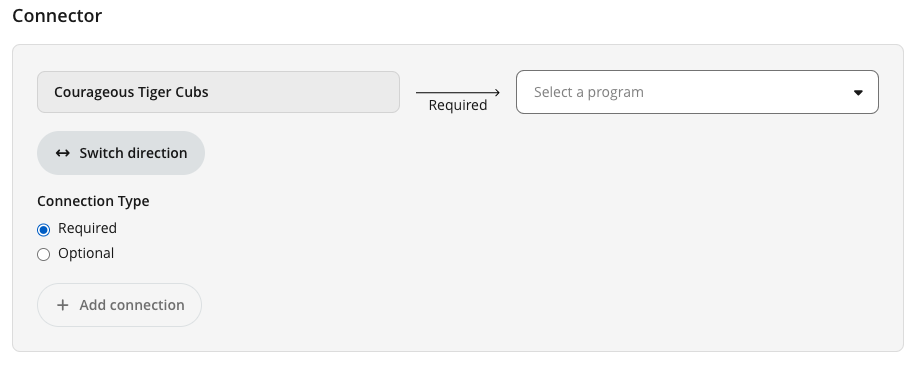
To connect programs together:
Open Manage Programs in Institution Settings
Go to the program you want to edit
Navigate to the Pathway Builder tab
Select another program from the searchable dropdown
Define the relationship:
Required – learners are expected to complete this program before progressing
Optional – learners are encouraged to take this program next
Choose the direction of the connection:
This program leads to another program
Or another program leads to this one
Add the connection
Save the tab by click on the button on the bottom right.
Once added, the connection will appear in a table and a preview diagram showing how the existing program is linked to others program.
How do I set up a diagram of connected programs on the Program Landing Page?
You control whether learners can see program connections on the program landing page.
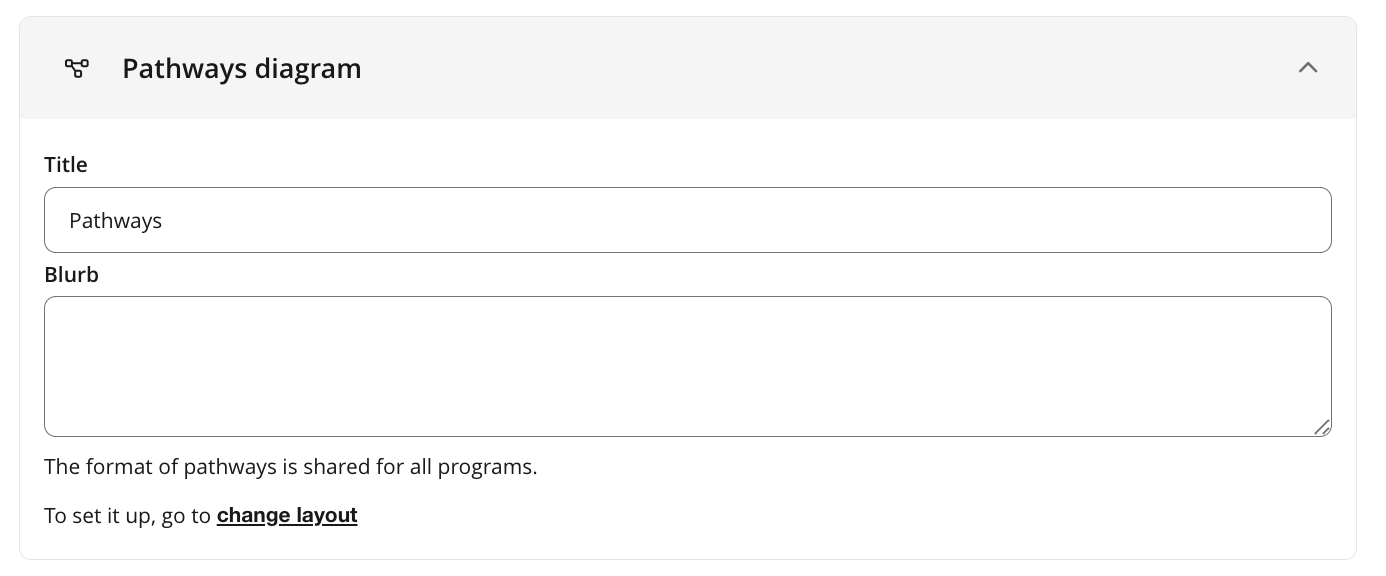
To add a title and blurb:
Open Manage Programs in Institution Settings
Go to the program you want to edit
Navigate to the Landing Page tab
Scroll down to the Pathways Diagram
Click Save
This is editable at each program landing page level
To configure the Pathways Diagram:
Open Manage Programs in Institution Settings
Go to the program you want to edit
Navigate to the Landing Page tab
Click on the Change Layout button -
❗Making changes here will affect all program landing pages across your institution.
Locate the Pathways Diagram settings
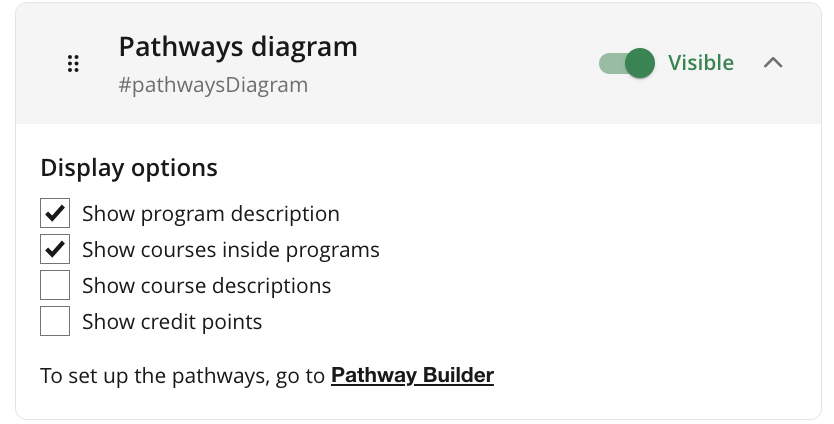
Choose to:
Reorder the placement of the section on the program landing page
Hide/Show the diagram
Hide/Show additional information about courses and programs
Click to Save
To preview the program landing page click on the "Preview landing page" button
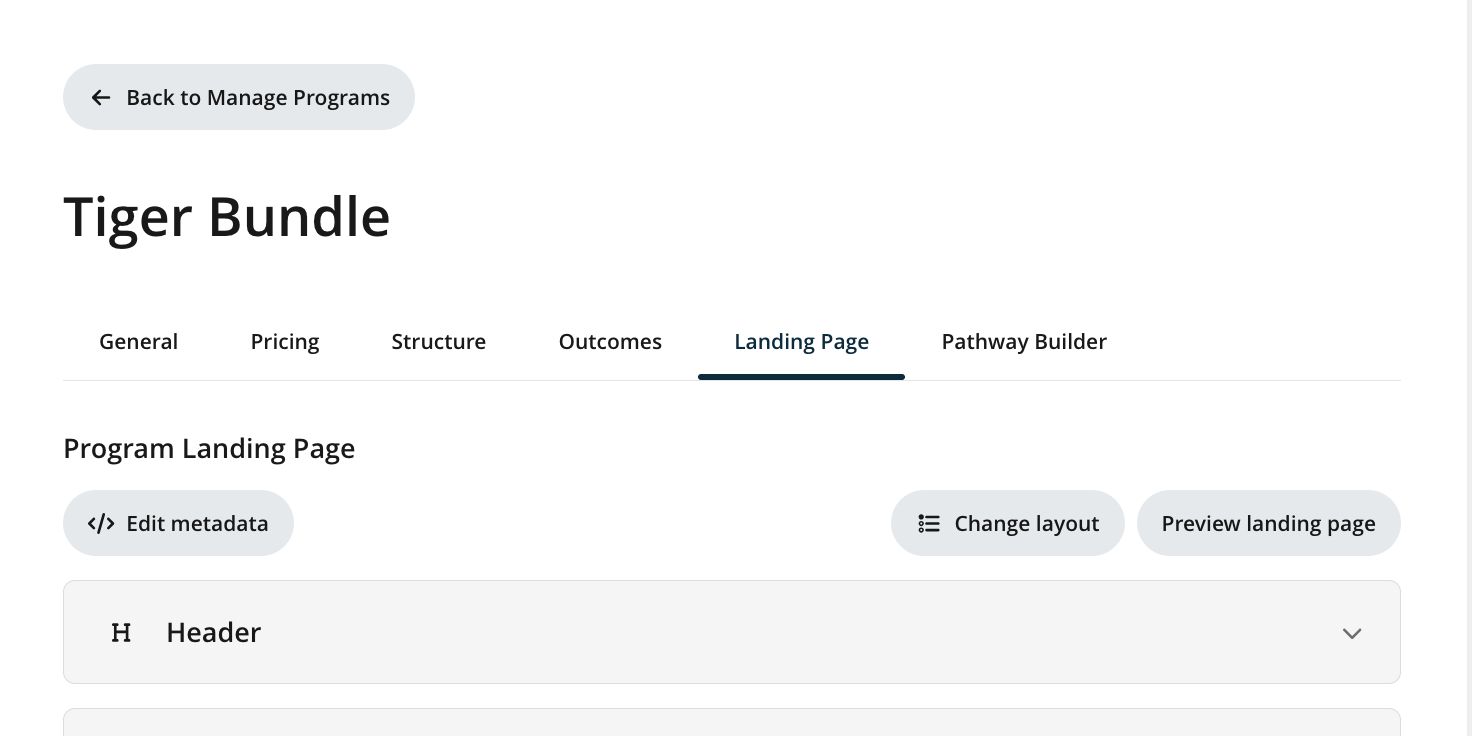
When enabled, learners will see:
Connected programs
Whether each program is required or recommended
A clear visual pathway showing how programs fit together
This helps learners understand the bigger picture before enrolling.