
OpenLearning AI Assistant - Outcomes Assessment Generator

What is the AI Outcomes Assessment Generator?
The AI Outcomes Assessment Generator is a tool that automatically creates evaluation rubrics for your learning outcomes based on a template and configuration details you provide. Instead of building each rubric criterion one by one, AI generates a complete outcomes report with all criteria in a single step. You can then review, keep, or discard the result before it's added to your Gradebook.
Things to check before setting up
- Before configuring Gradebook, you must first have set up the correct permissions in roles Learn more about roles
- You must also have specified your course outcomes. Learn more about course outcomes
- Ensure your content and activities are tagged to the relevant course learning outcomes. Learn more about tagging
How do I use the AI Outcomes Assessment Generator?
Step 1
Go to Assessment > Gradebook

Step 2
Click Add grade item > Outcomes report

Step 3
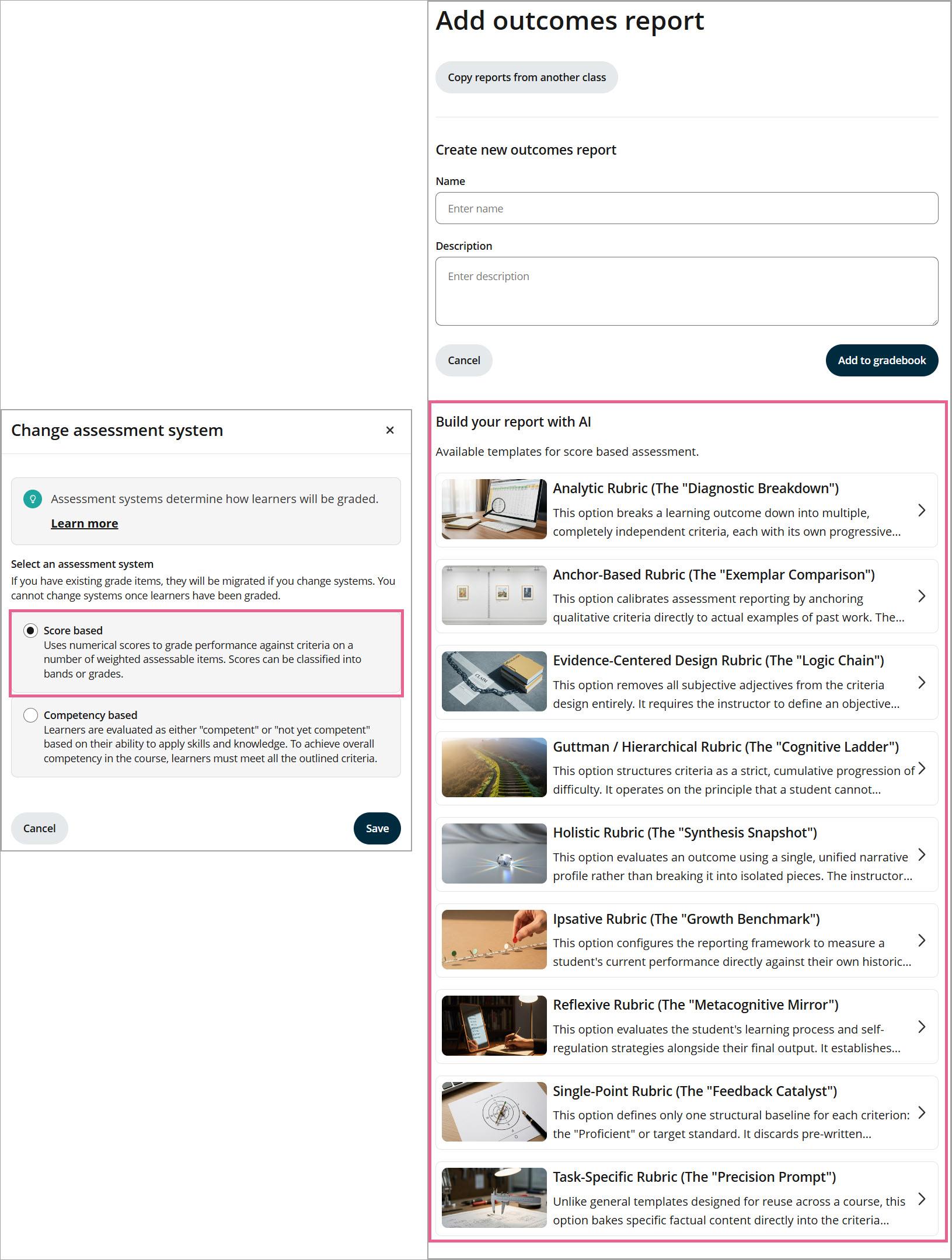
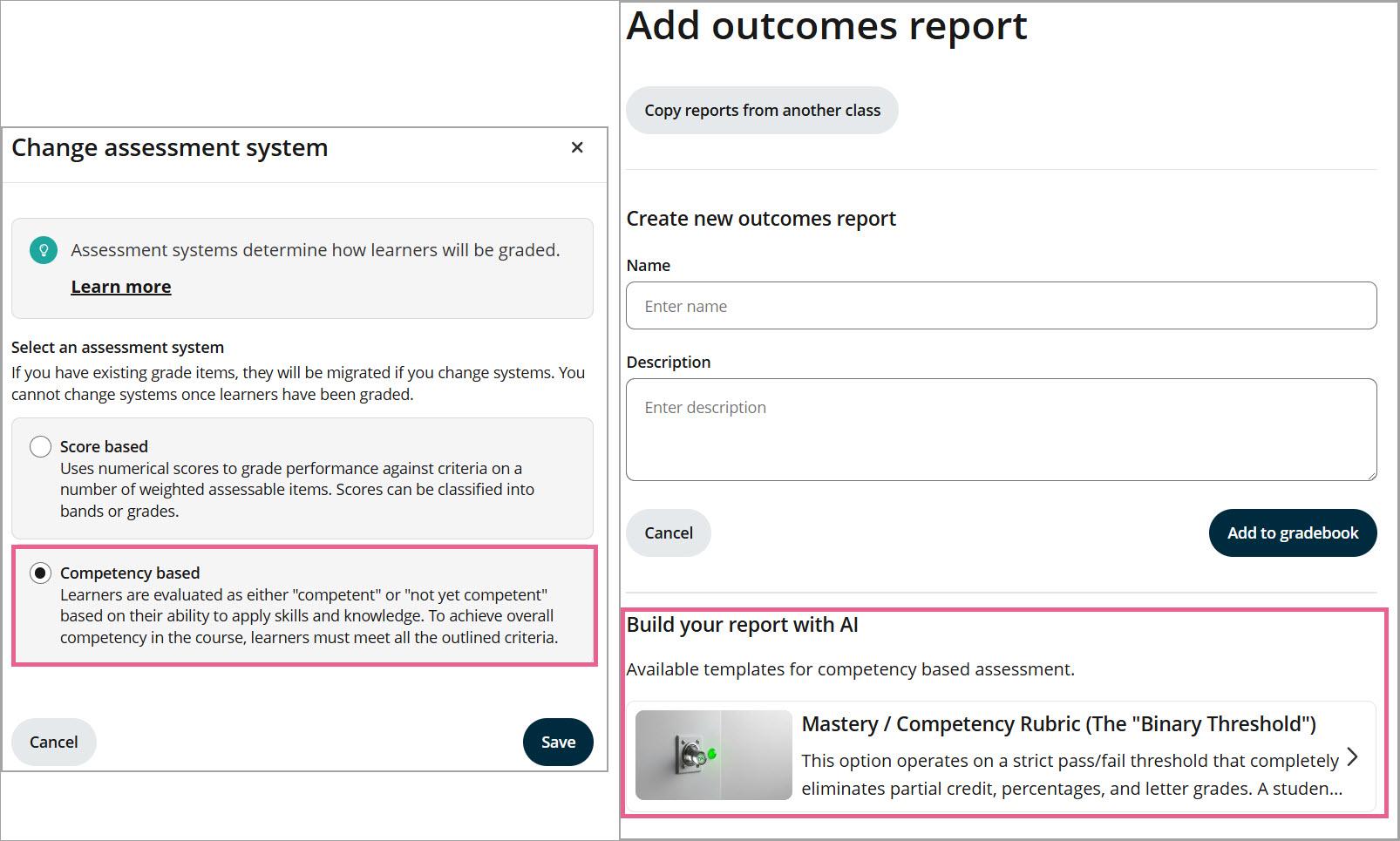
Select a template:
If your class has a score-based assessment system, choose an AI template from the list of 10 available options.
If your class is a competency-based assessment system, there’s only one template to choose from.
Select your chosen template. That will open the template configuration drawer.
Step 4
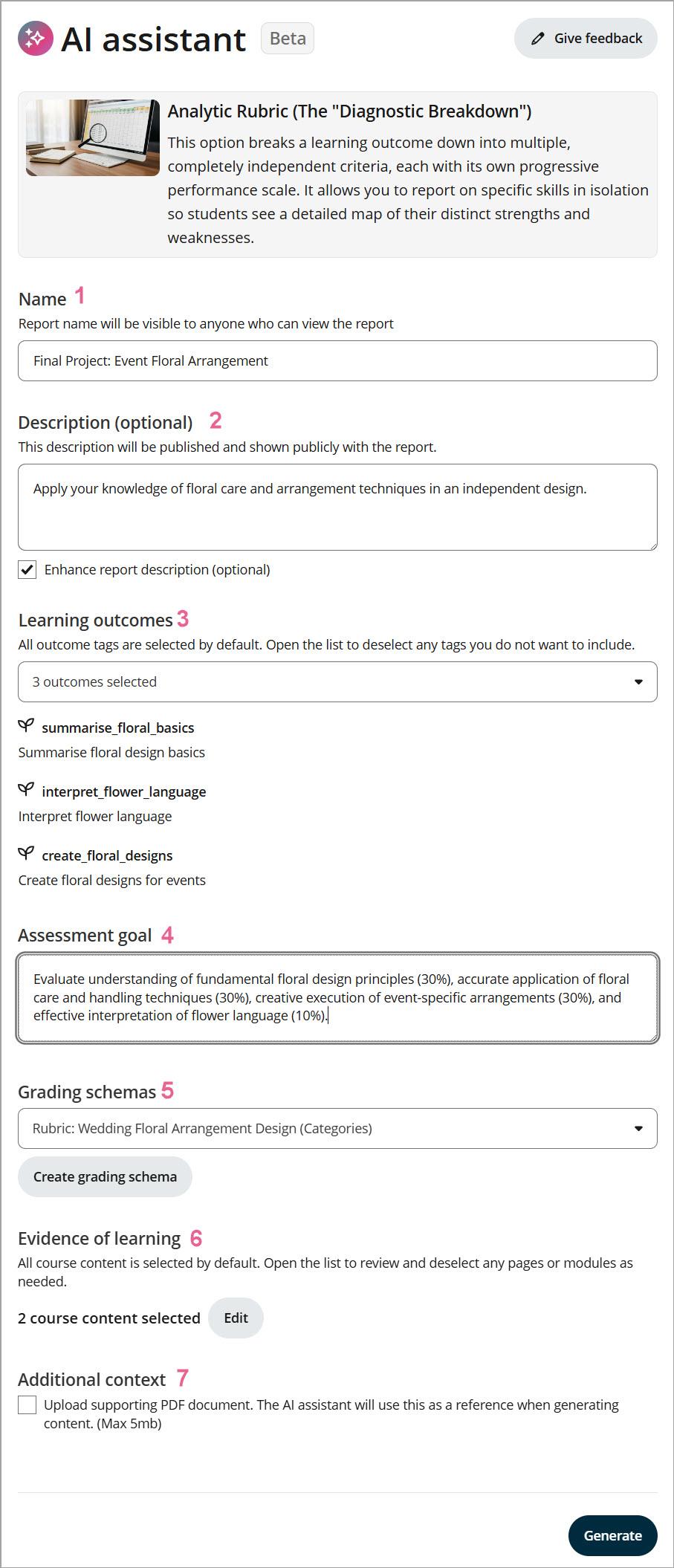
Fill in your report details in the configuration drawer, such as:
1) Enter a Report name.
2) Enter a Report description.
3) In the Outcomes dropdown, confirm which outcomes to include. All are selected by default, but at least one must remain selected.
4) In the Assessment goals field, describe what you're evaluating and how marks are weighted (e.g. "Evaluate understanding of basic algebra equations. Problem solving 40%, accuracy 40%, communication 20%.").
5) Choose a Grading scheme from existing ones in your class or create a reusable one on the spot (Bands, Categories, Numeric, or Pass/Fail).
Grade descriptor fields are optional but they can serve as a guide for AI generation.
Any schema you create during the setup flow are saved for future use and will automatically appear in the Grading Schema page. You will see them as one of the Grading schema options the next time you generate an outcomes assessment with AI.
Note: If your class uses a competency-based assessment system, the option to select a grading scheme will not be included. See: How do I set up and use a Grading Schema?
6) In the Evidence of learning, confirm which course content or page to include. The list is filtered by the outcomes that you've selected. All items are selected by default.
7) Under Additional context, upload a supporting PDF document (max 5MB) for the AI to use as a reference.
Step 5
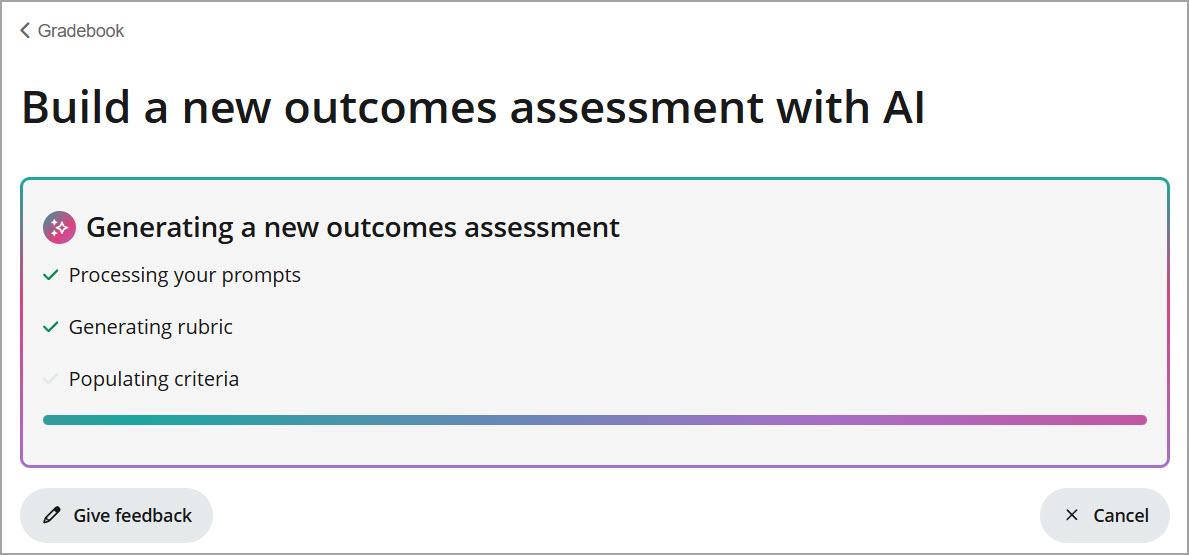
Click Generate. A loading screen will appear while AI creates your outcome report and rubric criteria.
Step 6
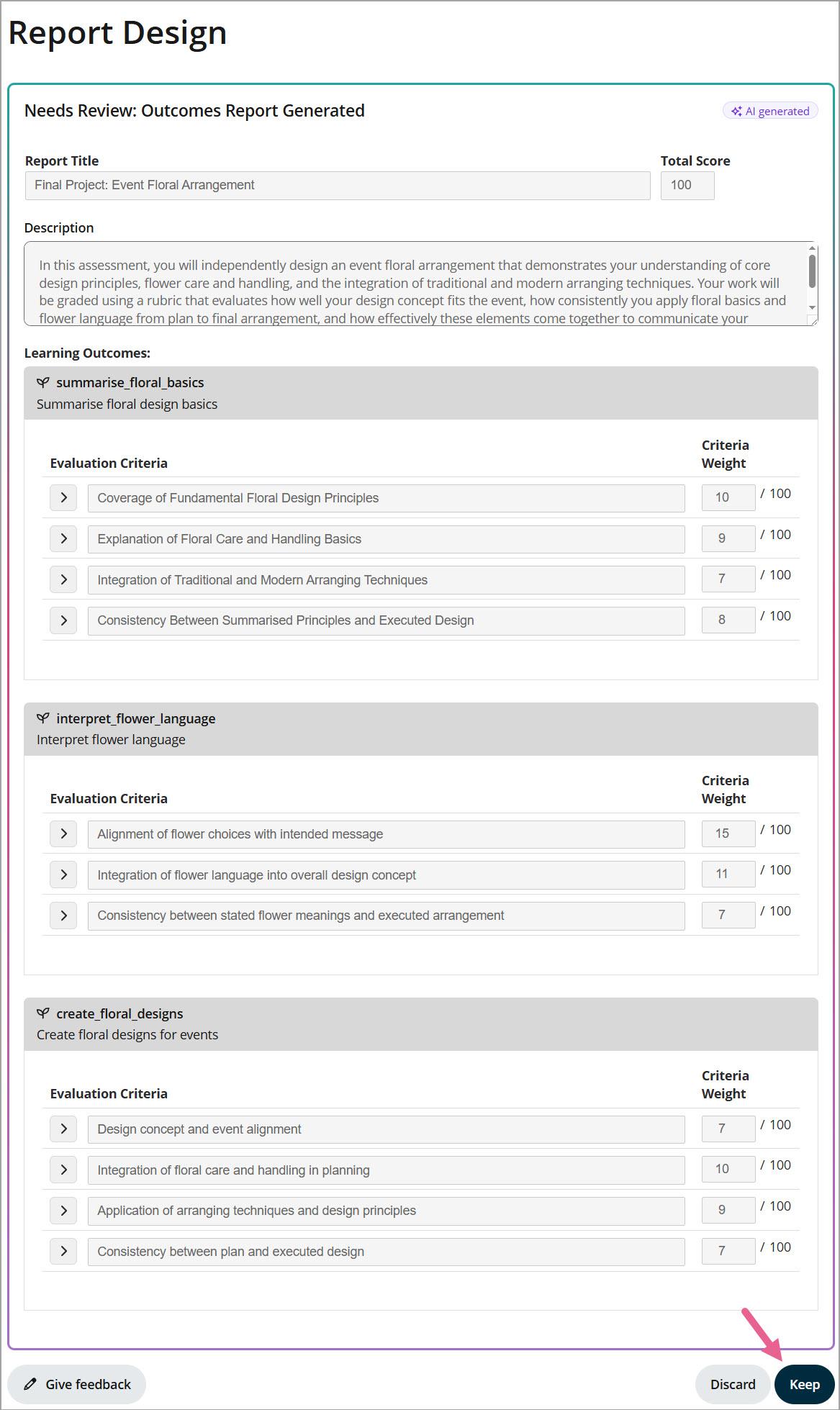
Review the generated report.
Once ready, click Keep to save it to your Gradebook, or Discard to remove it.
If you want to make edits to the content, keep the report first. Inline editing is not available at the review stage.
Step 7
After keeping your generated report, you can continue to edit and make changes as you see fit. See: How do I set up the report - the criteria, the criteria weight and assessment type?
Good to know
You must select at least one outcome to generate a report. If all outcomes are deselected, you'll see an error message when you click Generate prompting you to select at least one.
Editing is only available after you keep the report. The review screen is for approving or discarding the AI output. To make changes to the criteria, click Keep first, then edit from within your Gradebook.
Any schema you create during the setup flow are saved for future use and will automatically appear in the Grading Scheme page. You will see them as one of the Grading scheme options the next time you generate an outcomes assessment with AI.
Related links
How do I set up and use a Grading Schema?
What is an Outcomes report on OpenLearning and where can you create them?
5 replies
-
done
-
It's goods
-
Very nice z
-
Good
-
Done