How to report widget scores in Outcomes Report?
What is Widget Score Reporting?
Widget Score Reporting is a capability that lets the platform capture granular, itemised scores from widgets — not just a single overall number. For example, a code submission post can now report separate scores for "Unit Tests," "Linting," and "Stress Tests" instead of lumping everything into one grade.
These individual scores (called score items) can then flow into assessments, reducing manual data entry for facilitators and giving institutions richer insight into learner performance.
Assessment Designers can map a specific score item to a criterion in an outcomes report.
What is a "score item"?
A score item is a single scorable dimension within a widget. Think of it as one row in a marking rubric that gets its score automatically.
For example, a Post widget with the code execution integration might have three line items:
- Functional Correctness Tests — out of 10
- Stress Test — out of 10
- Code Linter Report — out of 100
Each line item has its own name, maximum score, and value per learner.
What are Core, Custom, and Detected line items?
These are the three ways a line item can come into existence:
- Core: The default, primary score that every widget has out of the box (e.g., "Overall score" for a Post widget). It's always there; course authors don't need to set it up.
- Custom: A line item that a course author creates ahead of time by telling the system what to expect (e.g., "I know my webhook will send a field called 'Unit Tests'").
- Detected: A line item the system creates automatically when it receives a score it hasn't seen before. It just appears — no setup required.
If a course author later edits a Detected item (renames it, changes the max score, etc.), it gets promoted to Custom and stays that way.
How to set up
Widget level
Step 1
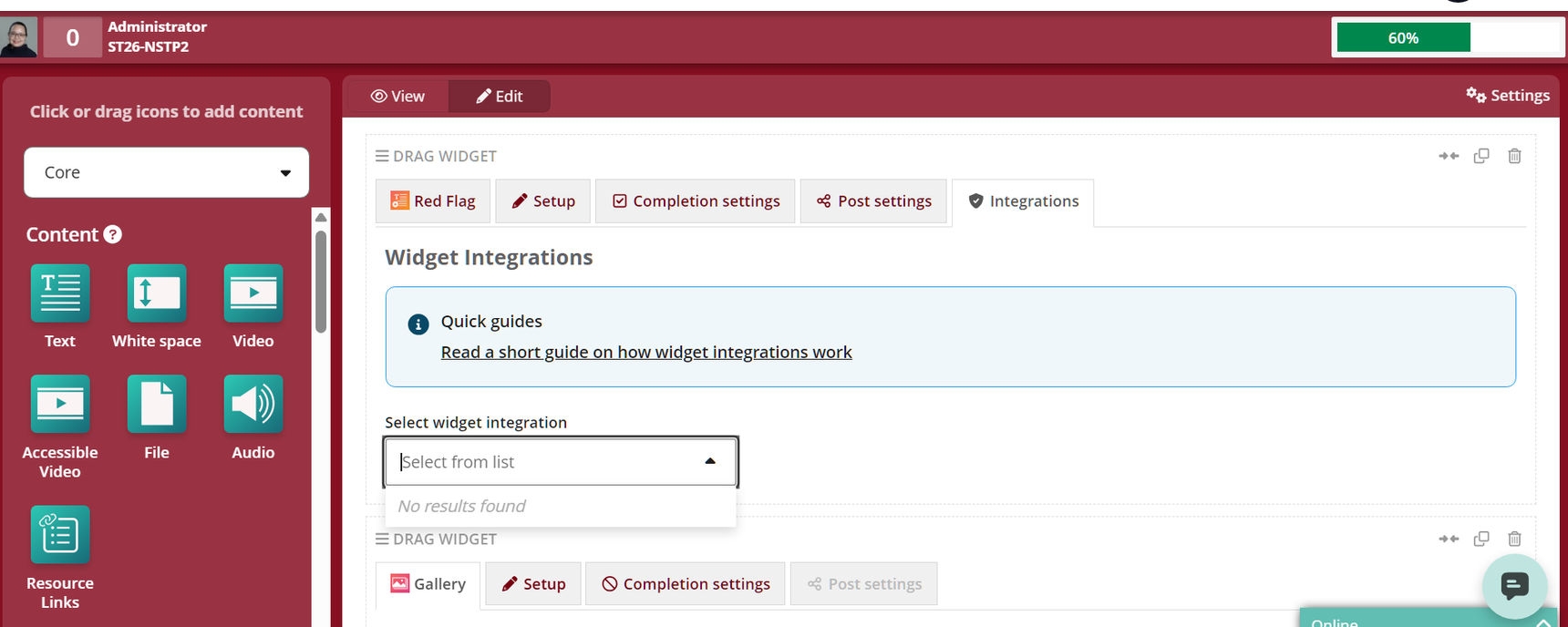
Go to Course Setup > Widgets and select a widget that supports line item reporting (e.g., a Post (Custom) widget set up with an integration that sends score items).
Step 2
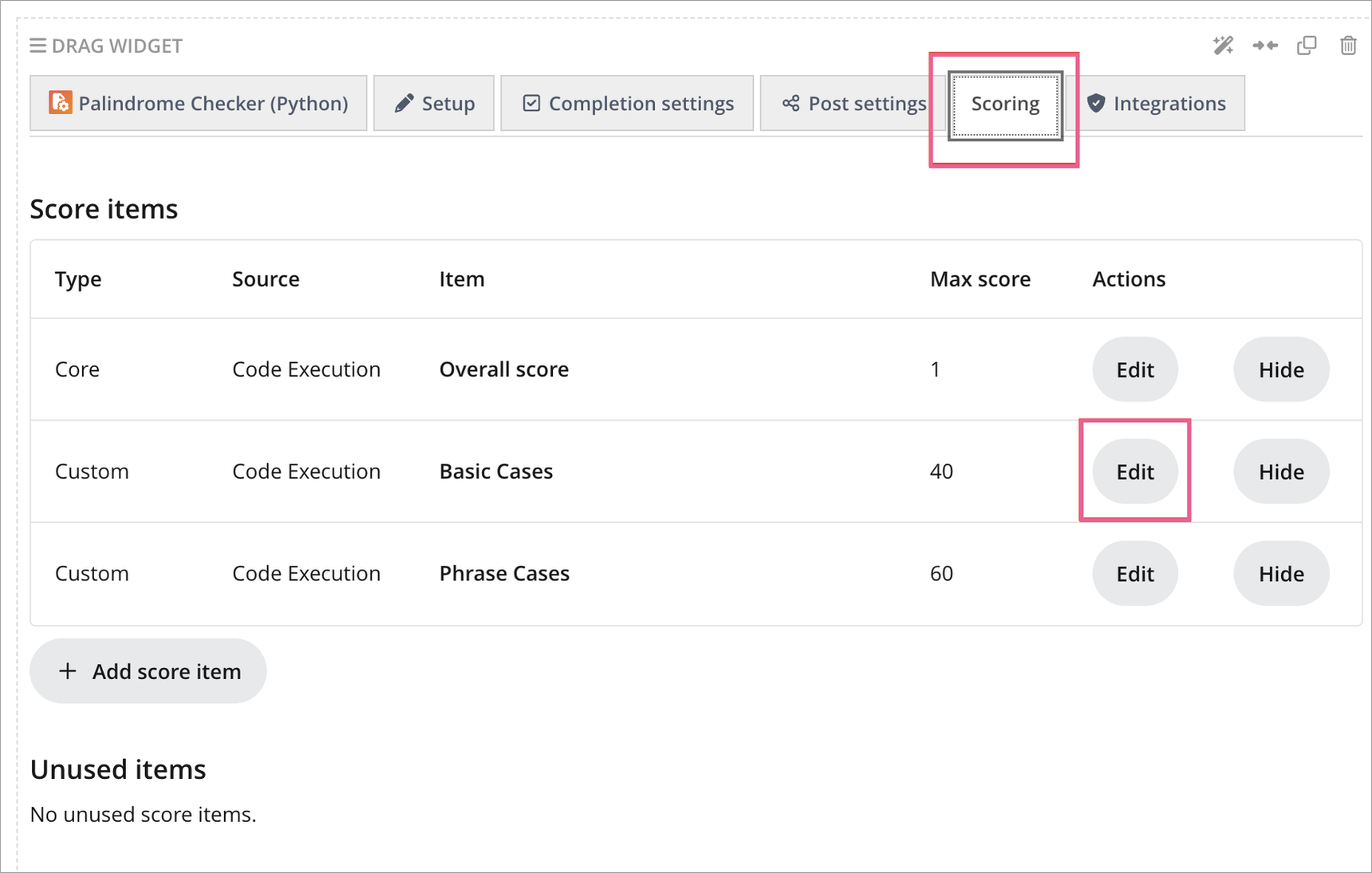
Click the Scoring tab.
Step 3
Review, add, and configure line items.
Note: A score item cannot be deleted. It can only be hidden so that it can no longer be used in assessments or reporting, but the underlying data is preserved.
What is "submission precedence"?
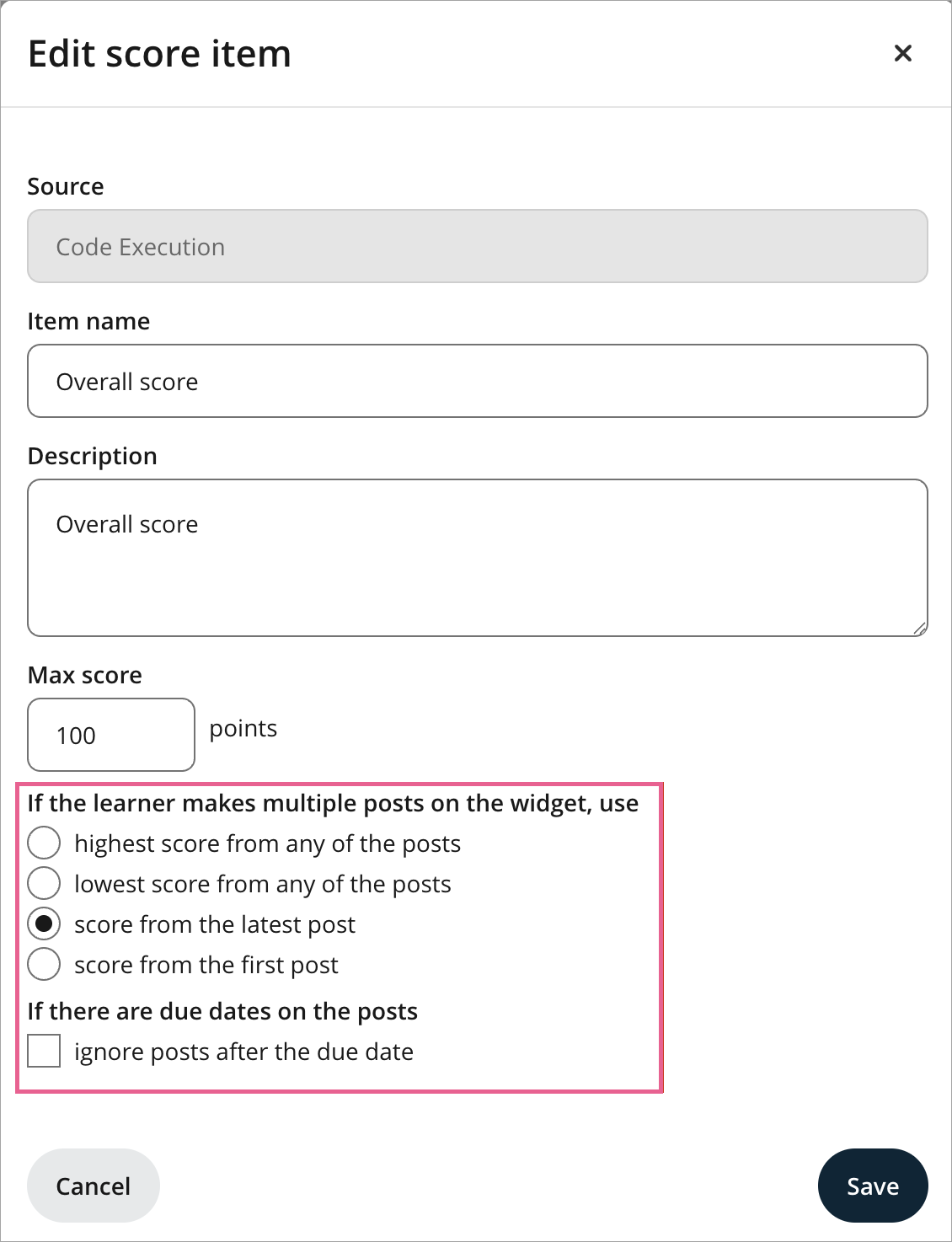
When a learner can submit multiple times, the course author chooses which submission counts:
Latest (default) — the latest submission wins.
Highest — the highest score across all attempts is kept.
Lowest — the lowest score across all attempts is kept.
Earliest — only the first submission counts.
Due date settings
Users can choose whether submissions made after the page due date count.
Outcomes report grade item setup
Step 1
Go to Assessments>Gradebook. Then choose Outcome report grade item>Criteria.
Step 2
Add a criterion under an outcome as per usual.
Step 3
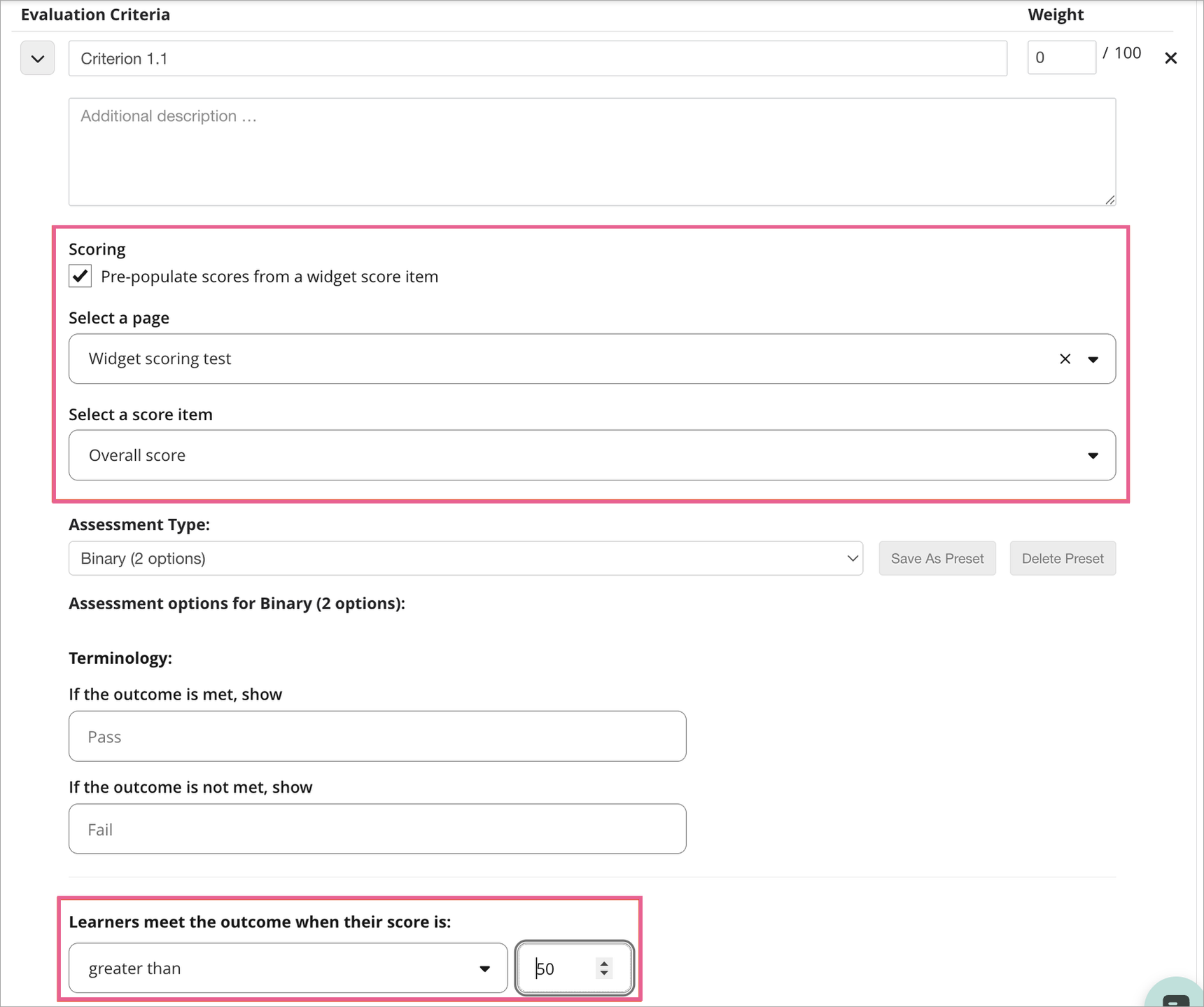
Click Pre-populate scores from widget score item.
Note: You can only map one line item to each criterion.
Step 4
Select the page and the relevant line item to pre-populate scores from.
Step 5
If you select the Binary (2 options) assessment type, set a score threshold to map the score automatically to the correct option.
Assessor view
When a learner submits and the widget produces scores, the Assessor can:
See that scores are being updated automatically on Assess Learner page
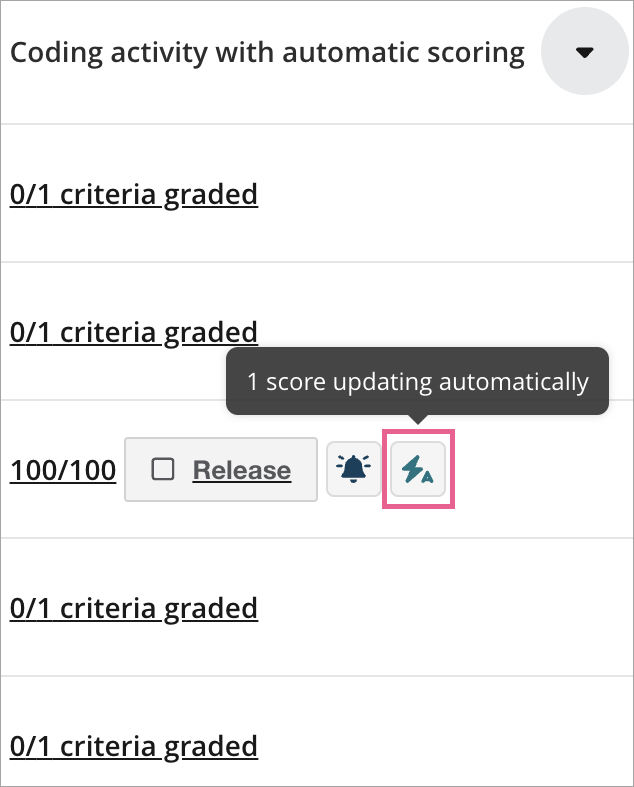
See a draft score on the mapped criterion in Outcomes report and review the draft score
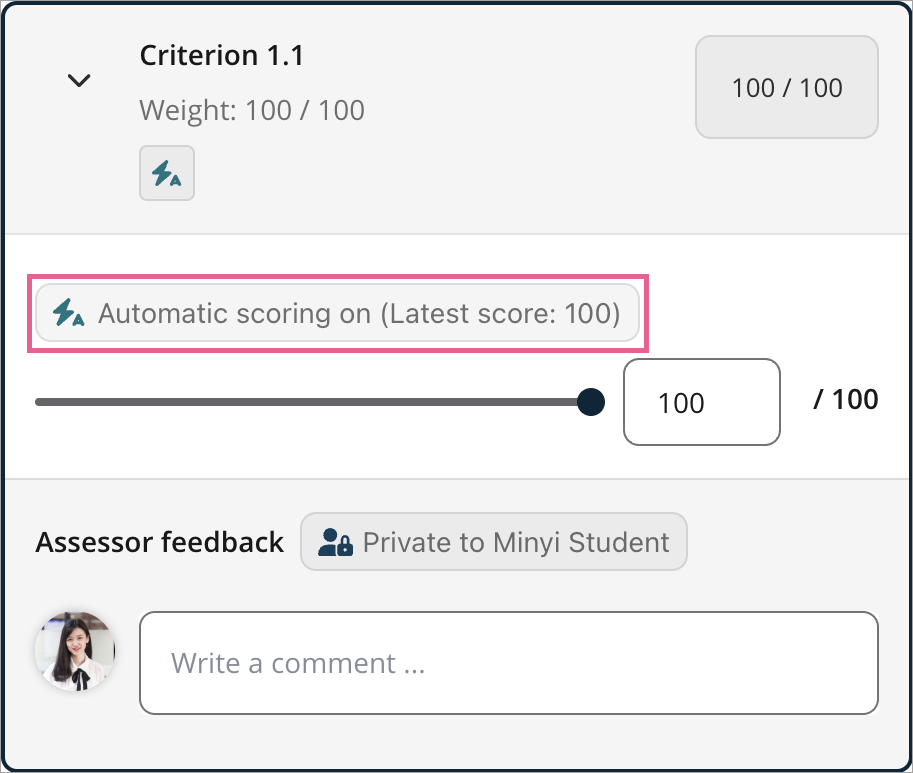
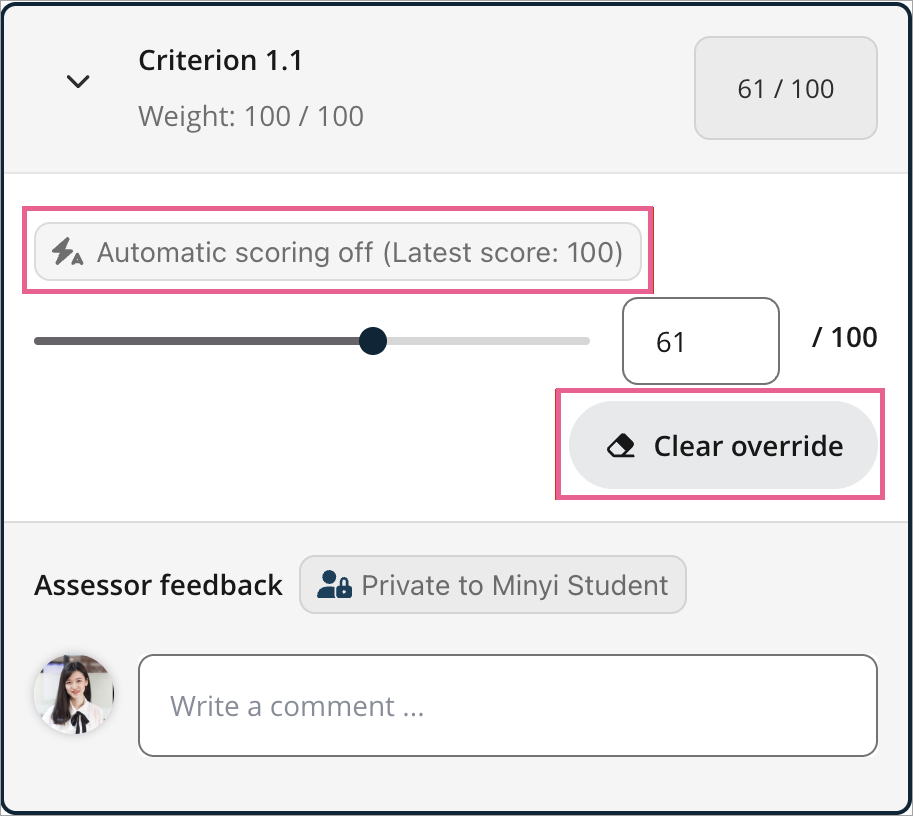
Override the draft score by making adjustments (the score will no longer automatically update if there are multiple submissions)
Clear adjustments so that the score can be automatically updated again
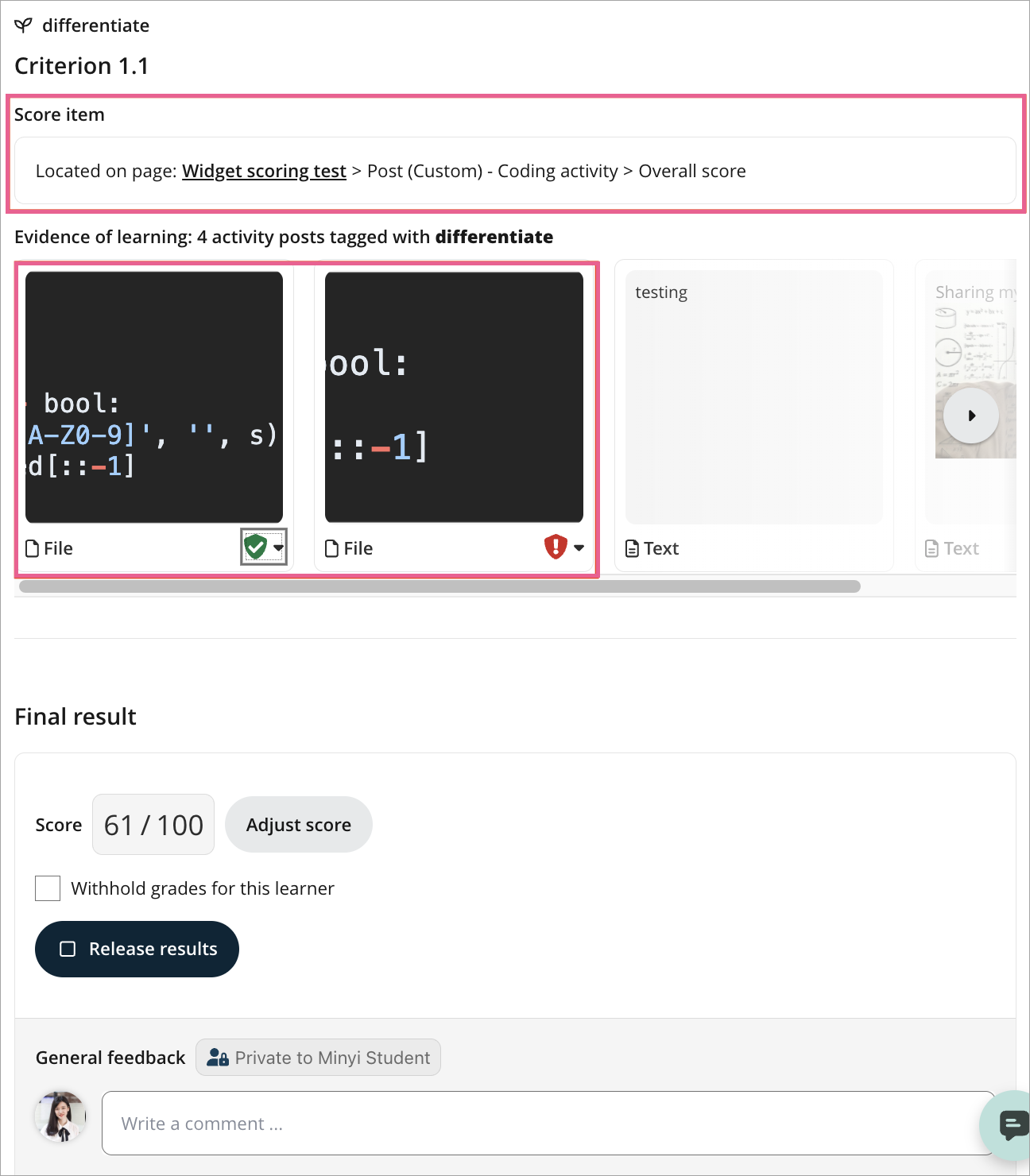
View the score item and post submitted to give the score
Related links
What is an Outcomes report on OpenLearning and where can you create them?
How to use the redesigned assessor workflow for Outcomes Report?
1 reply
-
Why can't I see the "Code Execution" Integration for all activity items?