
How do I use the code response type in an exam?
What is a Code Response Question?
A code response question is a question type that lets learners write and run real code directly inside an exam — no external tools needed. Assessment designers configure the coding environment, including starting files and run settings, while learners interact with a built-in code editor (IDE) to complete their answer.
Why use Code Response Questions?
Code response questions let you test real programming skills in a controlled, consistent environment — right inside the platform. Learners write and run actual code, and responses can be graded automatically or manually.
Use cases
- A programming instructor sets up a Python question with starter files and test cases, and the system auto-grades submissions based on code execution results.
- A data science course includes a question where learners write a script to process a dataset, with custom compiler options pre-configured by the educator.
How to set it up
For Assessment Designers: Creating a code response question
Step 1
Go to Assessment > Question Banks
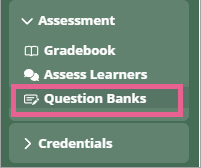
Step 2
Click on Create new bank. Enter a name for your question bank and then click Create.

Step 3
Click the newly created Question bank from the list. Click on Add question > Create new question

Step 4
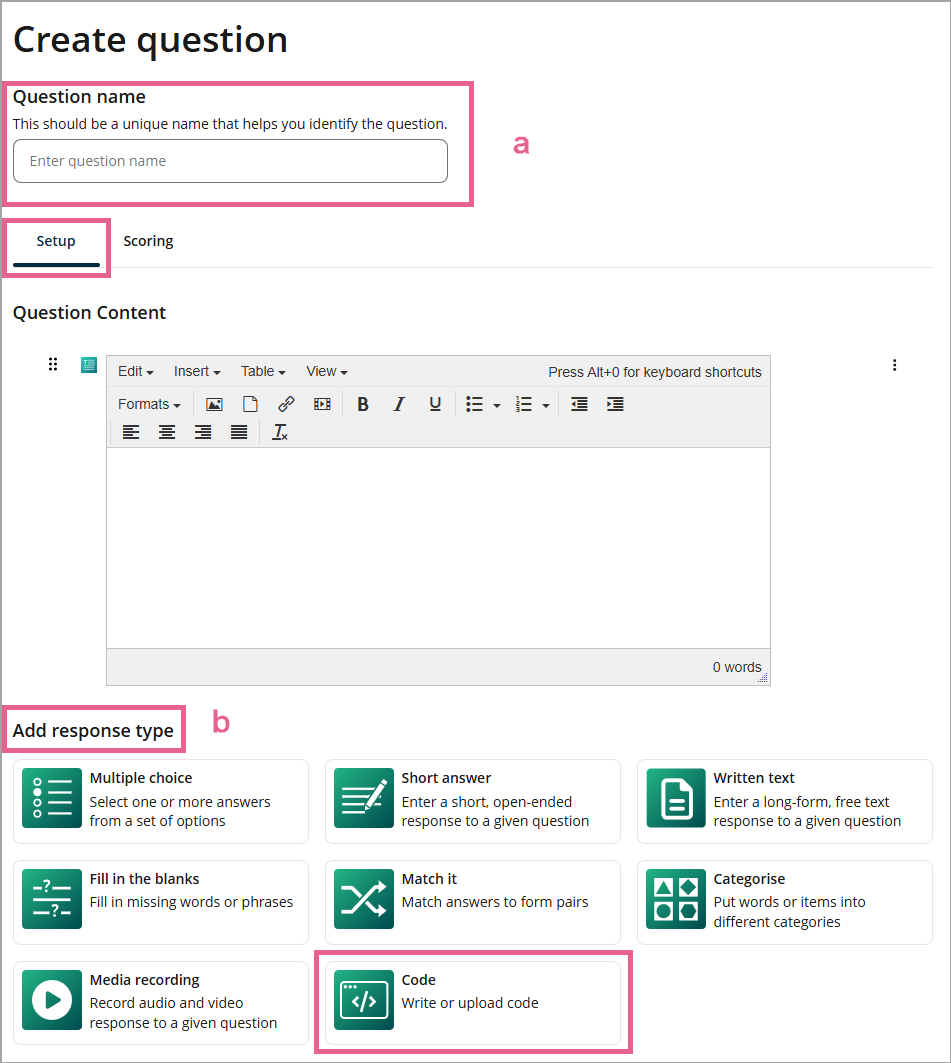
a) Enter a unique name for this question. This name is a unique identifier that helps you identify the question. It is not the question text.
b) Select the Code response type.
Step 5
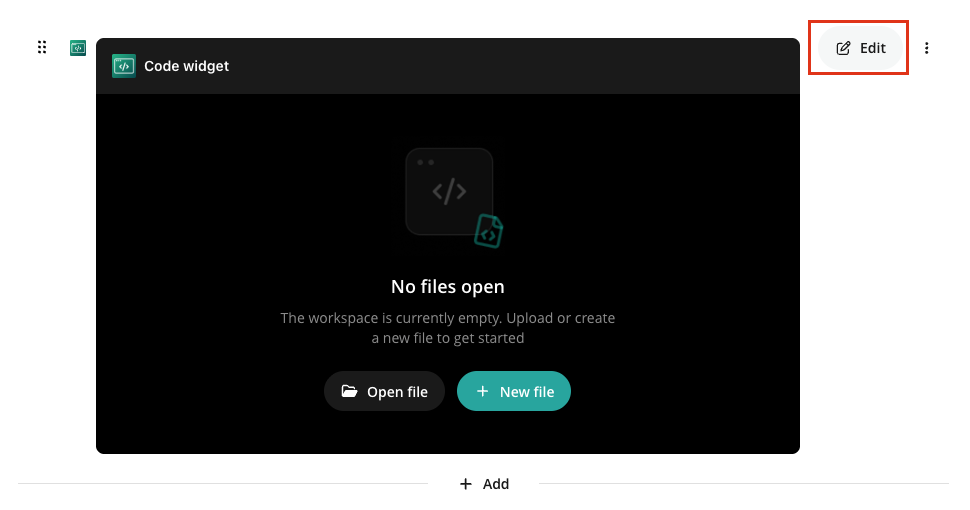
Click Edit to edit the response type.
Step 6
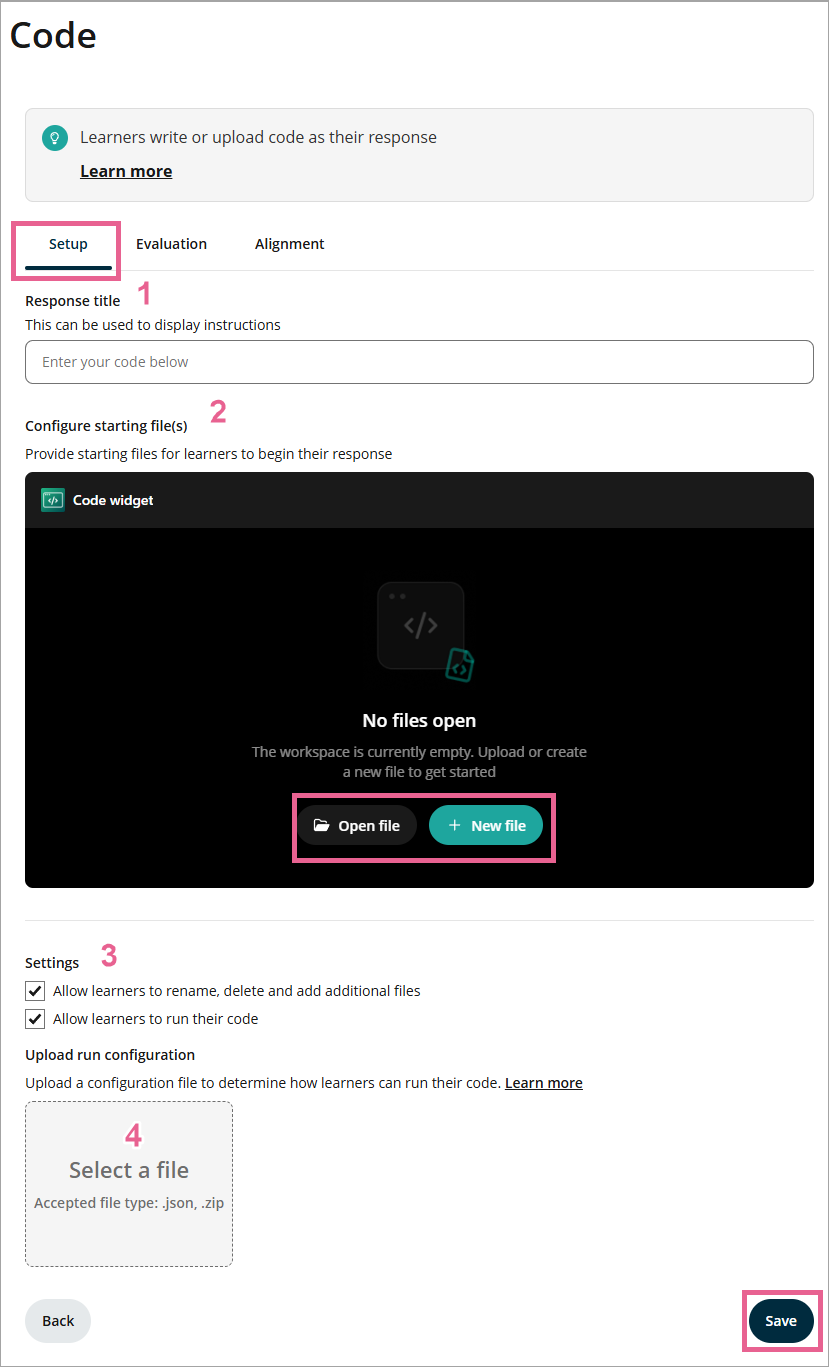
A drawer will open where you can configure your Code response type:
1) Response title: You can enter your question or instructions here.
2) Configure starting file(s): Set up the files learners see when they open the question. You can rename, delete, or create new files. These files can include:
- Starter code or boilerplate files
Dataset files (e.g., CSVs)
Helper functions
Project configuration files
3) Settings: Control what learners can do when they write their response. You may toggle the following options on or off:
- Allow learners to edit, rename or delete files
- Allow learners to run code
4) Upload run configuration: If learners are allowed to run their code during the exam, upload a Run Config to configure how the learner can run code within the interactive IDE environment. You must upload either:
- a ZIP configuration package that contains compilation and running scripts, test files, and a
config.jsonfile that defines how the activity runs, or - a JSON configuration file if no additional scripts or files (other than those provided by the learner)
For more information on how to configure a Run Config, see the Code Execution Documentation.
Step 5
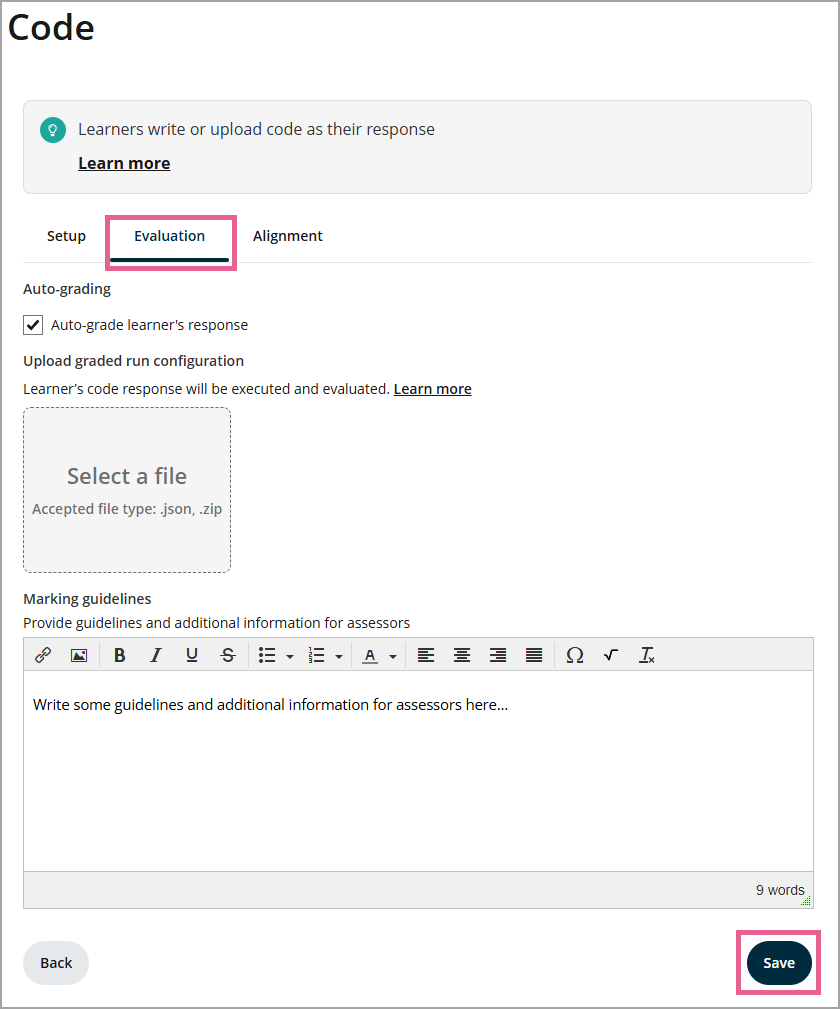
Go to the Evaluation tab to set up grading.
By default, auto-grading is enabled. You must upload a Graded run configuration file to enable auto-grading via code execution. You may upload either:
- a ZIP configuration package that contains your grading scripts, test files, and a
config.jsonfile that defines how the activity runs and reports results, or - a JSON configuration file if no additional scripts or files are required for grading.
For more information on how to configure a Grading Config, see the Code Execution Documentation.
If auto-grading is disabled, an assessor will need to enter the score manually after reviewing the learner's response. Add Marking Guidelines to support assessors during review. These guidelines will be visible to Assessors during grading.
Step 6
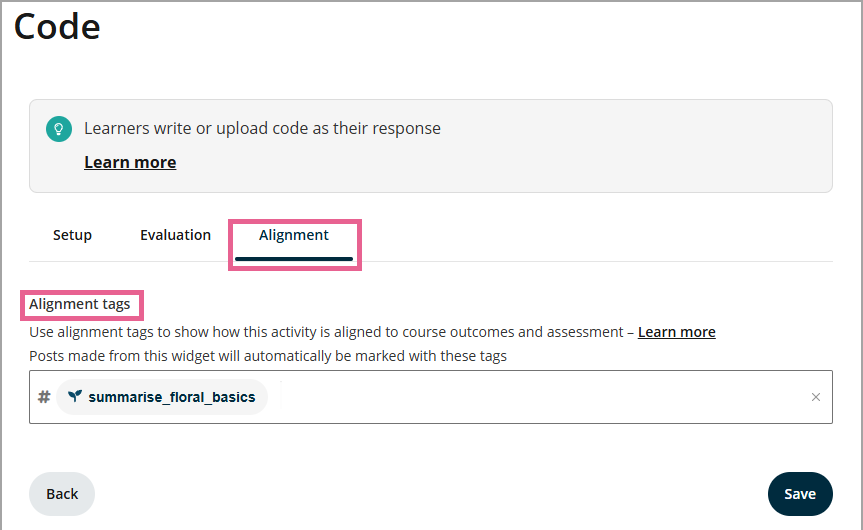
In the Alignment tab, you can also align the question to a Course Learning Outcome (CLO). Click Save to your setup.
Step 7
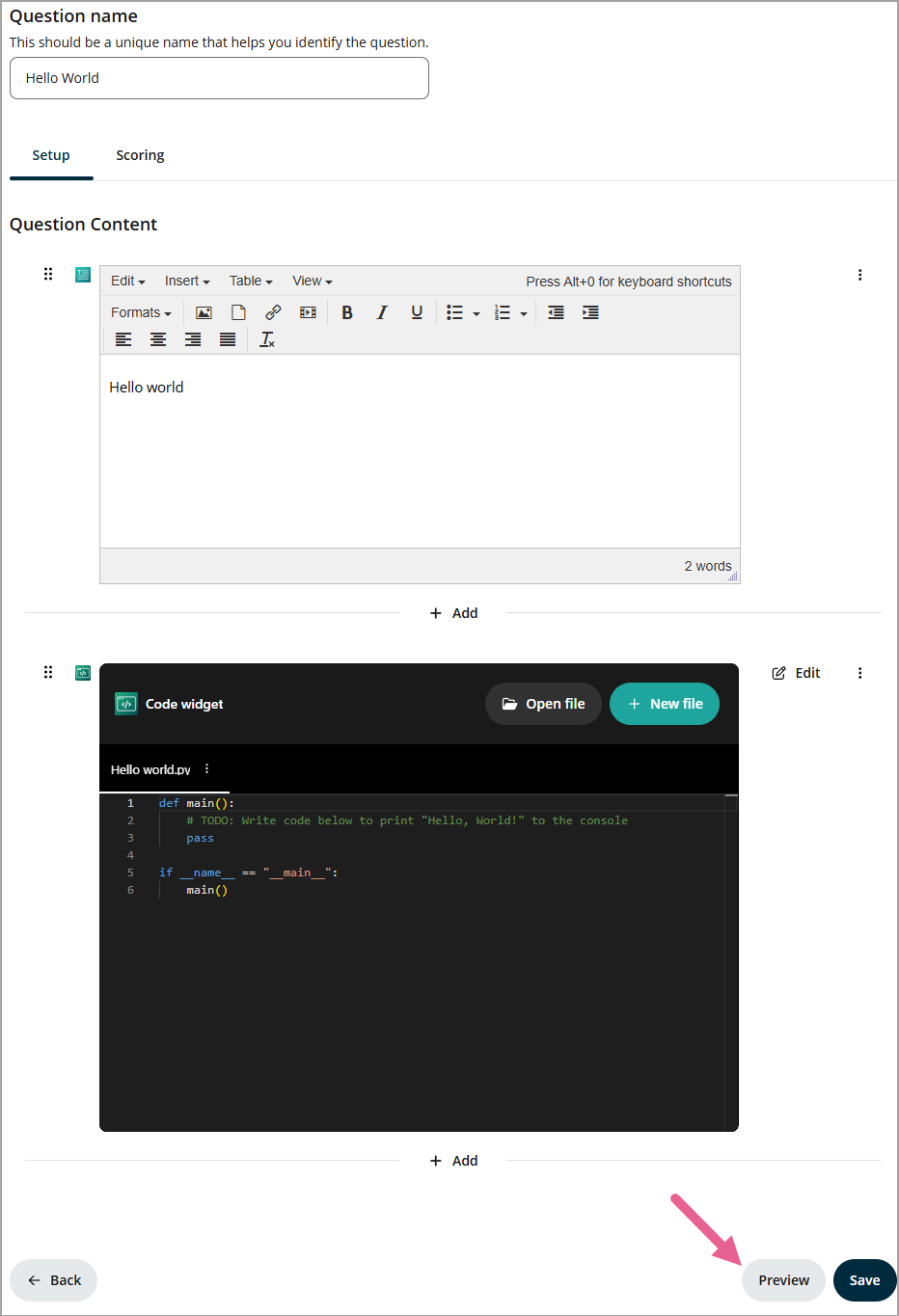
Select Preview to review how the question will appear to learners, then add the question to your exam.
Frequently asked questions
Does this replace the Post (Custom) widget with code execution?
No. The Code Response Type is specifically focused on secure, exam-native assessment workflows. The Post (Custom) widget remains active and should be used in pages.
What languages and runtimes are supported?
Support is dependent on the underlying code execution integration and the active run configurations you upload.
Can learners reset their workspace to the original starting files?
This functionality is not currently supported in this version. Learners should edit their code with care.