
0
How do you see OpenLearning in your preferred language?
OpenLearning supports multiple languages to make the platform more accessible for international learners. This guide covers how localisation works and which parts of the platform are supported.
What’s being localised?
- The platform interface (buttons, notifications)
- Menus and navigation labels
- Key Learning features (assessments, gradebook, exams)
Note: If the interface is still not displaying correctly, it may be because certain sections of OpenLearning are still in the process of being localised.
Follow the steps below to update your preferred language:
Step 1
Log in to your OpenLearning account.
Step 2
In the top-right corner of the page, click the language indicator (EN) next to your profile photo.

Step 3
From the dropdown menu, select your preferred language (if available).
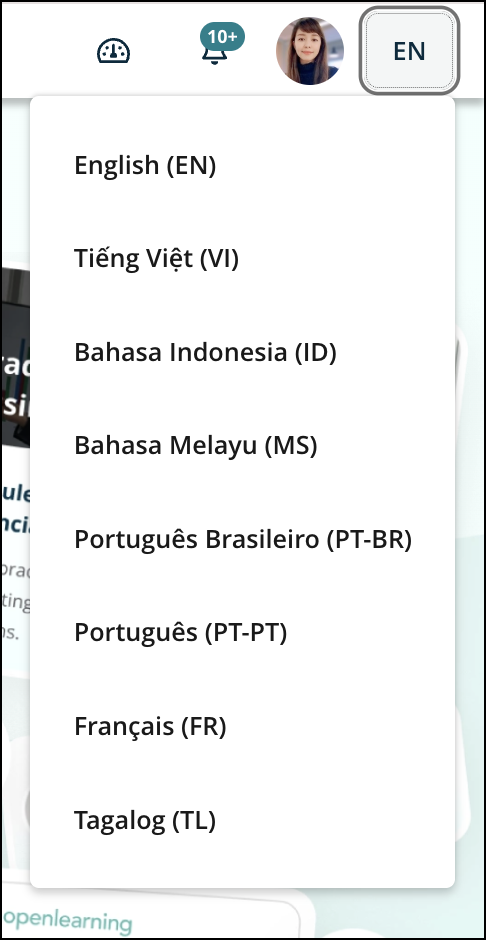
Step 4
Once selected, the OpenLearning interface will display in your chosen language where translations are available.

If the change does not appear immediately, refresh the page.
IMPORTANT:
- While system menus may be localised, course content (such as PDFs, videos, and readings) will remain in the language used when the content was originally created or uploaded.
- It is not currently possible to copy a course and translate the content to another language automatically.
- Comments and discussions from other users will not be translated automatically.
- Educators can create content in any language, but OpenLearning does not provide automatic translation for course materials.
Previous Article
Password complexity requirements
Next Article
Account Sign Up: Additional Verification Process