
Account Sign Up: Additional Verification Process
To maintain the integrity of the platform and protect against automated spam registrations, OpenLearning has introduced an additional email verification step for users during enrolment. This safeguard is triggered only when a user fails the initial reCAPTCHA challenge, ensuring that the account creation process is being completed by a genuine person rather than a bot.
Verification Flow Overview
The following outlines how the account sign-up verification process may occur for a user:
Step 1 - Sign-up attempt
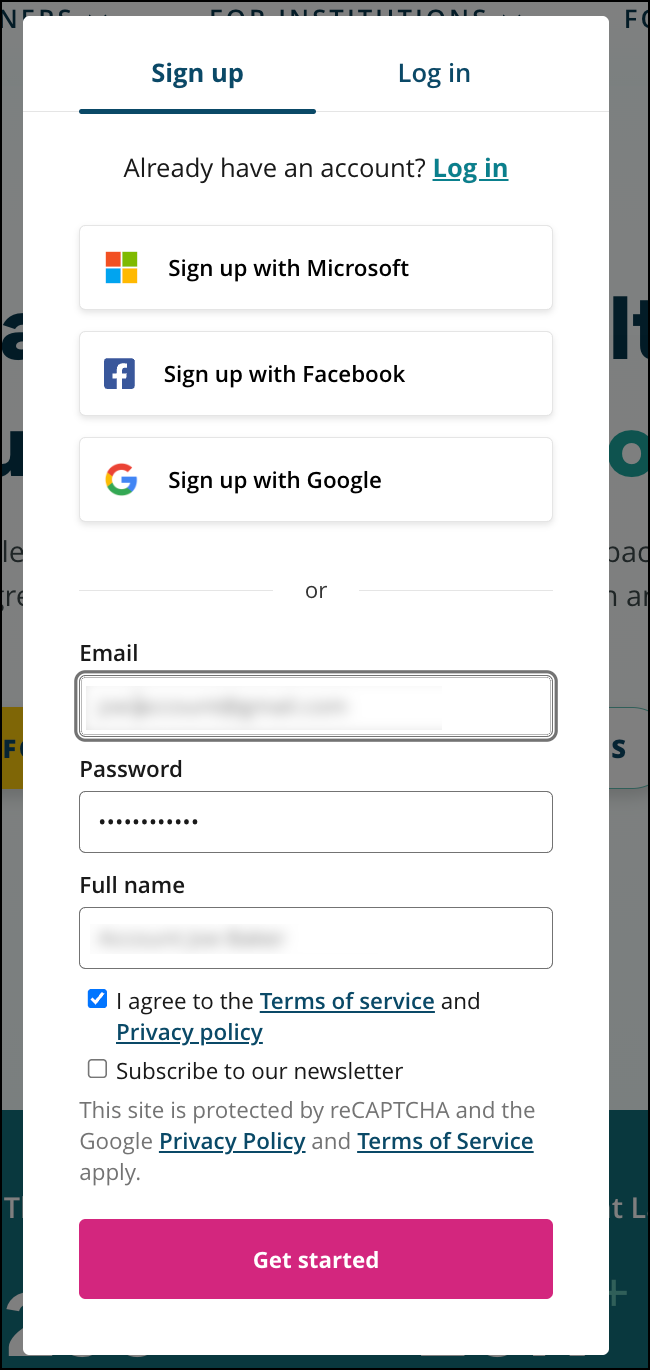
The user enters their details to create an account on OpenLearning.
Step 2 - ReCAPTCHA failure
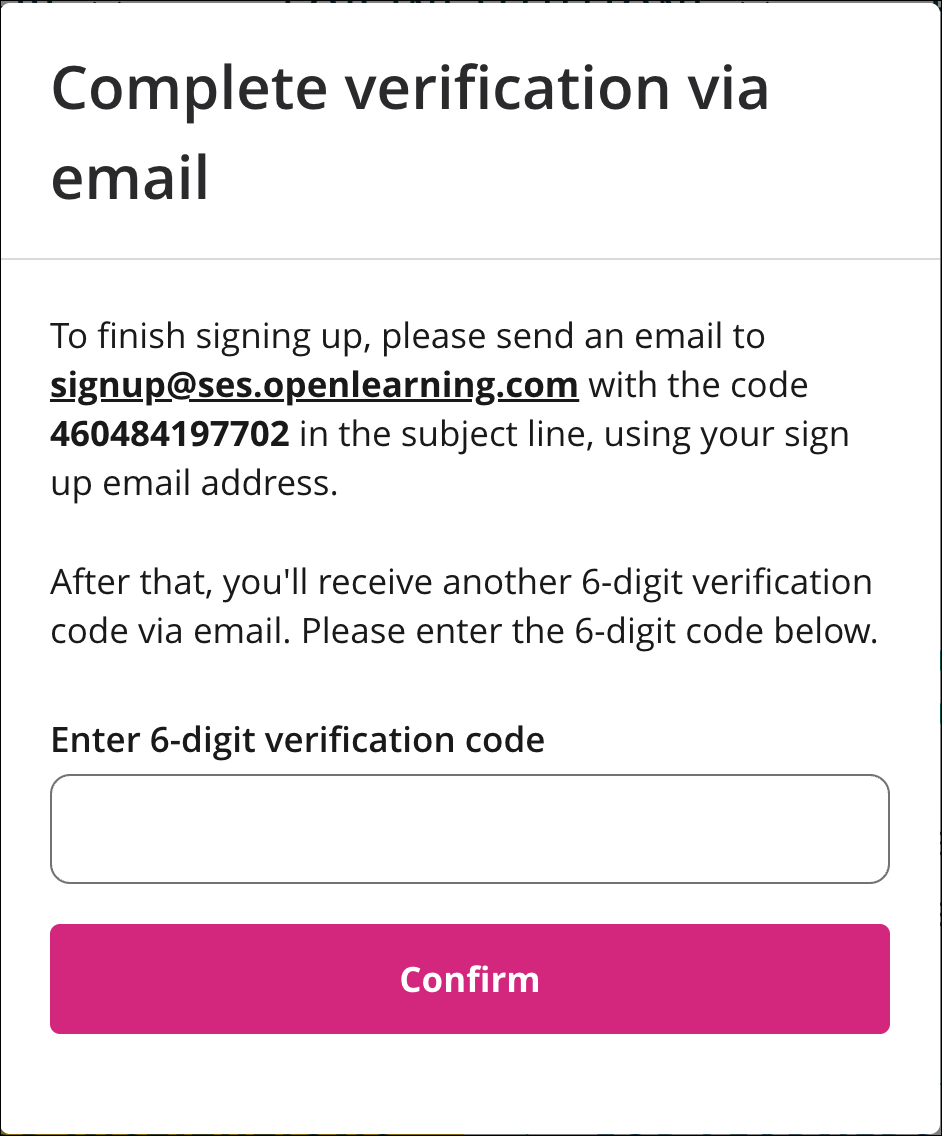
If the reCAPTCHA test is not passed, the system prompts the user to complete an additional email verification step. The user is instructed to send an email to signup@ses.openlearning.com with the generated unique code to be added in the email subject line.
Example:
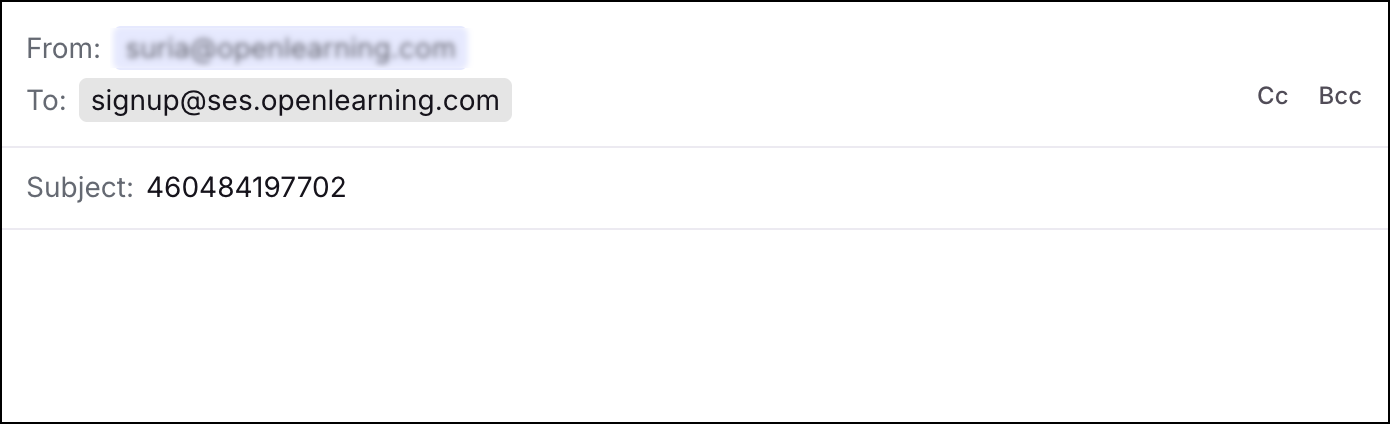
REMINDER: The code should be in the subject line. Content in the email body will be ignored.
Step 3- Receive verification code in your email
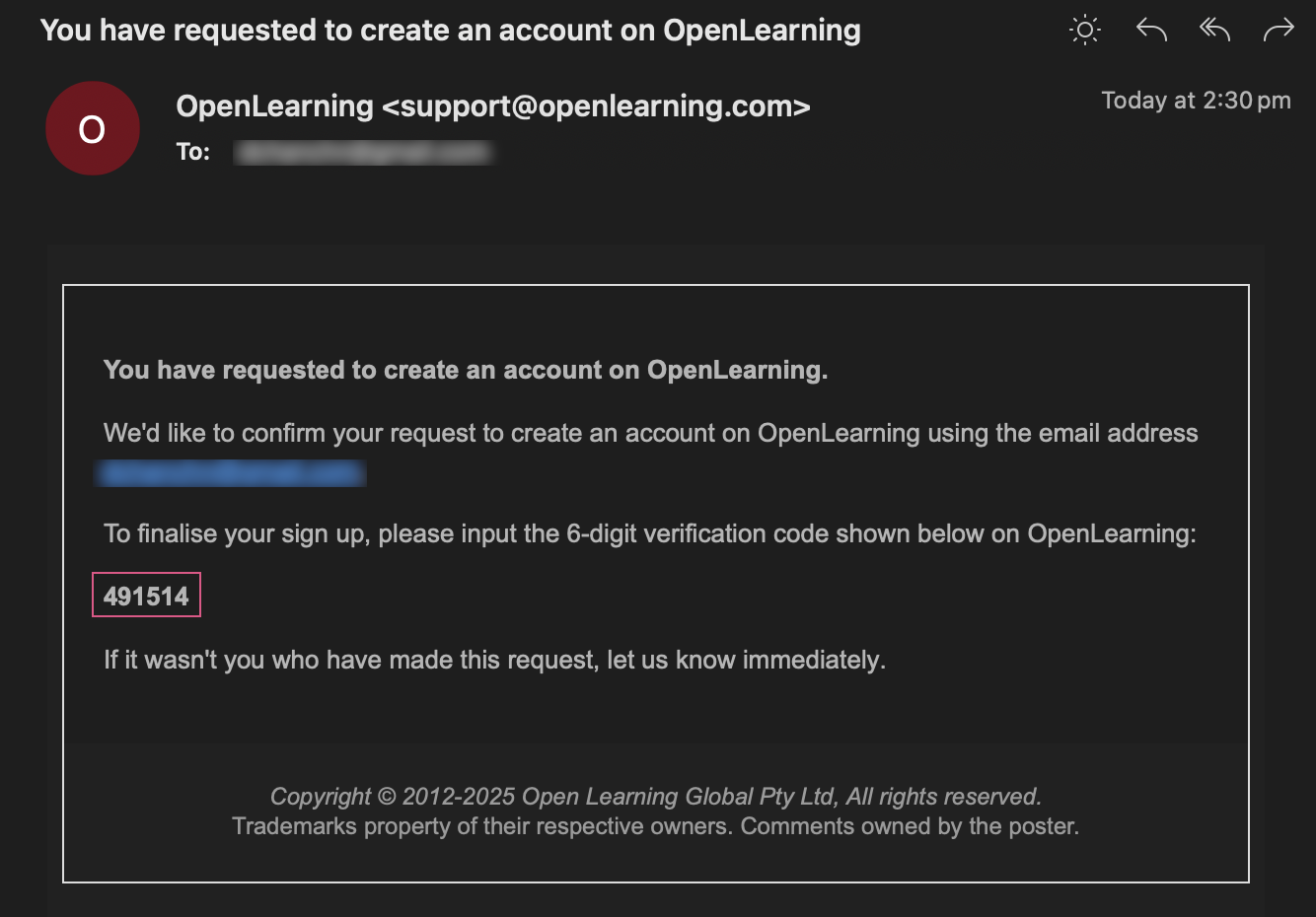
The system responds immediately with a 6-digit verification code sent to the user’s registered email address.
Step 4- Enter the code
The user enters the 6-digit code into the verification window and clicks Confirm.
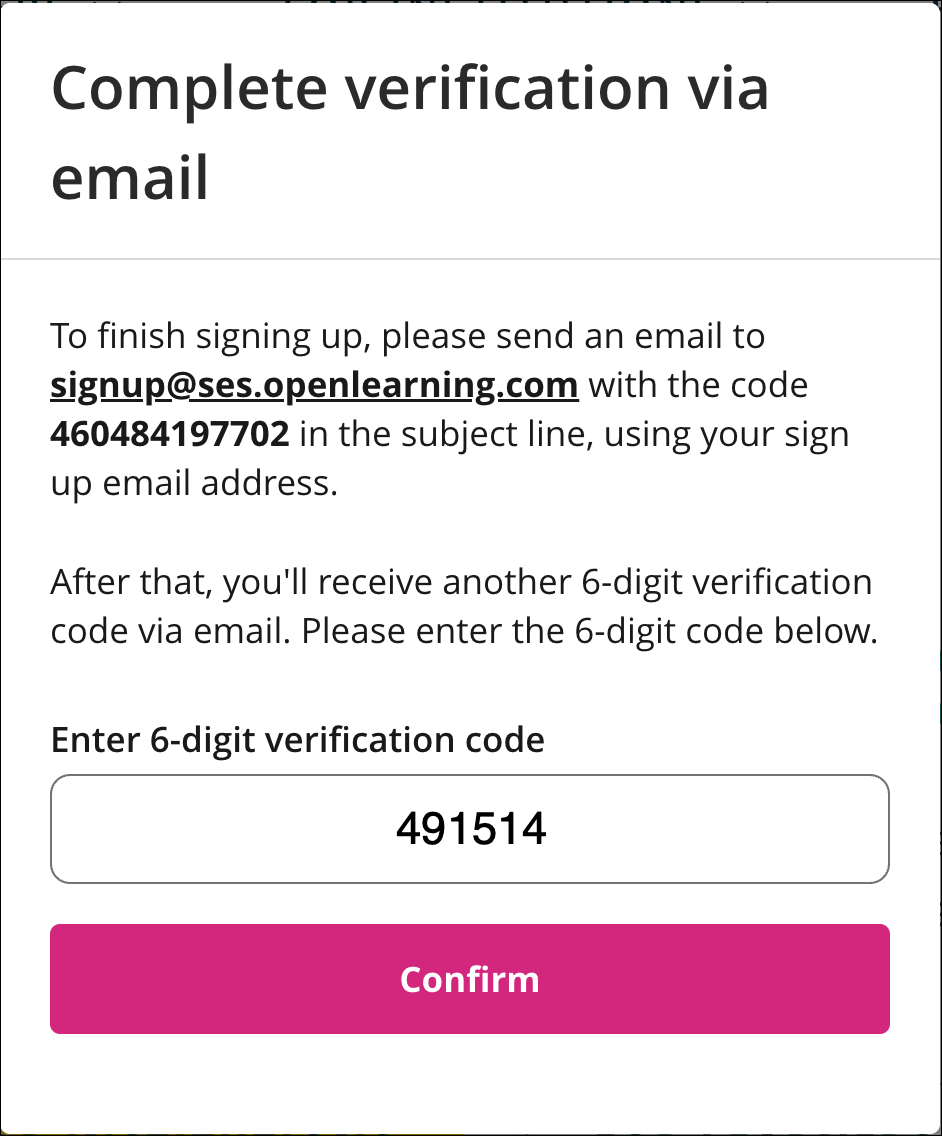
Note: If you accidentally closed the window earlier, you can restart the sign up process and you can still use the code.
Step 5- Account created
Once the code is validated, the account is successfully created and the user can proceed to log in and enrol into courses.
Institutional Accounts
For institutions managing large groups of learners, the verification process can be streamlined:
- Invite learners directly: Institutions can send invitations through the portal, allowing learners to bypass the manual verification step.
- Provision accounts in advance: Administrators can pre-create accounts for learners based on institutional records, ensuring smooth onboarding without requiring individual verification.
For more details, please refer to our user enrolment guide here.
This approach minimises friction for legitimate learners while maintaining strong protection against spam accounts.
Troubleshooting Verification Emails
If you are experiencing issues or have not received your verification email, please follow these steps:
Check your junk/spam folder
Ensure the verification email has not been filtered into these folders.
Verify the correct email address
Make sure you are checking the inbox of the email address linked to the account you are signing up with.
If the email is still not found
Whitelist the email domain to prevent delivery issues, and check in with our Customer Success team for assistance.
If the code does not work
Confirm you are entering the code for the correct account associated with the email address where the code was sent.
If problems persist, please forward the issue details (preferably including the verification code email you received) to support@openlearning.com for further investigation and assistance.