Turnitin LTI 1.3 Tool Provider Integration with OpenLearning
OpenLearning supports multiple technologies to provide interoperability with other systems, tools, and apps. In this article, we will be covering the Learning Tools Interoperability version 1.3 (LTI 1.3) integration with TurnItIn, a plagiarism detector that identifies the similarity between students' assignments and other writings or published work.
Pre-requisite
- An OpenLearning portal subscription with access as an institution administrator in order to set up this integration for your courses.
- TurnItIn license with access as an administrator.
Configure LTI settings in TurnItin
Step 1
If you are part of a global institution, log in into your Turnitin account via turnitin.com. Alternatively, log in to turnitinuk.com if you are part of a UK institution.
Step 2
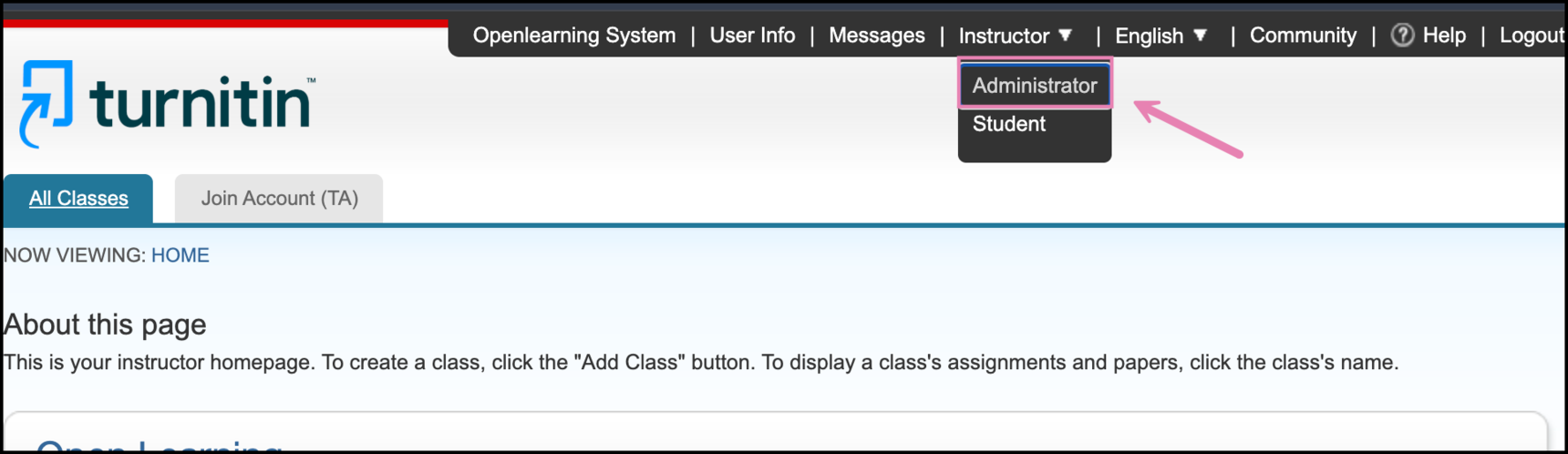
Once logged in, click the Instructor tab and select Administrator view from the drop down menu at the top of the screen if it's not selected yet.
Step 3
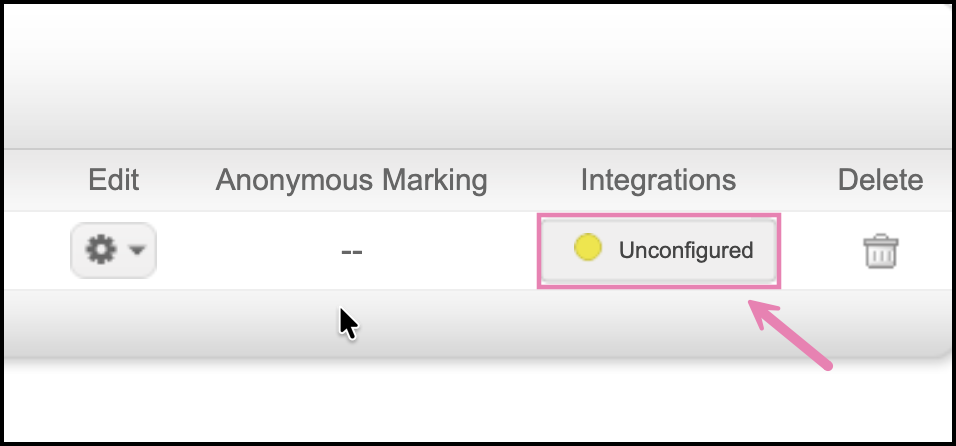
The Unconfigured button will appear in the Integrations column on the administrator homepage. * In this article, we assume you have not set up this yet and not configured.
Step 4
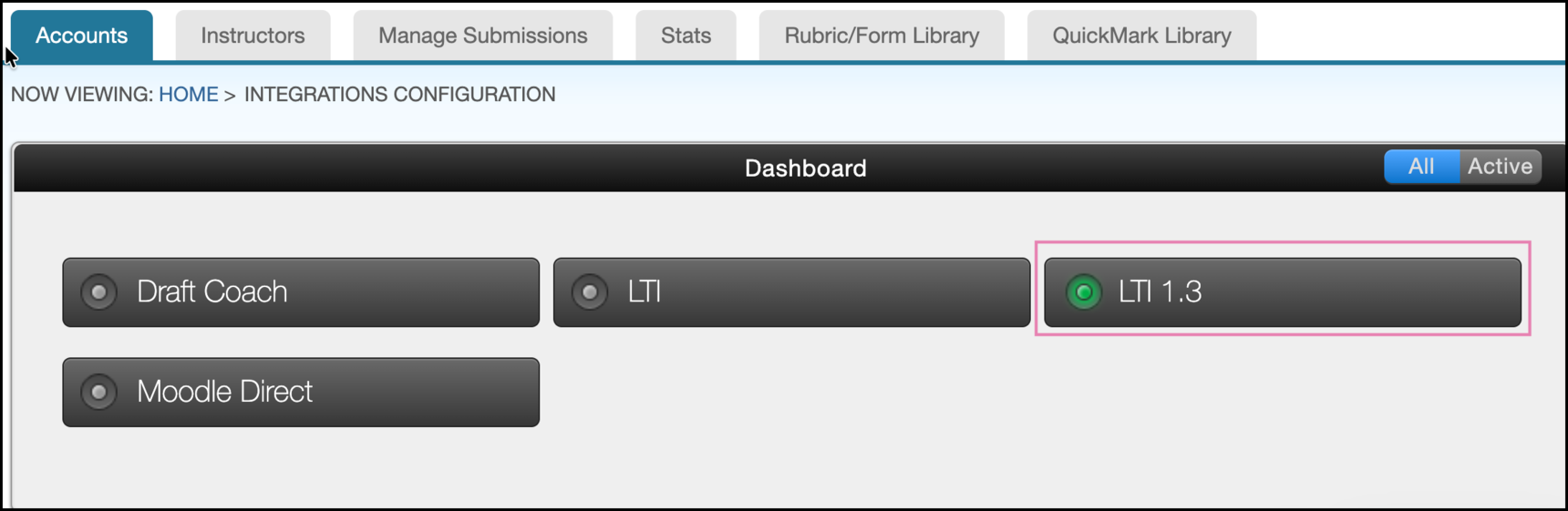
Select the LTI 1.3 from the integration dashboard configuration page
Step 5
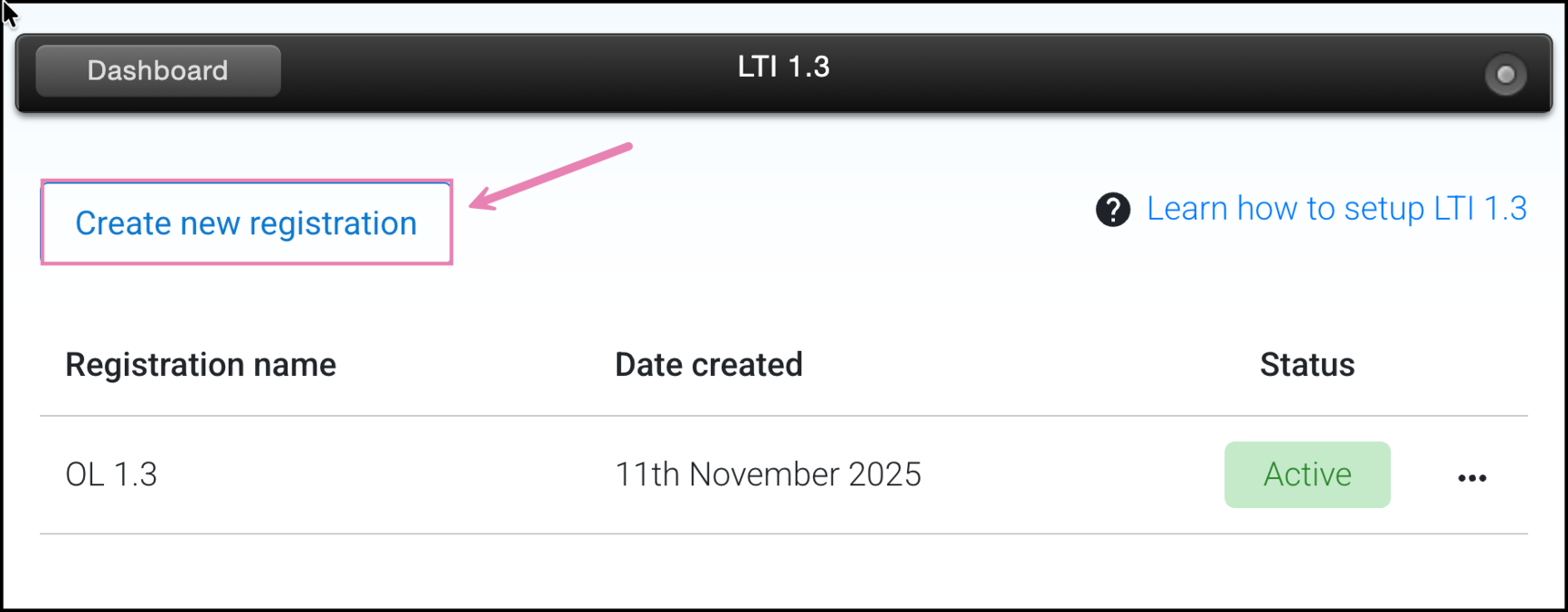
If you already have a pre-existing registration, select the Create new registration button from the registration dashboard.
Step 6
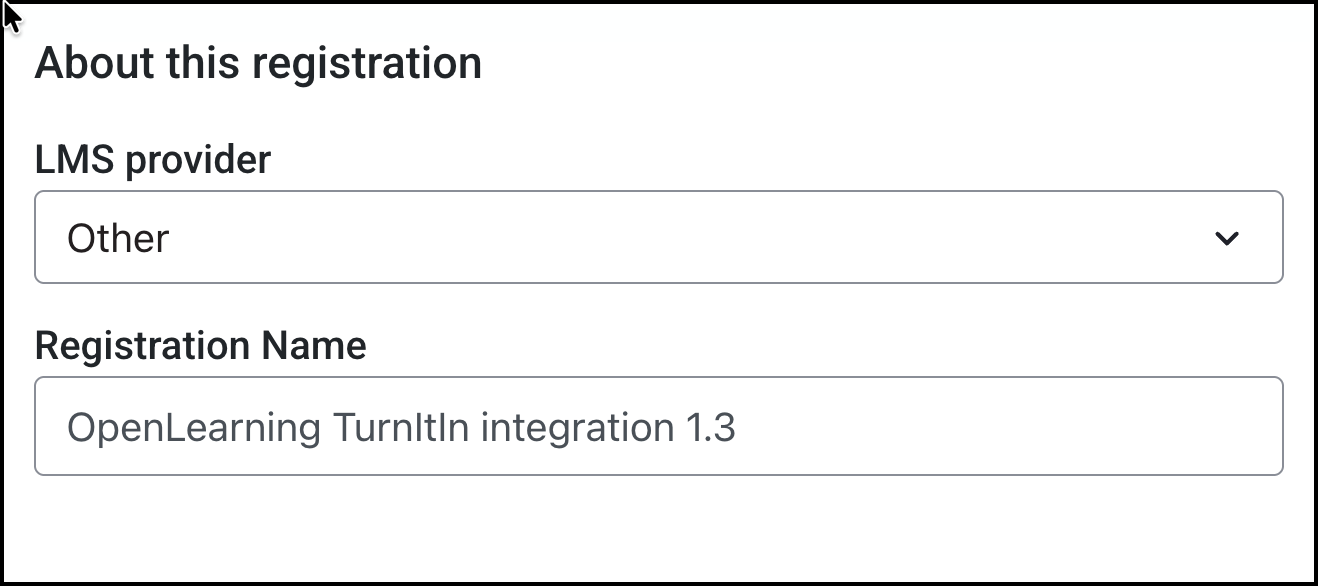
Select Other from the LMS Provider drop down and enter your registration name. This can be anything but we suggest something that is clearly stating the integration with OpenLearning for clarity. to avoid any confusion when reviewing the settings in case you have other integrations in place.
Step 7
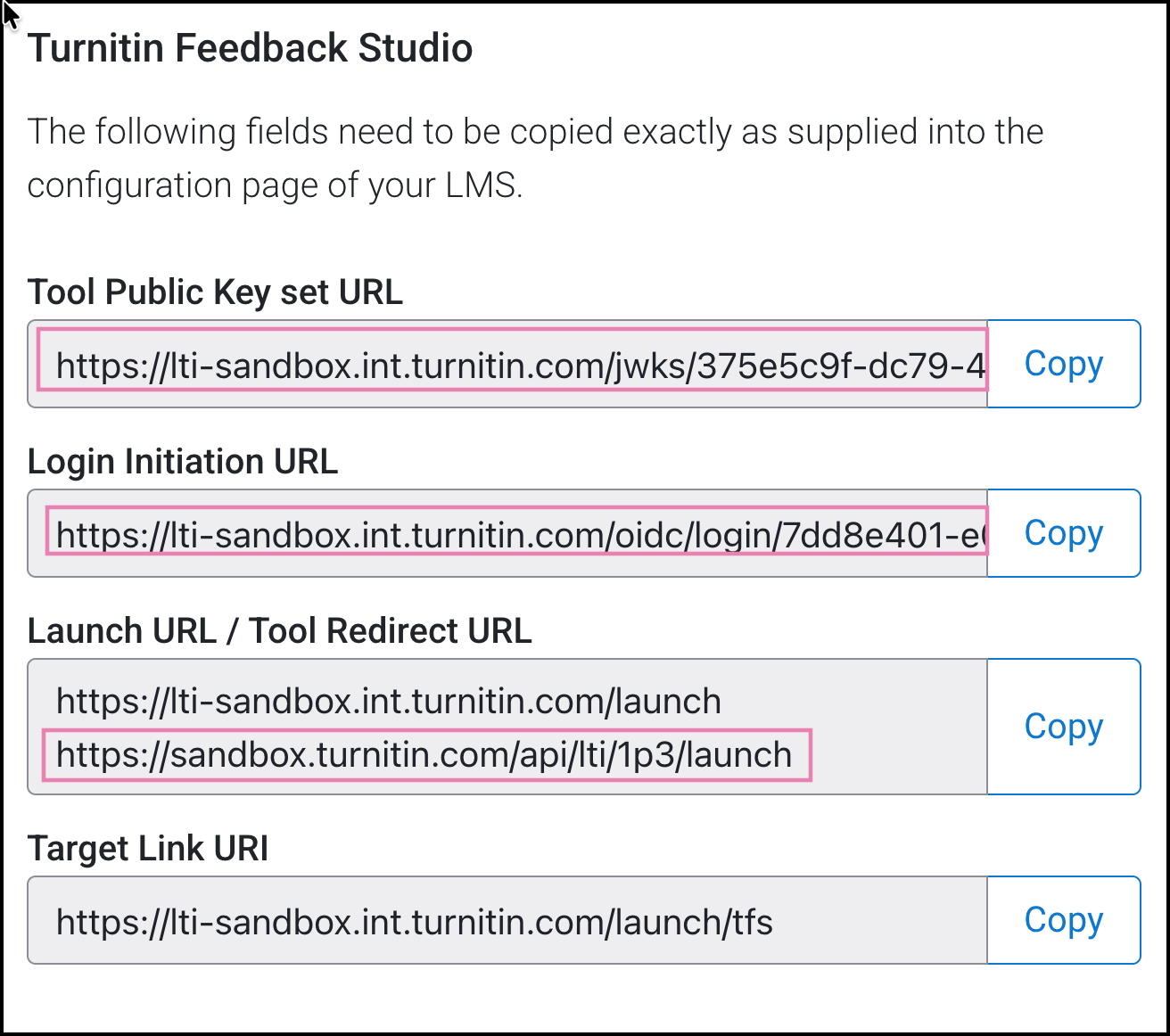
Take note of these settings as this needs to be copied over. Do not close or save the changes yet.
Configure TurnItIn in OpenLearning
Step 1
Log in to OpenLearning and navigate to your Institution Settings > Integrations.

Step 2
Scroll down to the LTI Tool Providers section and click on + Add LTI tool provider.

Step 3
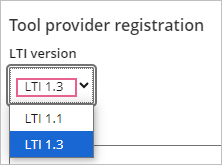
Enter the tool provider name, and on the Tool provider registration section, select LTI 1.3 for the LTI version.
Step 4
Enter the details that you copied over from TurnItIn earlier;
- Launch URL: Launch URL in TurnItIn
- Note: Use the second URL, [TurnItIn_Instance]api/lti/1p3/launch for this connection to work:
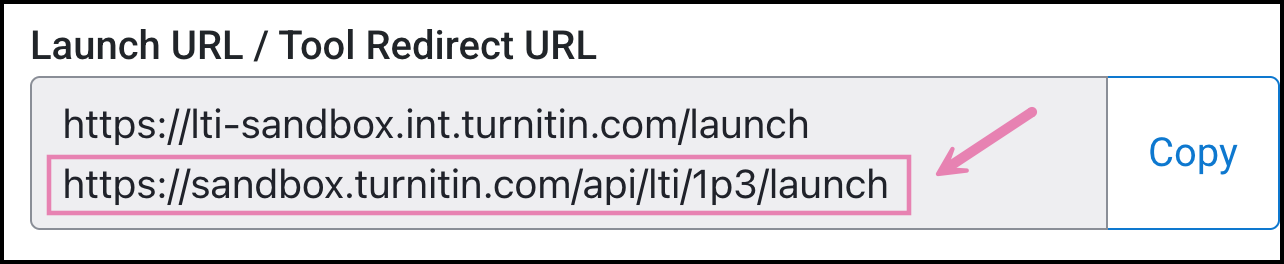
- OIDC Launch URL: Login Initiation URL in TurnItin
- Key Set URL: Tool Public Key set URL in TurnItIn
Step 5
Upload the icon/thumbnail for the widget if it's not detected automatically when the Launch URL is added.
Step 6
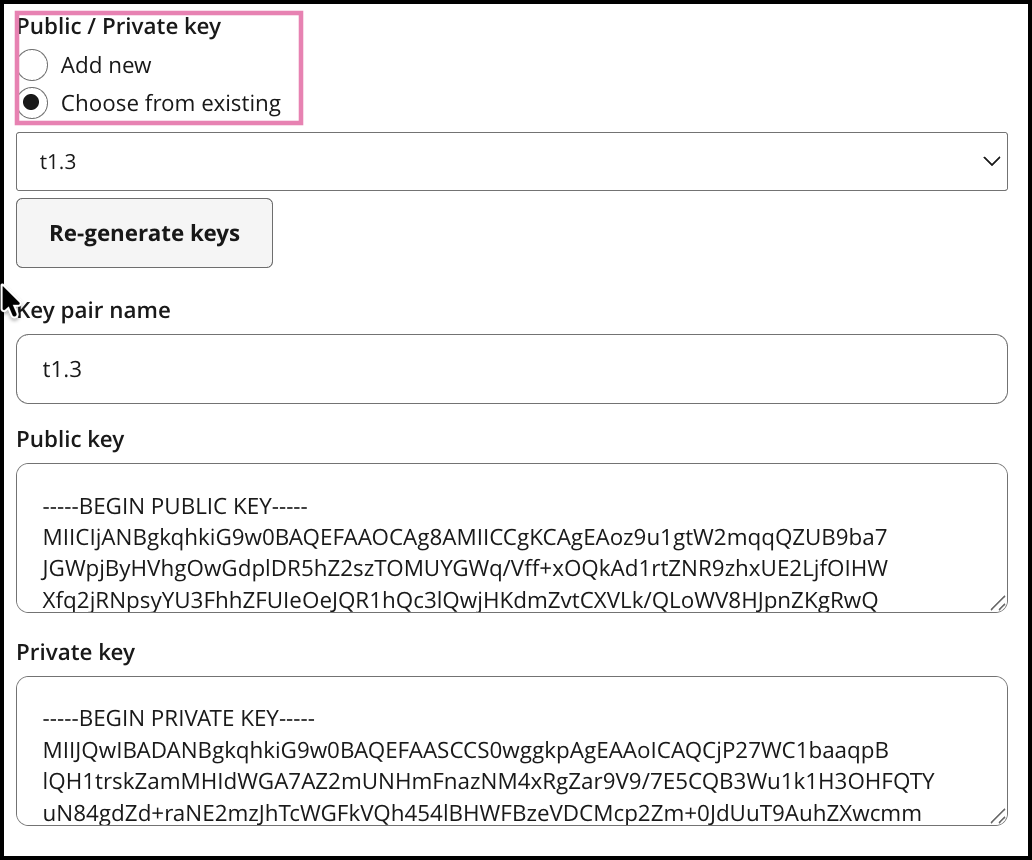
Scroll down and enter a Key pair name and click on Generate keys to get a public/ private key pair.
Step 7
Scroll down again to Advanced Settings and in the Email address identification: select Personal Email Address
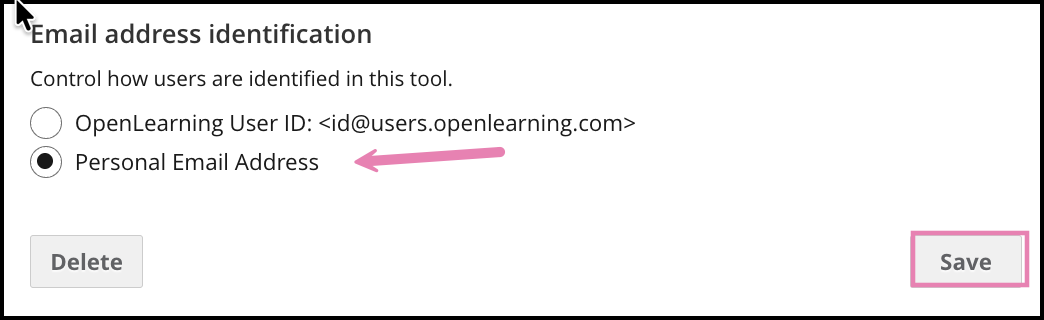
Click Save.
Step 8
Open the TurnItIn LTI connection on OpenLearning again and scroll down to the Registration details.
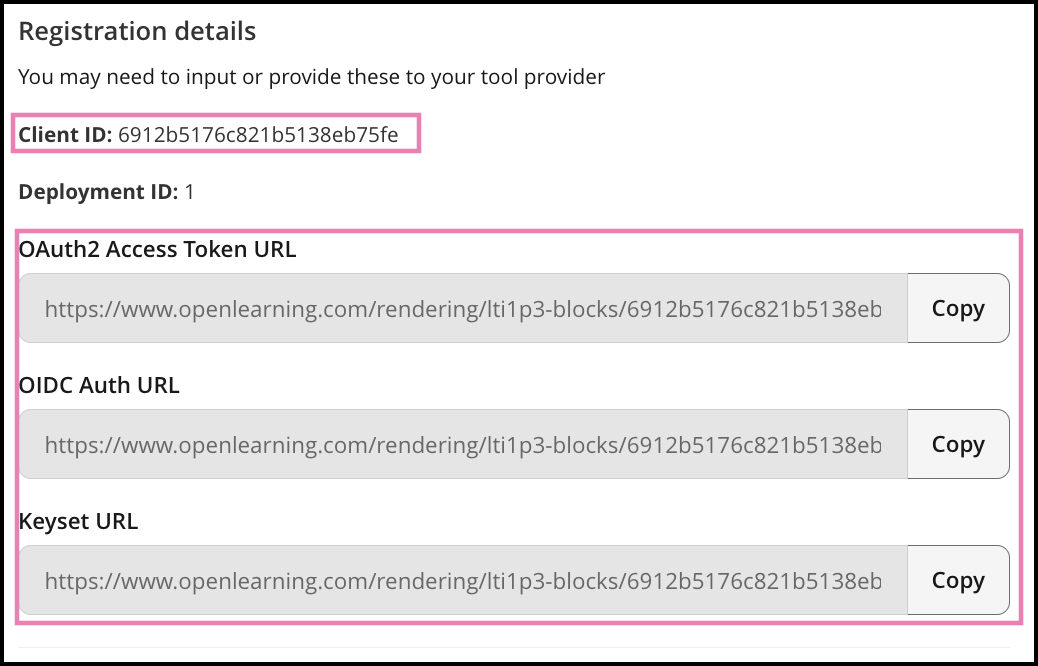
Note: Keep this tab open or copy the details here as you will need to add these into your TurnItIn dashboard.
Finalise OpenLearning integration in TurnItIn Dashboard
Step 1
Head into TurnItIn again and complete the LTI setup with the Tool Registration Details values obtained in the previous step from OpenLearning.
Platform public key set URL: Keyset URL in OpenLearning
Issuer: https://www.openlearning.com
Client ID: Client ID in OpenLearning
Access token URL: OAuth2 Access Token URL in OpenLearning
OpenID connect login endpoint: OIDC Auth URL in OpenLearning
Example:
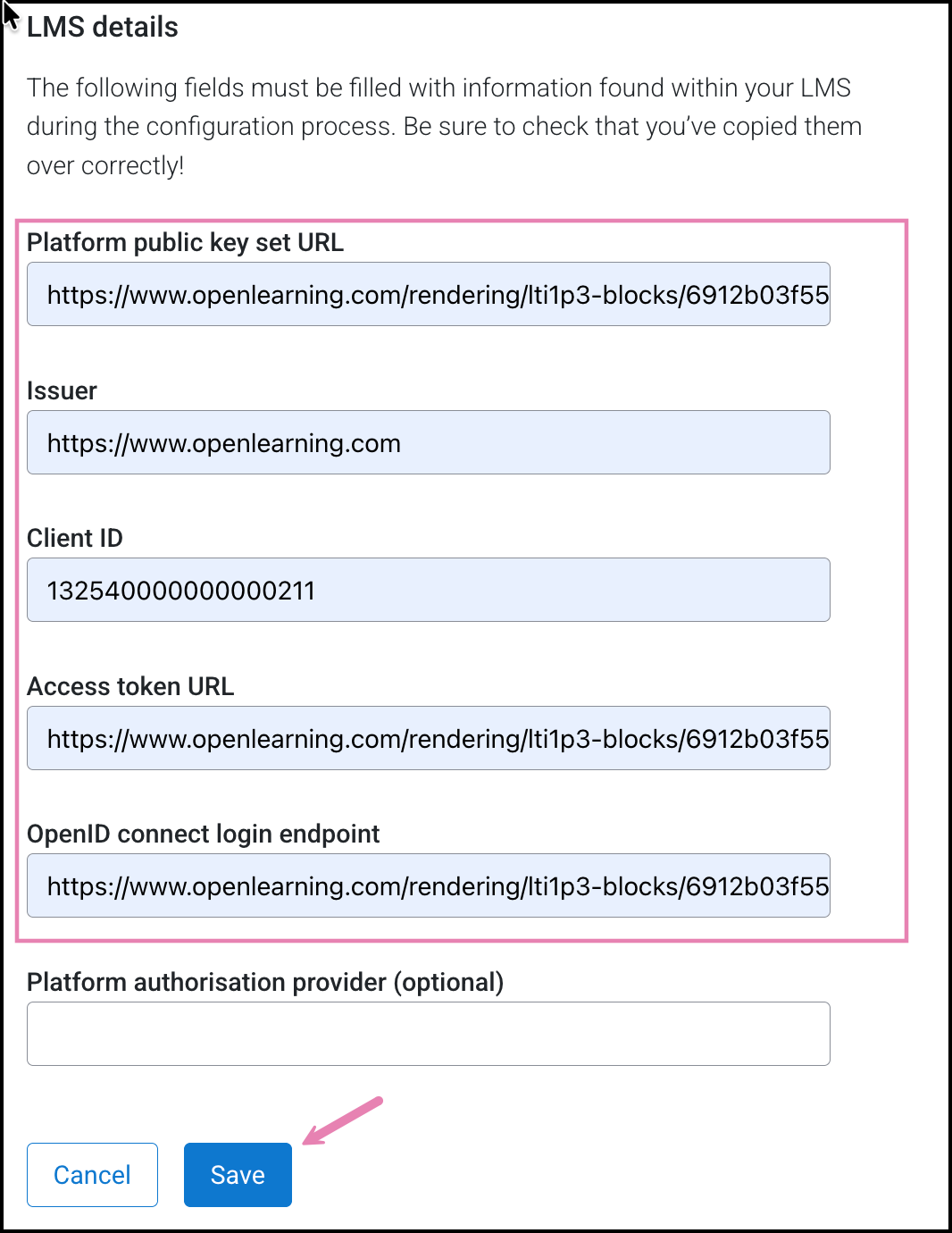
Click Save to complete the setup.
Add TurnItIn LTI tool to the course in OpenLearning
Step 1
On your preferred course page, click on the Edit button to go into Edit mode.
Step 2
Go to the Widget menu and select Integration from the category dropdown. Click or drag the TurnItIn widget icon onto your page as with any other widget.
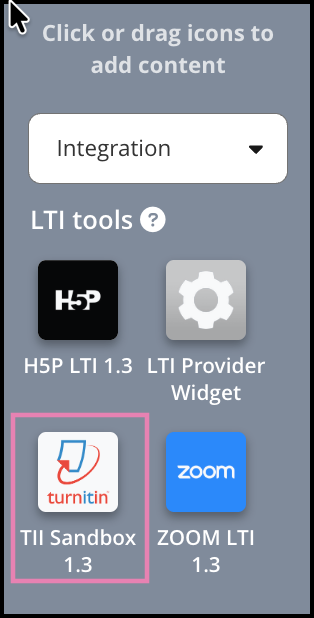
Step 3
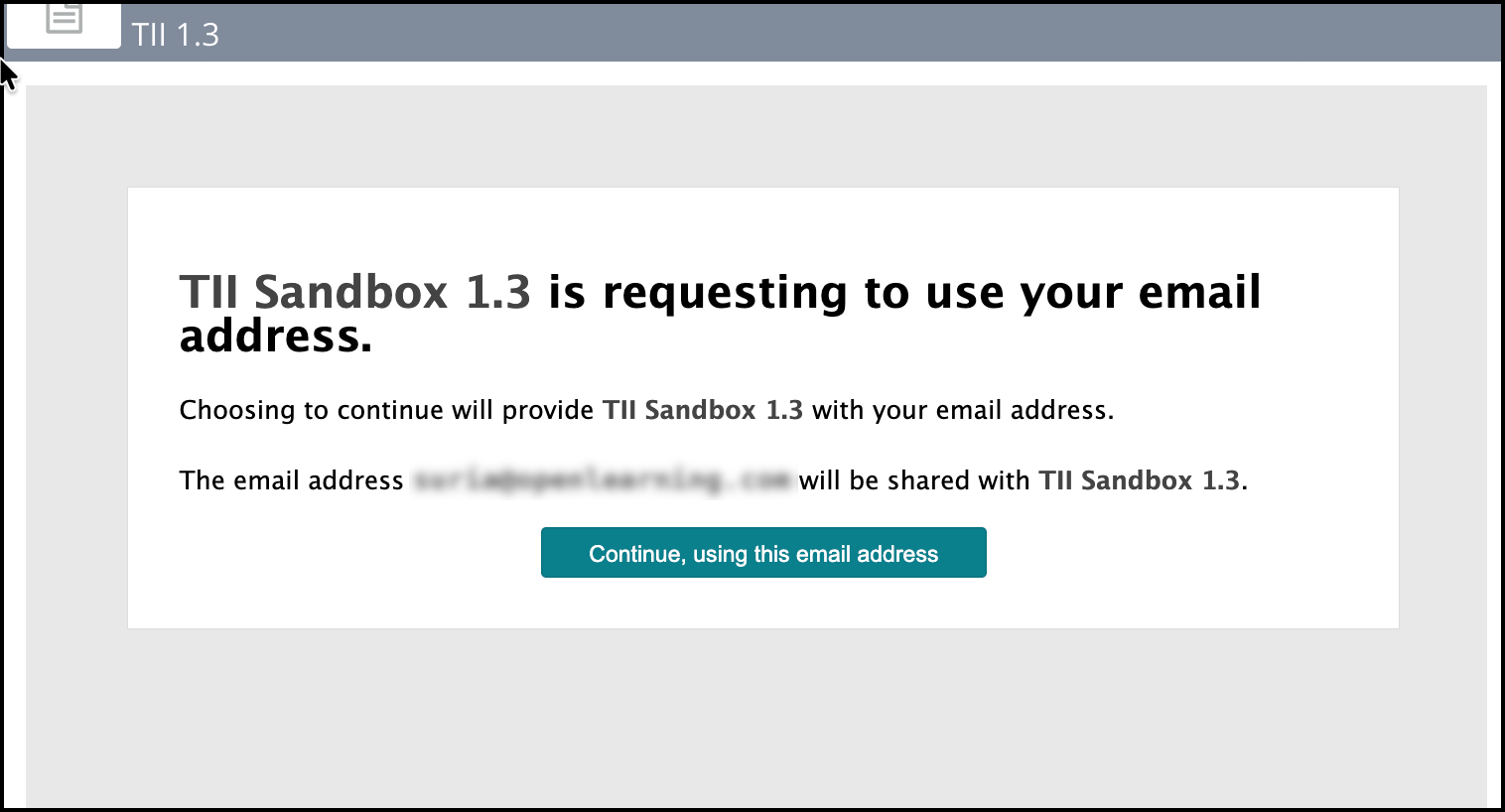
On the first launch, it will request to use your email address, which will be sent to TurnItIn to complete the sign-on process and you will then be able to access the tool.
Admin view in OpenLearning
As an administrator of the course that has been included in the plan, it will give allow you to set up and make changes to the TurnItIn Submission settings.
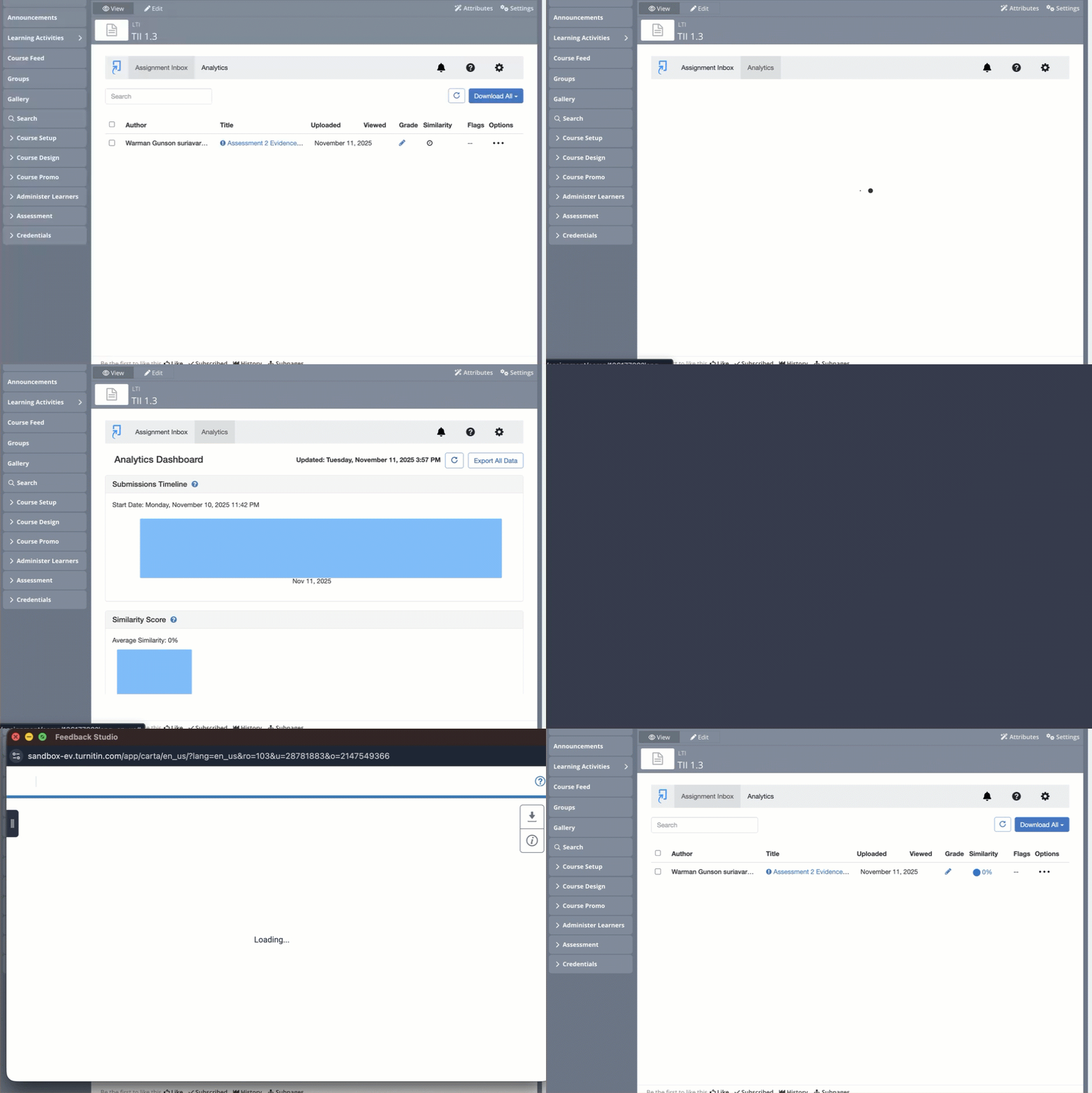
Learner view in OpenLearning
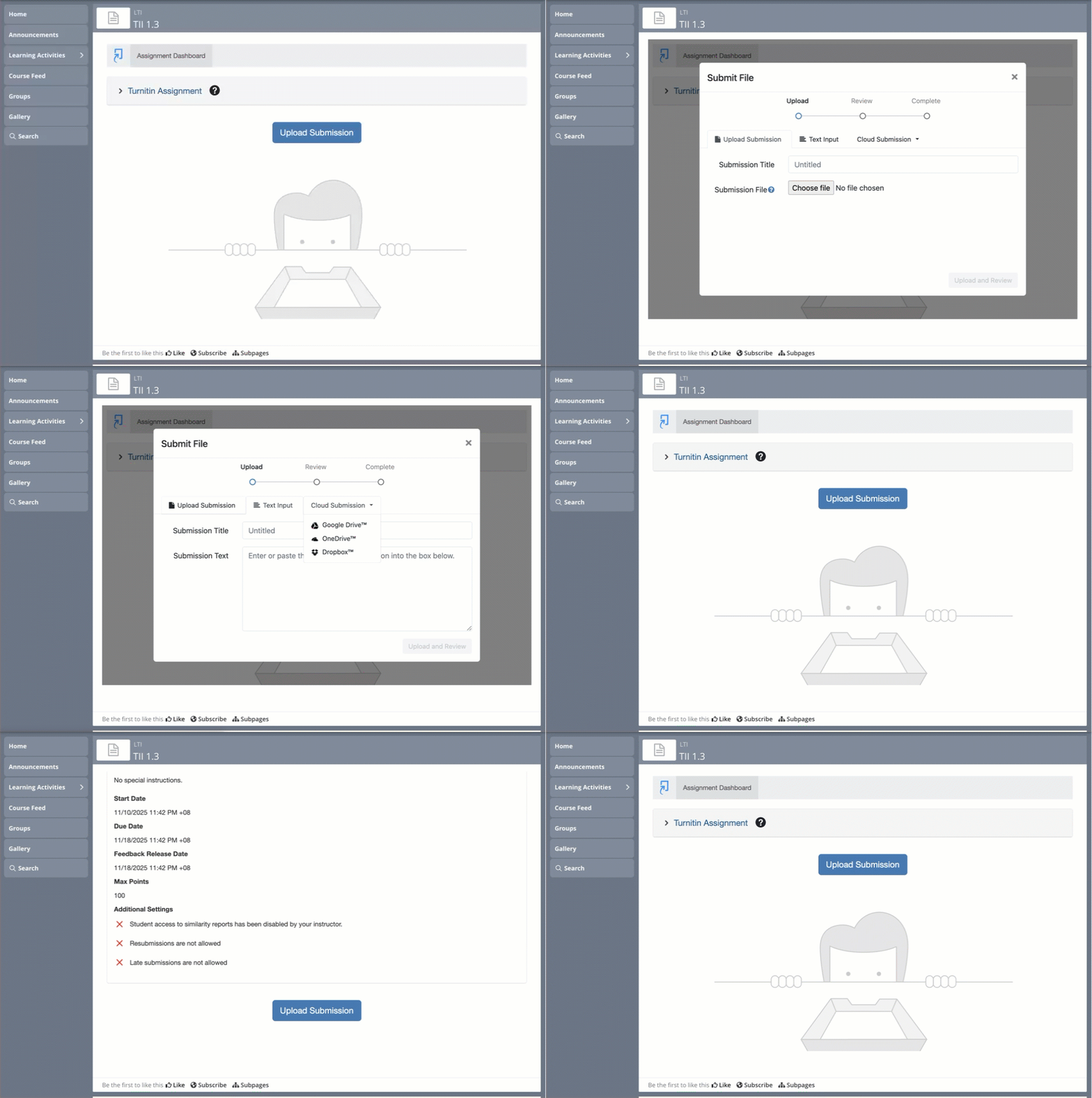
The learner will be able to upload their submission and see the specified / requirement of the TurnItIn assignment via their Assignment Dashboard.