
How do I configure pricing and payment options for a program?
What is Program Pricing?
Program Pricing lets institution admins configure how learners pay for a program, whether that's a single upfront payment, a series of instalments, or purchasing courses one by one. Admins can enable one or more payment modes per program, and learners choose their preferred option at checkout. Pricing options display automatically on the Program Landing Page and Marketplace once configured.
Why use Program Pricing?
Program Pricing gives your institution flexibility to sell programs as bundled offerings while reducing barriers to entry for learners. Offering multiple payment options, including instalments, can improve conversion and make your programs accessible to a wider audience.
How to set it up
Note: These steps are for Institution Admins configuring pricing in the Program Builder.
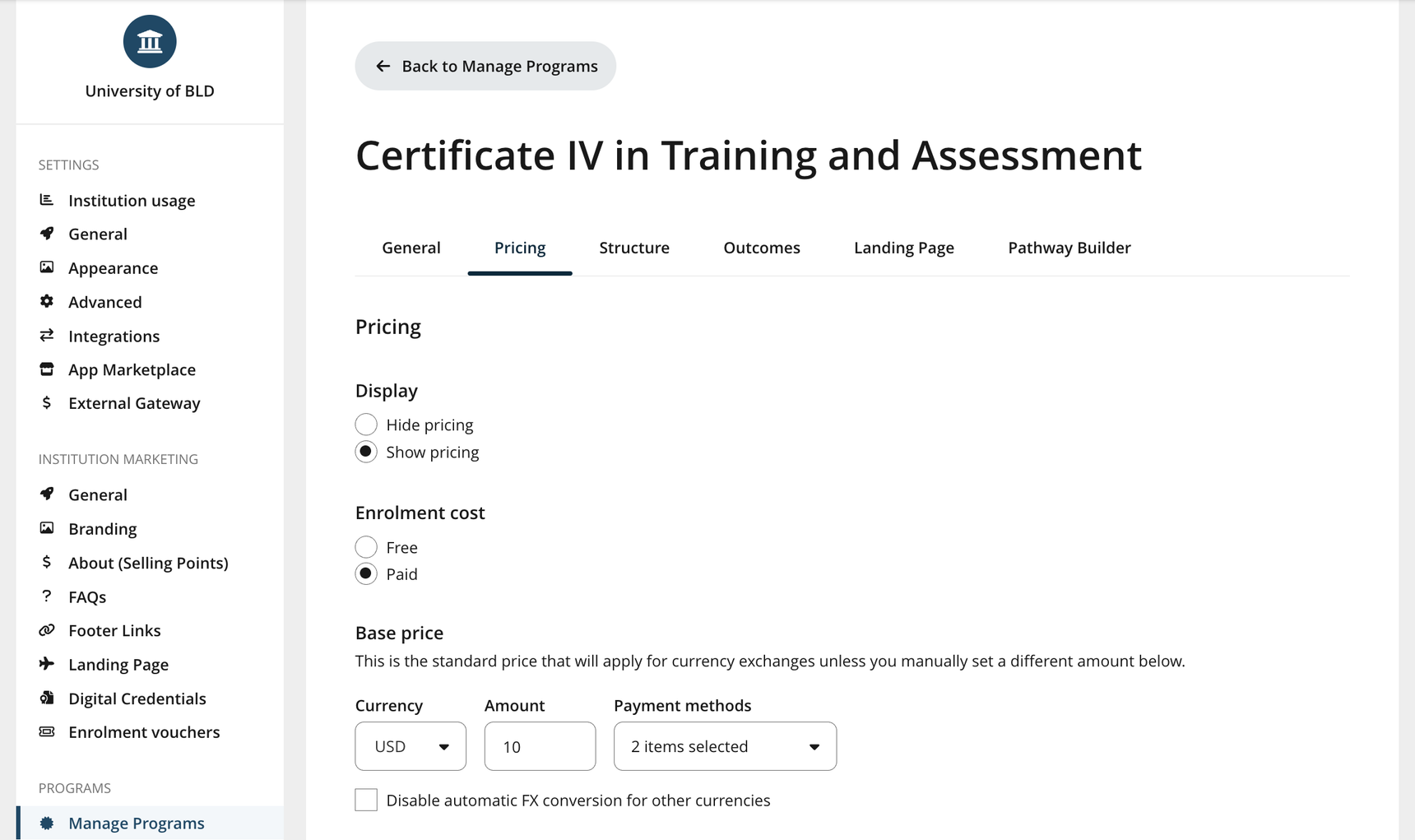
Navigate to Manage Programs and select the program you want to configure. Open the Pricing tab.
Set the enrolment cost by changing the enrolment cost to Paid and enter your Base Price.
Select which payment methods you'd like to accept. Any connected payment gateways will appear as options here, including Stripe (if connected) and any external payment gateways configured in your institution settings. Learn more about external gateway here.
Similar to setting up pricing for courses and classes, you can also set up additional currencies. You can also set up two advanced options for the price:
Allow learners to pay for the program in instalments. If you enable this, you will be able to configure instalment payments for learners. Learn more about instalments here.
Enable special pricing for institution members. If you enable this, institution members will pay a special price that you set up
Save your settings. Your pricing options will update immediately on the Program Landing Page and Marketplace.
How to Purchase a Program
Note: These steps are for learners purchasing a program through the OpenLearning Marketplace.
Find a program and initiate purchase: Navigate to the program's landing page and click Join Now. After logging in, you'll be prompted to select a payment method if more than one is available:
Stripe via OpenLearning: You'll be redirected to the OpenLearning payment page to complete your purchase.
External gateway: You'll be redirected to an external payment page managed by the institution.
Go to your dashboard: Once payment is successful, you'll see a confirmation screen. From here, you can go directly to your Dashboard.
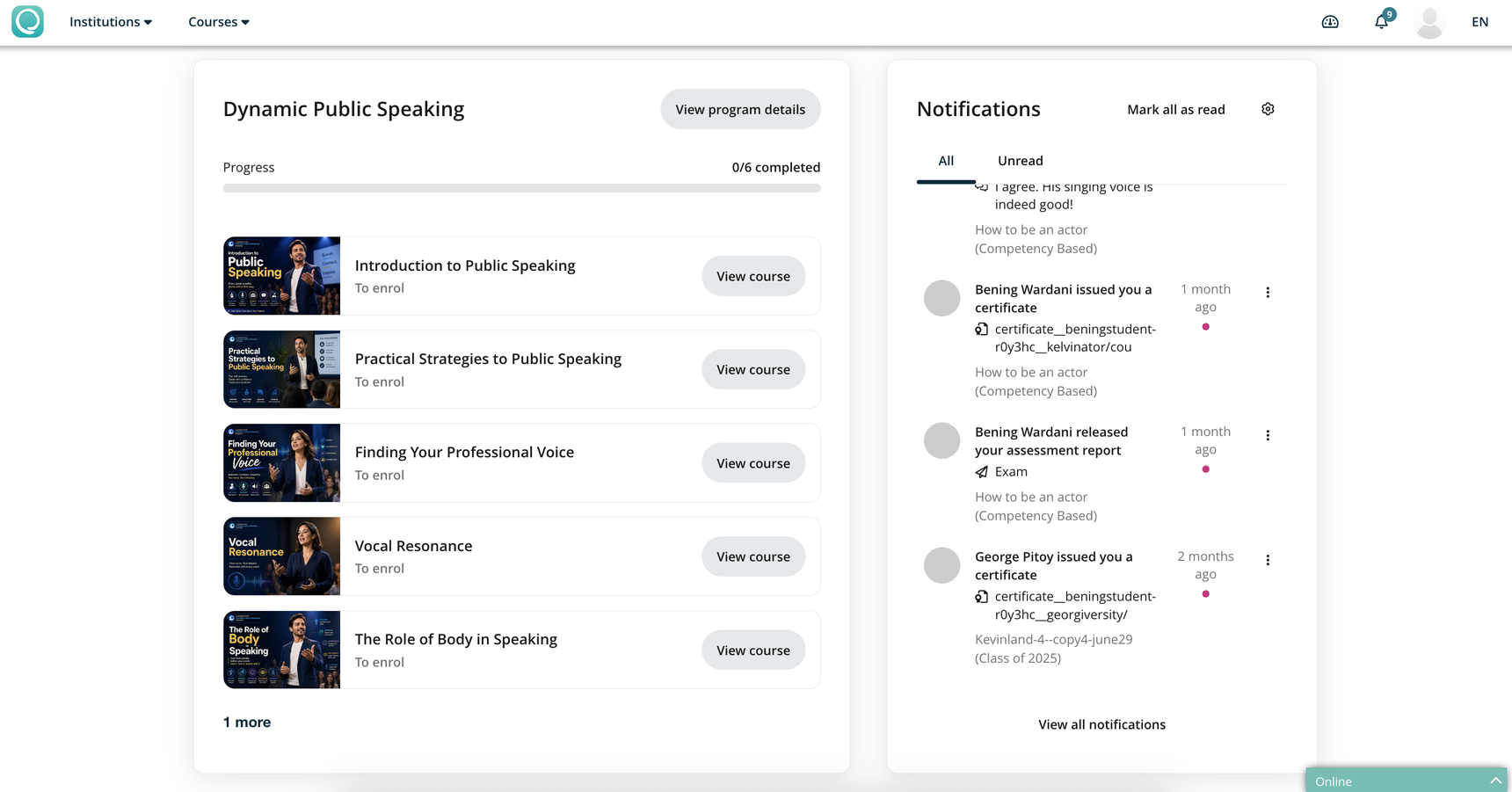
Enrol in courses within the program: Your newly enrolled program will appear in your Dashboard, showing all courses and electives included.
Important: Purchasing a program does not automatically enrol you in its courses. You'll need to join each course individually. From the course list, click View Course next to each course you'd like to start. This takes you to the course landing page, where you can join the course and select a class if multiple are available. You won't be charged again as your program purchase already covers access to all included courses.
General FAQ
What happens if I remove a learner from a program? The learner will be unenrolled from any courses they haven't yet completed. Courses they have already completed will remain accessible to them.
How do I manage cancellations, failed payments, or refund requests for program instalments? This works the same way as course purchases. Refer to the relevant help article for guidance.
How do I set up Stripe Connect for programs? The setup process is the same as configuring Stripe for course payments. Read the help document here.
What happens if a learner requests a refund? Program refunds follow the same process as course refunds. Read the help document here.