How do I use the Multiple choice response (including scoring options)
What is a multiple choice response?
The Multiple choice response allows learners to select the correct answer(s) from a list of predefined options. This article covers how to set up the response type and configure scoring logic (including advanced weighted scoring).
Who can access the feature
Only accounts with the Assessment Designers role can access this feature. To learn more about course roles, please refer to the article What are the different roles within a course?
How to set the multiple choice response
Step 1
Go to Assessment > Question Banks

Step 2
Click on Create new bank. Enter a name for your question bank and then click Create.

Step 3
Click the newly created Question bank from the list. Click on Add question > Create new question

Step 4
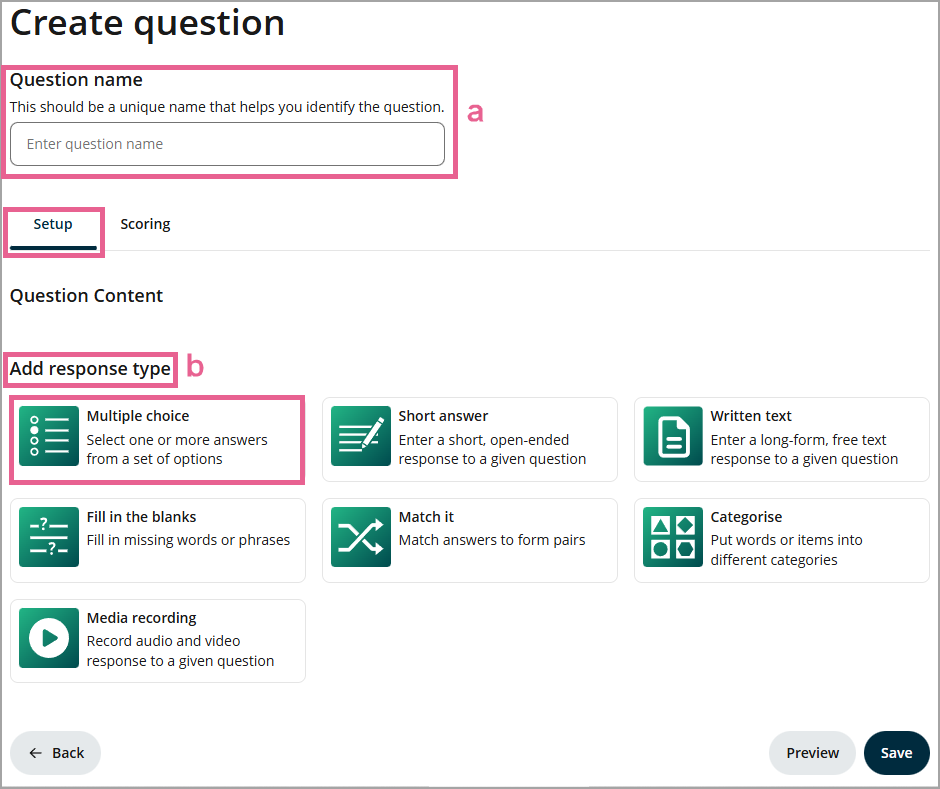
a) Enter a unique name for this question. This name is a unique identifier that helps you identify the question. It is not the question text.
b) Select the Multiple choice response type.
Step 5
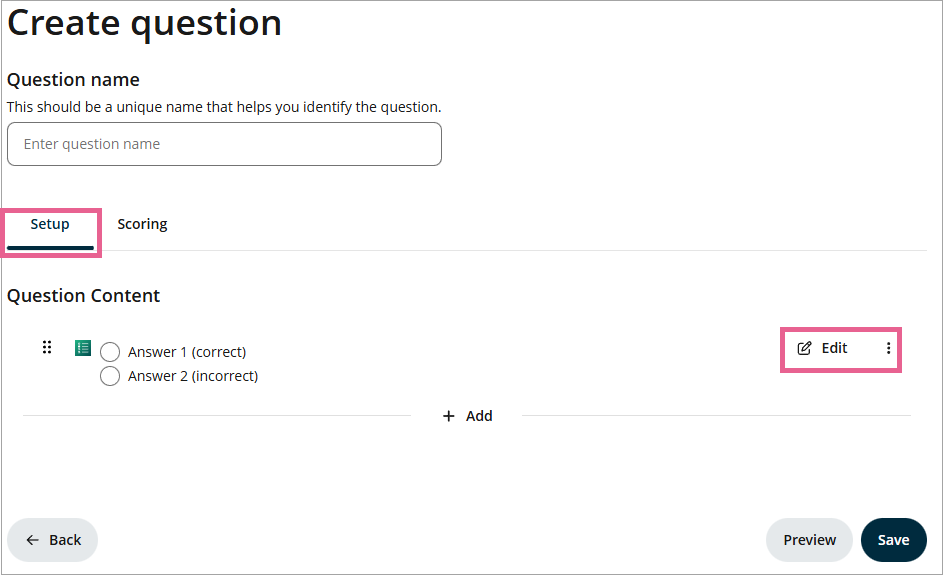
Click Edit to customise a few available settings.
Step 6
A drawer will open where you can configure your Multiple choice question:
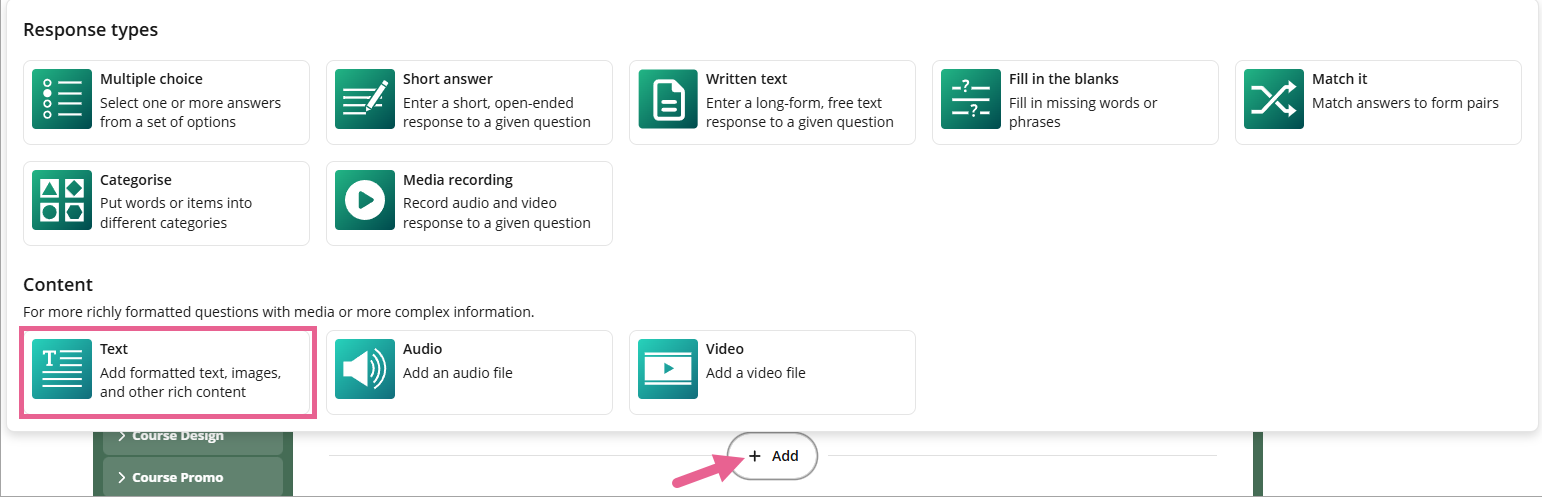
1) Response title: You can enter your question here. If you'd like to use formatted text or images, you can use the Text content instead and leave this box empty.
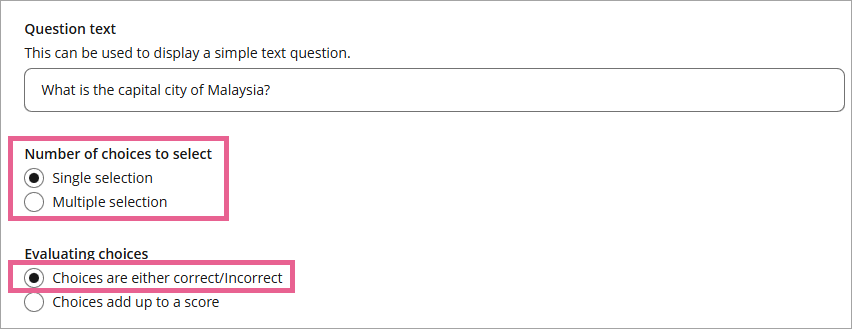
2) Number of choices to select: Here you can choose whether to allow learners to select only one correct answer (single selection) or multiple correct answers (multiple selection).
3) Evaluating choices: To create a correct or incorrect answer-based evaluation, choose the Choices are either correct/incorrect radio button. If the response-based scoring is preferred, you can use the Choices add up to a score option to assign different scores to each available choice. This is useful when a question has multiple correct answers, but at different levels of correctness. Refer to the Response-based scoring for Single Selection or Response-based scoring for Multiple Selection section below for more information on how to use this feature.
4) Choices: This section is where you set up the choices that learners will pick from. The choice field now features a rich text editor, offering enhanced input options for a more versatile and dynamic response experience. Replace the default text with your own options. Click the grey Add answer box to add more choices if required. Click the circle or radio button on the left of the Choice you would like to be marked as the correct answer.
For each choice, you can also add:
- Feedback (optional): Give feedback if the learner selects the choice. It will only be shown after the learner attempts the quiz.
- Image (optional): The image relevant to that specific choice, if required.

5) Randomise the order of choices: Ticking this box will randomise the order of choices for each learner.
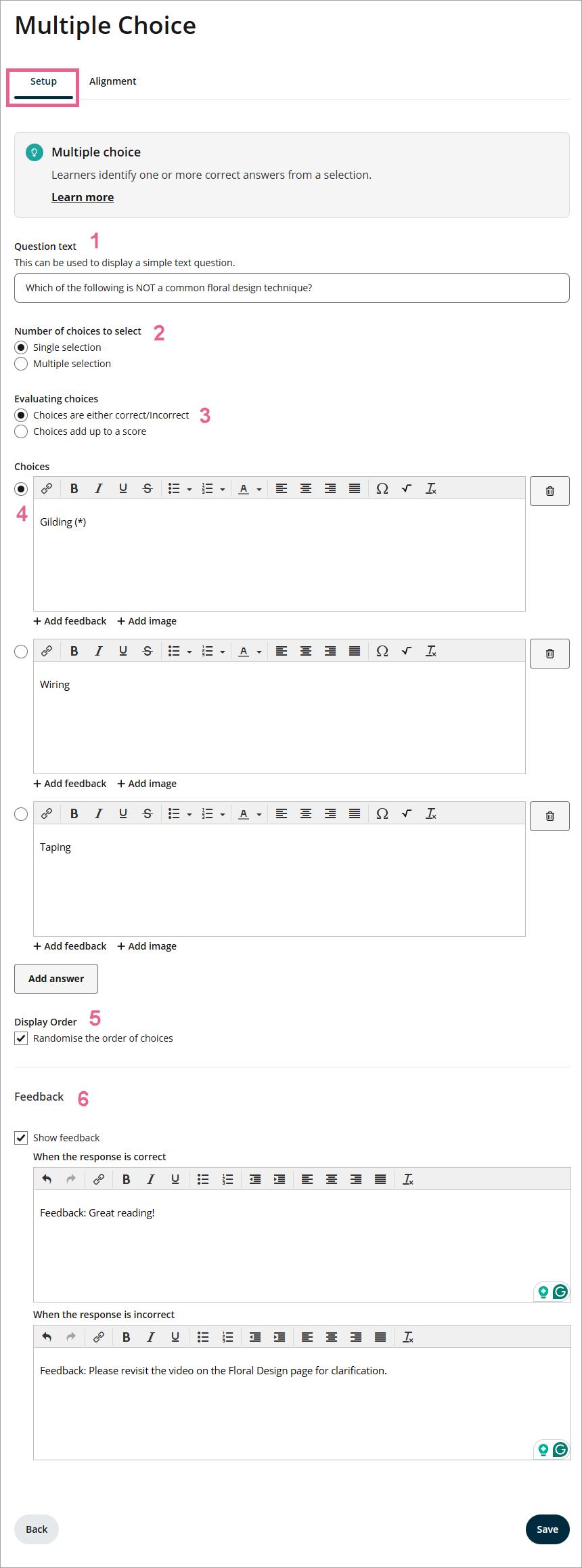
6) Show feedback (optional): Ticking this box will allow you to customise the feedback message when the learner has selected the correct or incorrect choice for that particular question. This feedback will be shown in the learner assessment report after it's released.
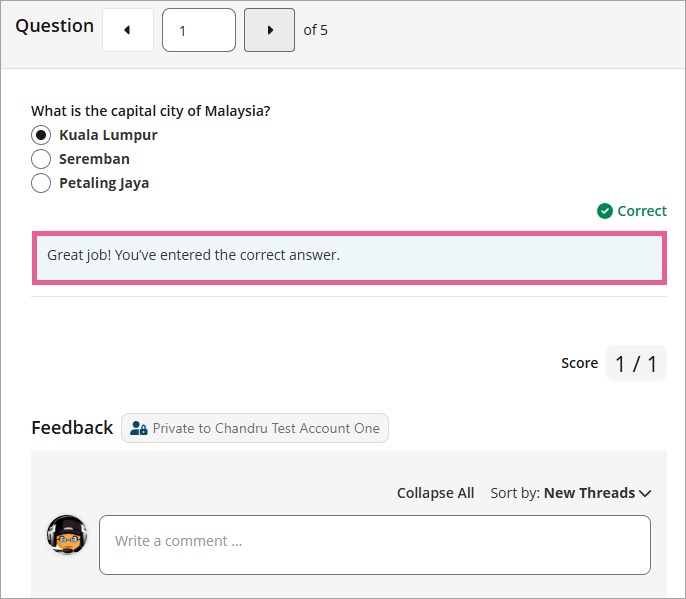
Step 7
Click Save to save the questions, and click Back to head to the main section.
Single selection vs multiple selection
Choose Single selection if there is only one right answer, or Multiple selection if there are multiple correct answers.
Evaluating choices
Correct / Incorrect
This method is for standard questions where an answer is either completely right or wrong.
Choices add up to a score
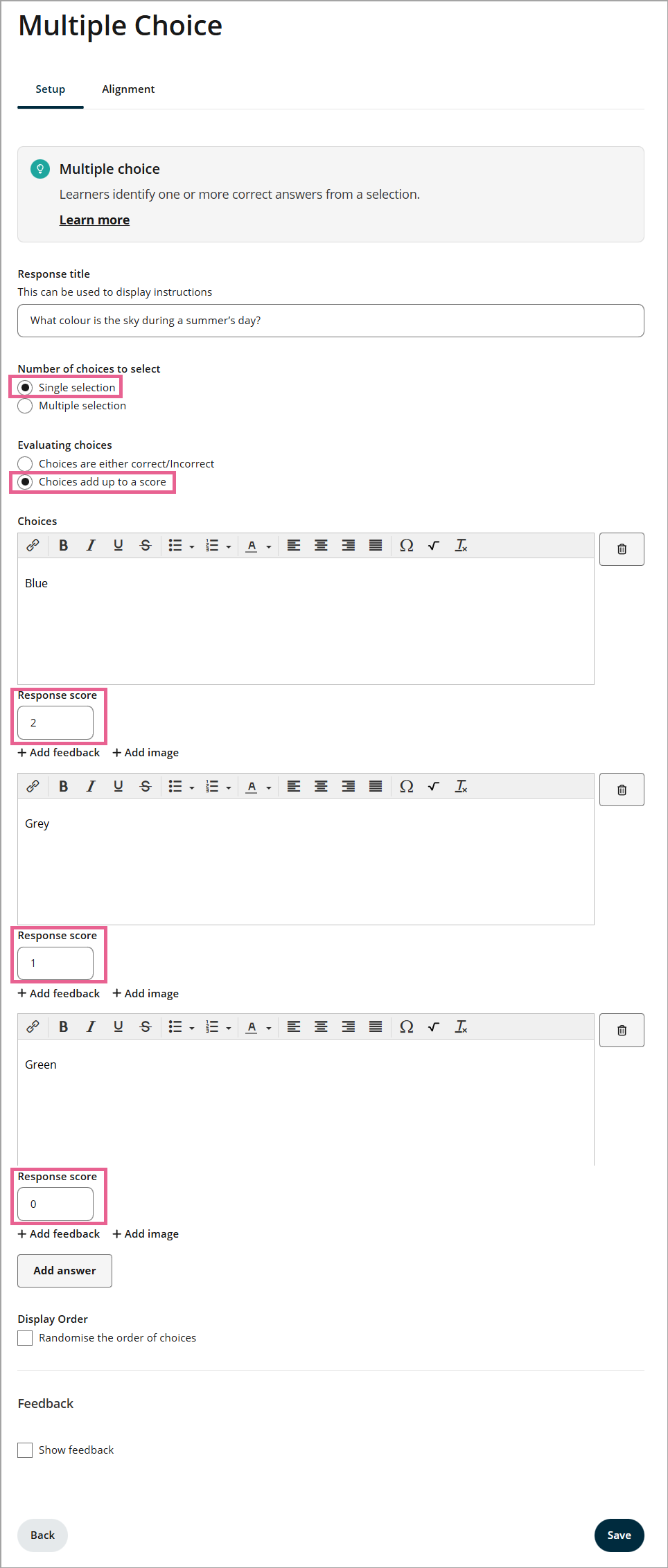
Response-based scoring allows you to assign specific point values to each individual choice rather than using a simple correct or incorrect binary.
1) Single selection
For single selection questions, the learner receives a response score based on the specific radio button they select. This score is then weighted against the points assigned to the response type to calculate the final question score.
For example, the question: "What colour is the sky during a summer's day?"
Choices: "Blue" (2 points), "Grey" (1 point), "Green" (0 points).
Maximum response score: 2.
Question Bank weighting: 5 points
Exam weighting: 16 points (total value assigned in the Exam).
If a learner selects "Grey":
The weighted response score is (1 / 2) x 5 = 2.5.
Assuming there is another part of the question worth 3 points where the learner got full marks, the normalised question score is (2.5 + 3) / 8 = 0.68.
The final question score is 0.68 x 16 = 10.88 points.
Note: You don’t need to calculate this manually — the platform handles this automatically.
2) Multiple selection
When using multiple selection, response-based scoring allows you to assign individual scores to every choice. The platform uses a Maximum Response Score — the highest possible score a learner can achieve for that response — to calculate the weighted score.
For example, the question: "What are common sky colours?"
Choices: "Blue" (3), "Grey" (3), "Black" (3), "Purple" (2), "Yellow" (2), "Green" (0).
Maximum response score: 3.
Question Bank weighting: 5 points.
Exam weighting: 16 points (total value assigned in the Exam).
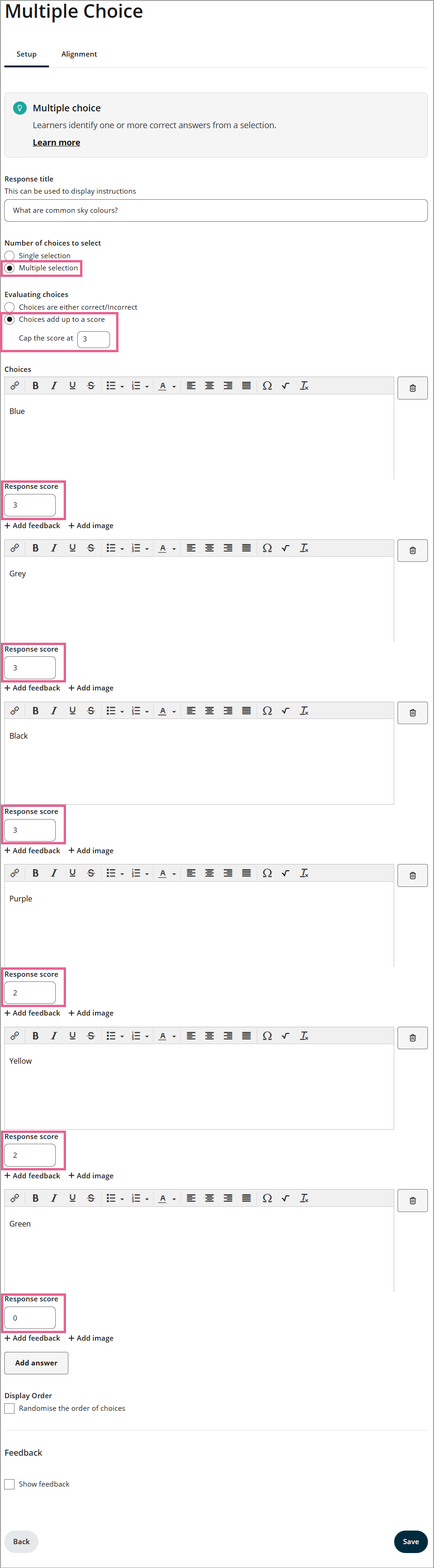
If a learner selects "Yellow":
The weighted response score is (2 / 3) x 5 = 3.33.
The normalised question score is (3.33 + 3) / 8 = 0.79.
The final question score is 0.79 x 16 = 12.64 points.
Note: You don’t need to calculate this manually — the platform handles this automatically.
Assign course learning outcomes to the multiple choice response
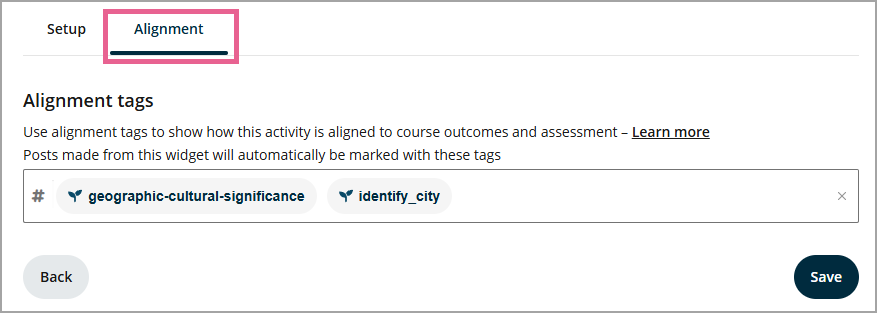
You can add outcome tags for each question in the Alignment tab.
You can now see the outcomes attached to your question in an exam setup.
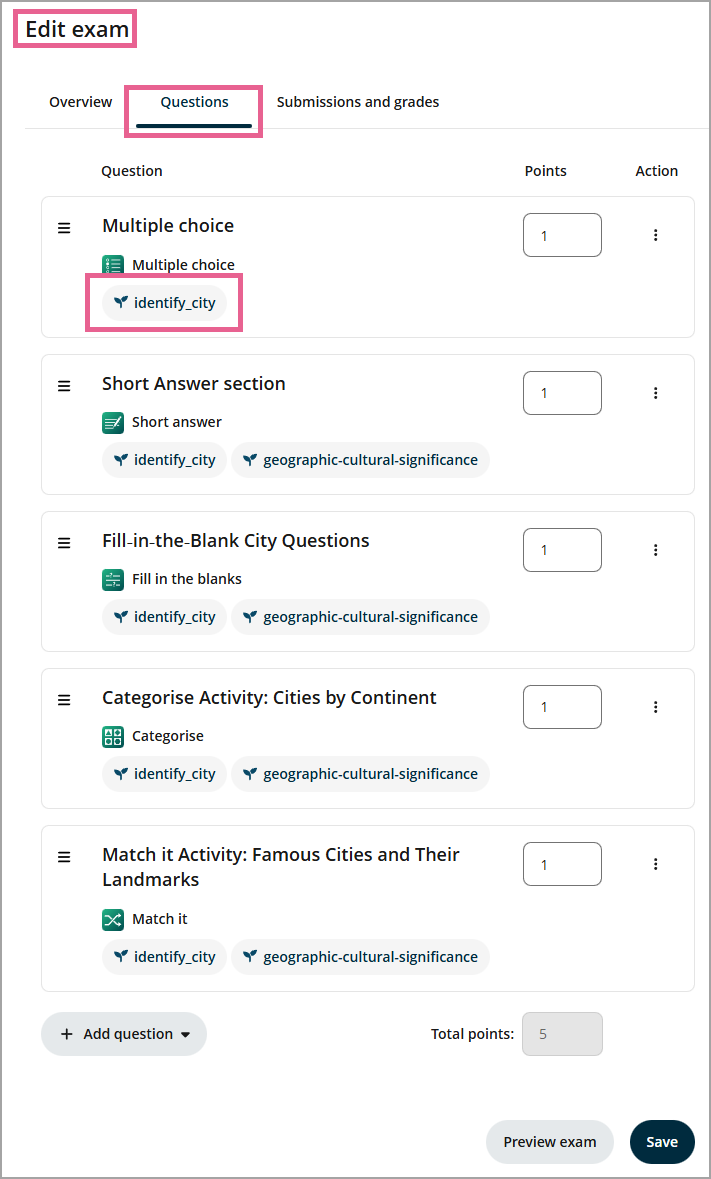
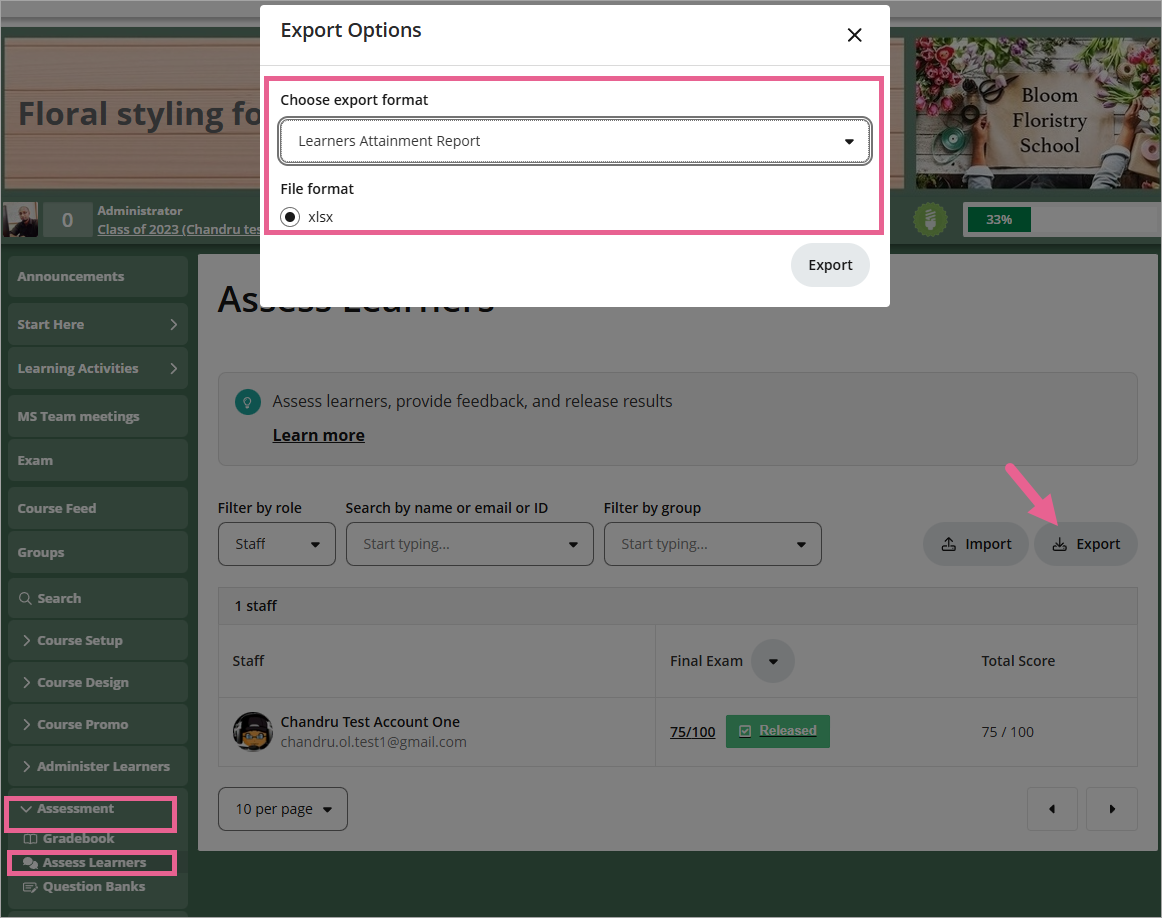
Tagging course learning outcomes (CLOs) here is an essential step in supporting the Learner Attainment Report — an exportable report available from the Assess Learners page. This report combines learner grades and CLO alignments to give educators a clearer view of learner progress.