How do I use the Categorise response?
What is a categorise response
The Categorise response can be used to create multiple categories in which students must classify a list of words or sentences.
Who can access the feature
Only accounts with the Assessment Designers role can access this feature. To learn more about course roles, please refer to the article What are the different roles within a course?
How to set the categorise response
Step 1
Go to Assessment > Question Banks

Step 2
Click on Create new bank. Enter a name for your question bank and then click Create.

Step 3
Click the newly created Question bank from the list. Click on Add question > Create new question

Step 4
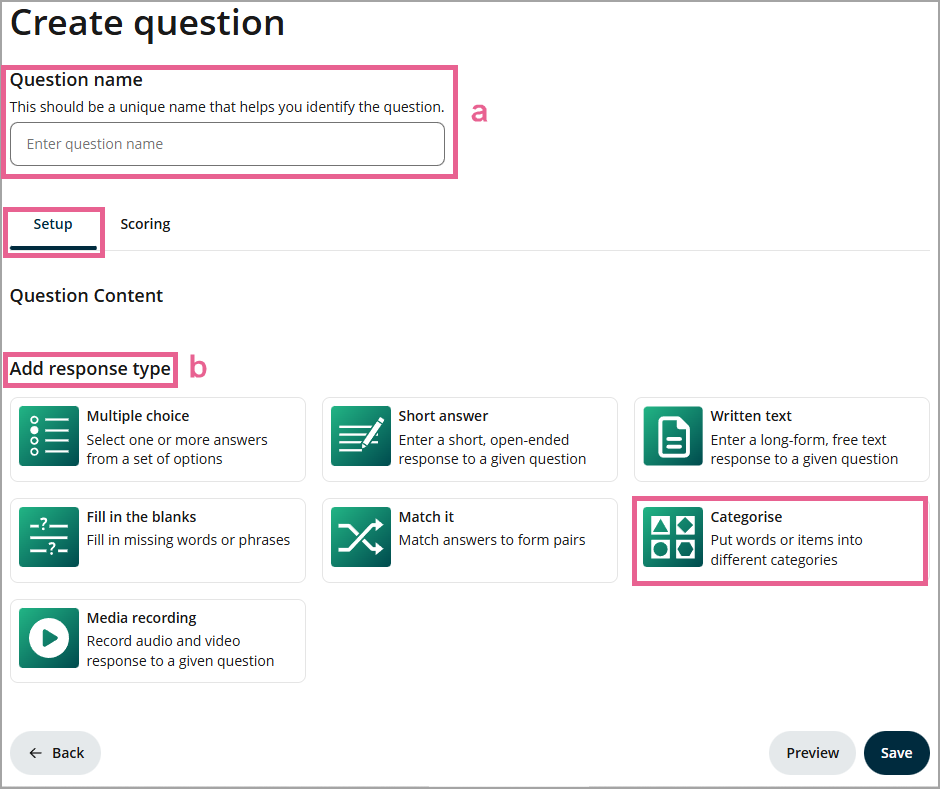
a) Enter a unique name for this question. This name is a unique identifier that helps you identify the question. It is not the question text.
b) Select the Categorise response type.
Step 5
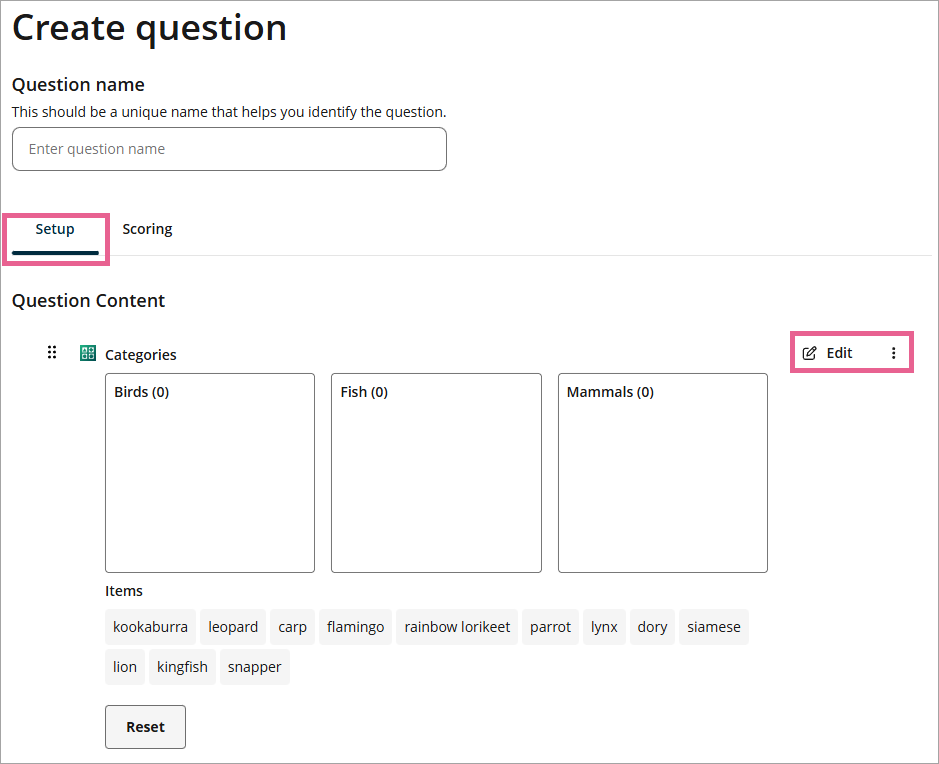
Click Edit to customise a few available settings.
Step 6
A drawer will open where you can configure your Categorise question:
1) Response title: You can enter a title or instructions for the learners.
2) Category name: Here you can set up your categories. Enter the category titles within this column. Click on the Add category button to add more categories.
3) Items in this category: Type in the item name within this field to add an item that belongs to that specific category on the left.
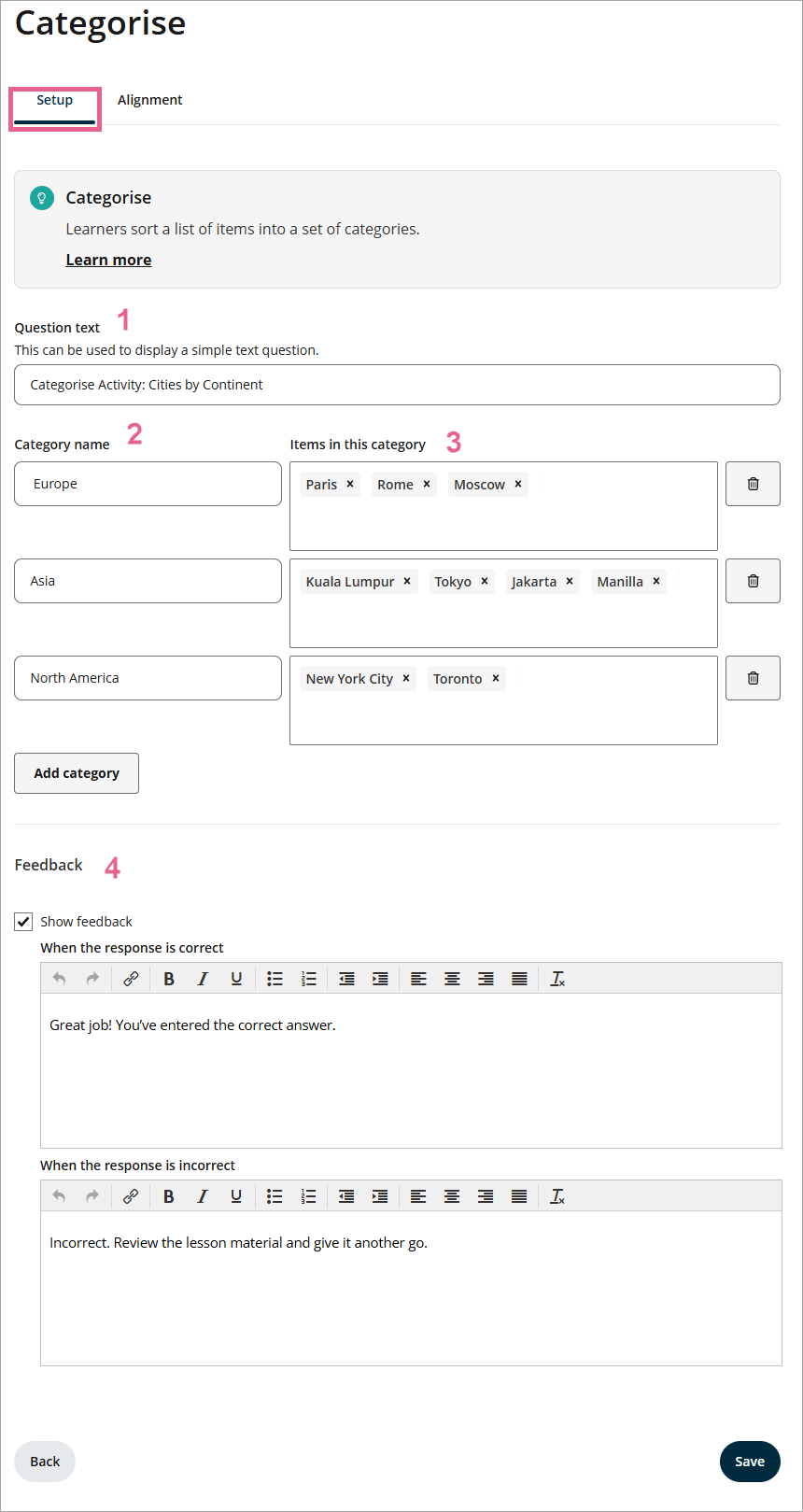
4) Show feedback (optional): Ticking this box will allow you to customise the feedback message when the learner has selected the correct or incorrect answer for that particular question. This feedback will be shown in the learner assessment report after it's released.
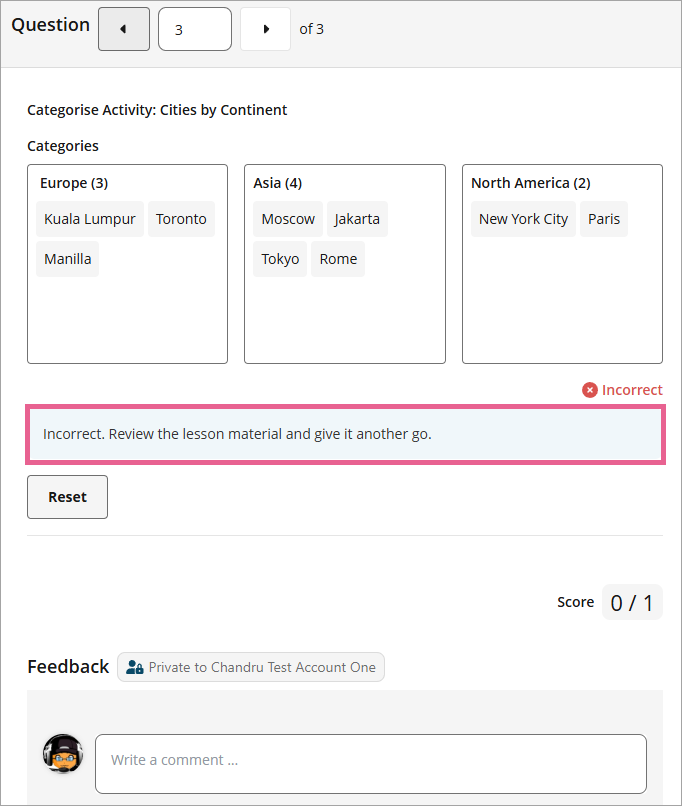
Step 7
Click Save to save the questions, and click Back to head to the main section.
How do the learners answer the question in the categorise response
There are two methods by which the learners can answer the question in the Categorise response:
- Drag and drop.
- Click on one of the answers and then click on the Move here button inside the category box.
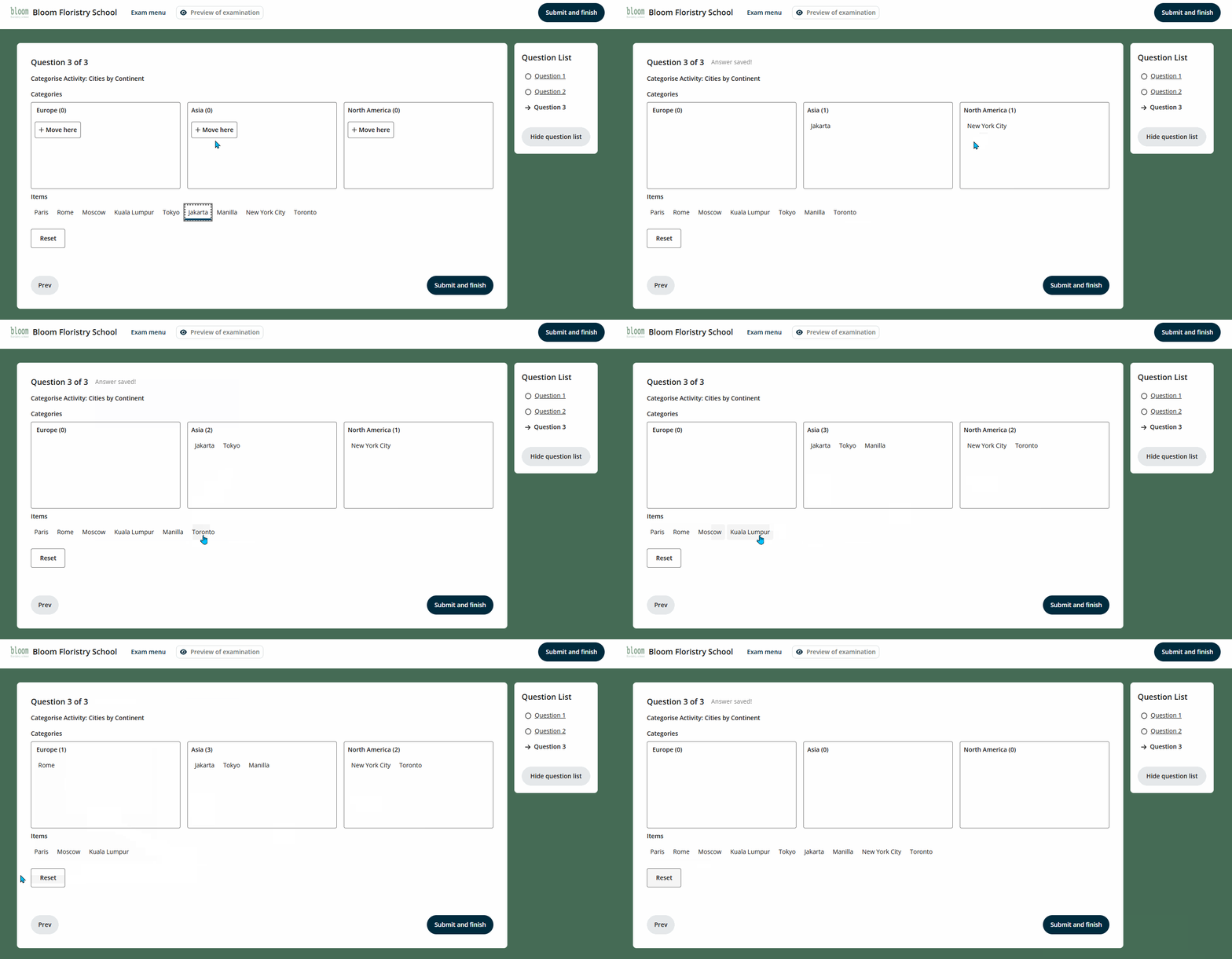
The learners can also use the Reset button to clear all the answers and start from the beginning again.
Assign course learning outcomes to the categorise response
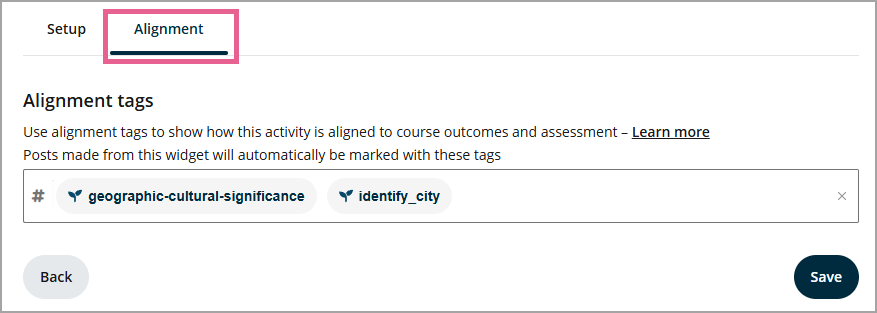
You can add outcome tags for each question in the Alignment tab.
You can now see the outcomes attached to your question in an exam setup.
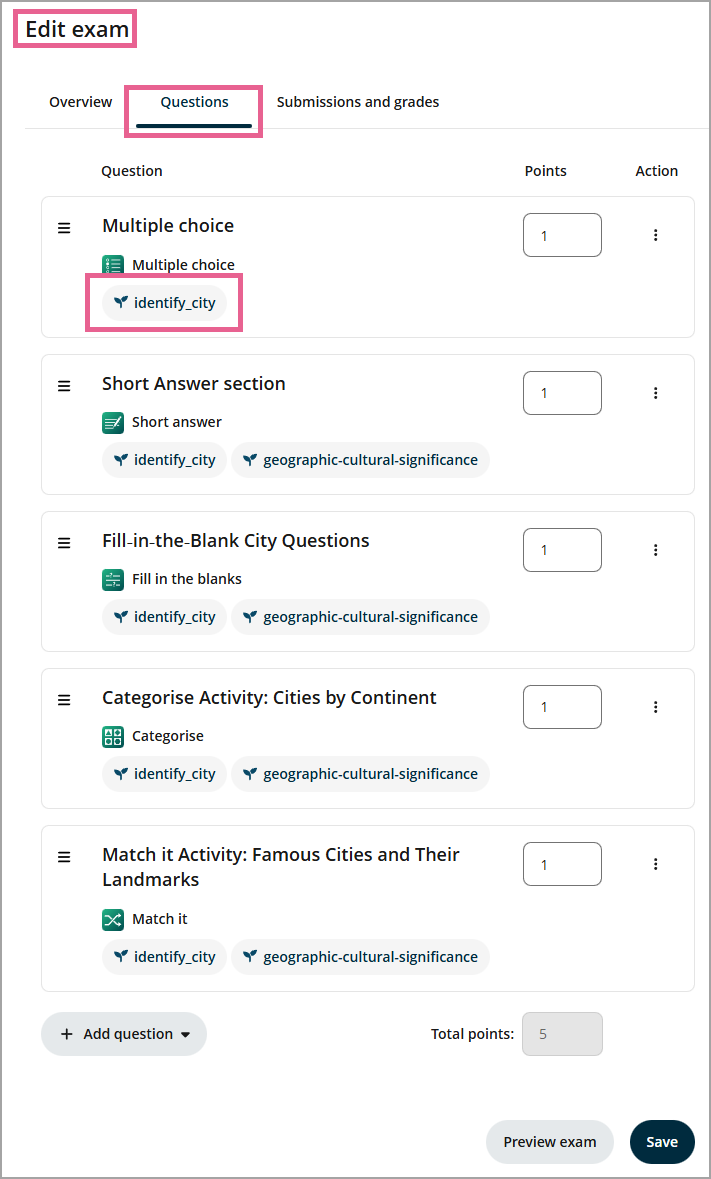
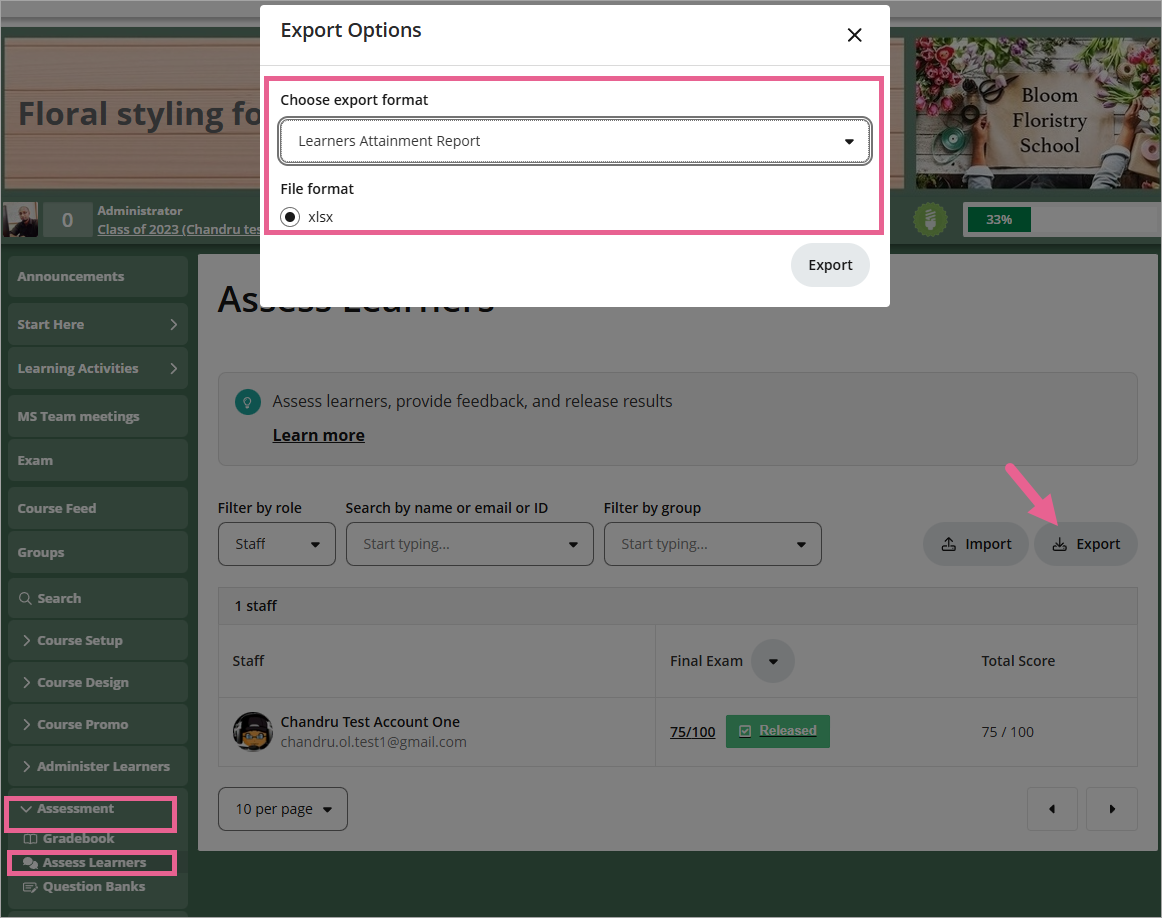
Tagging course learning outcomes (CLOs) here is an essential step in supporting the Learner Attainment Report — an exportable report available from the Assess Learners page. This report combines learner grades and CLO alignments to give educators a clearer view of learner progress.