How do I use the Short answer response?
What is a short answer response
The Short answer response can be used to ask the learner to provide a short answer to a question. Note: this is not for an open-ended type of question. The learner must enter one of the anticipated answers you have entered in the response in order to get it right.
Who can access the feature
Only accounts with the Assessment Designers role can access this feature. To learn more about course roles, please refer to the article What are the different roles within a course?
How to set the short answer response
Step 1
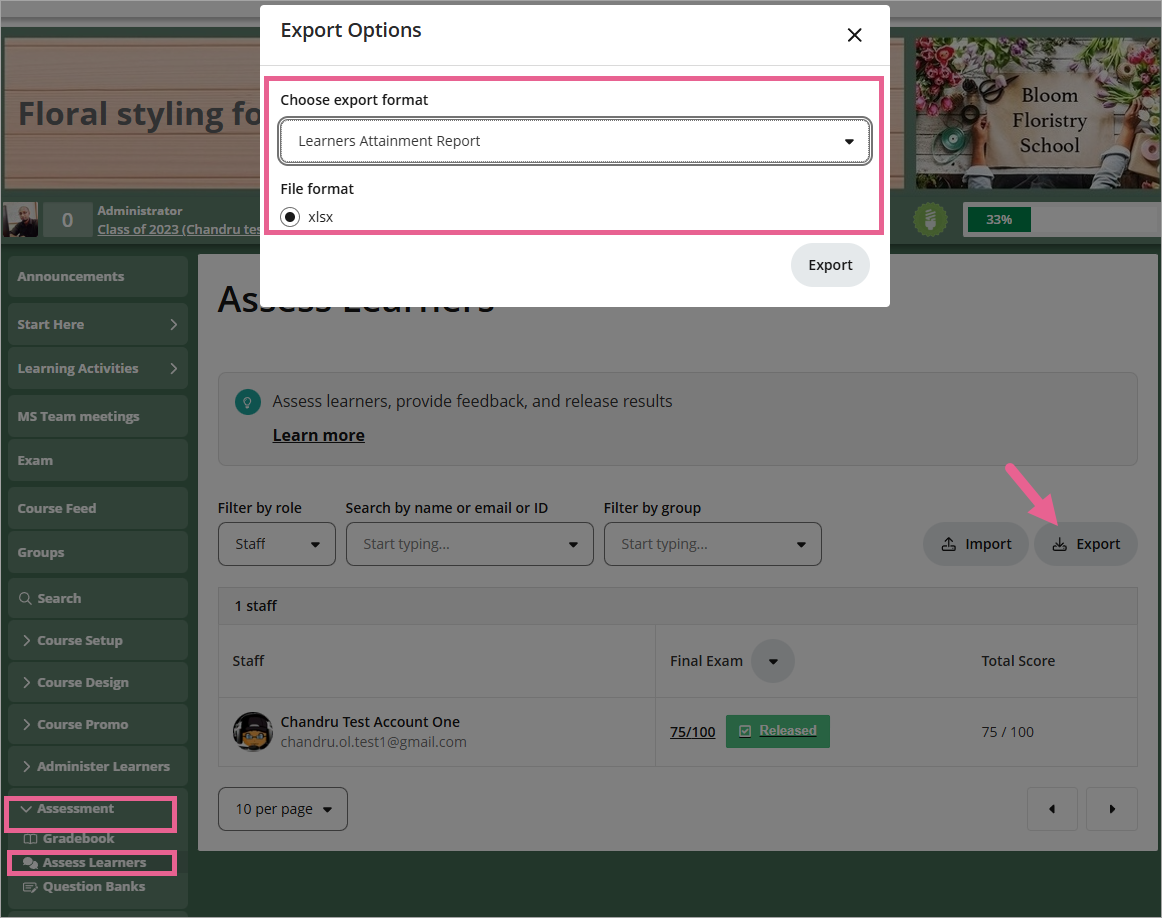
Go to Assessment > Question Banks

Step 2
Click on Create new bank. Enter a name for your question bank and then click Create.

Step 3
Click the newly created Question bank from the list. Click on Add question > Create new question

Step 4
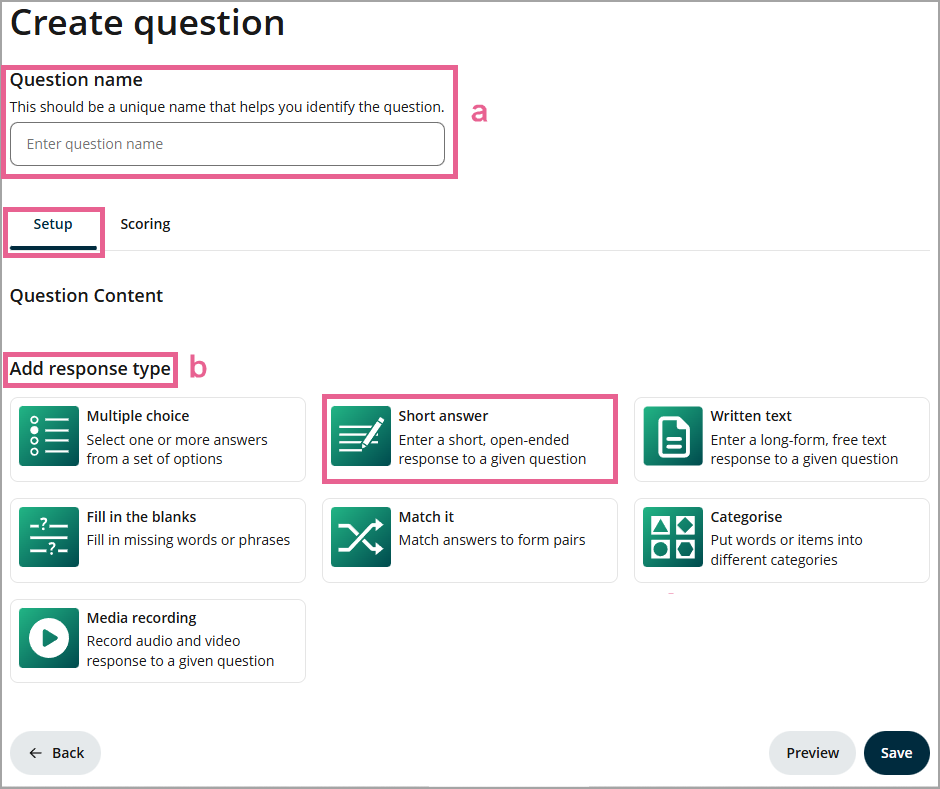
a) Enter a unique name for this question. This name is a unique identifier that helps you identify the question. It is not the question text.
b) Select the Short answer response type.
Step 5
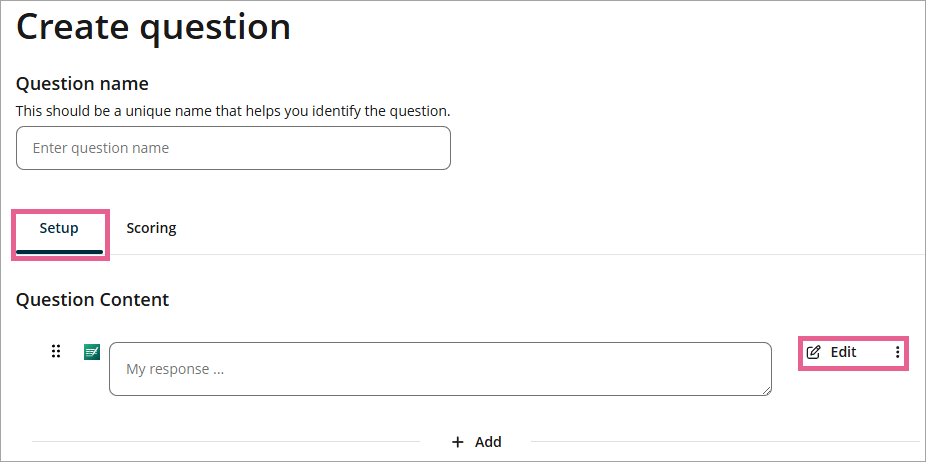
Click Edit to customise a few available settings.
Step 6
A drawer will open where you can configure your Short answer question:
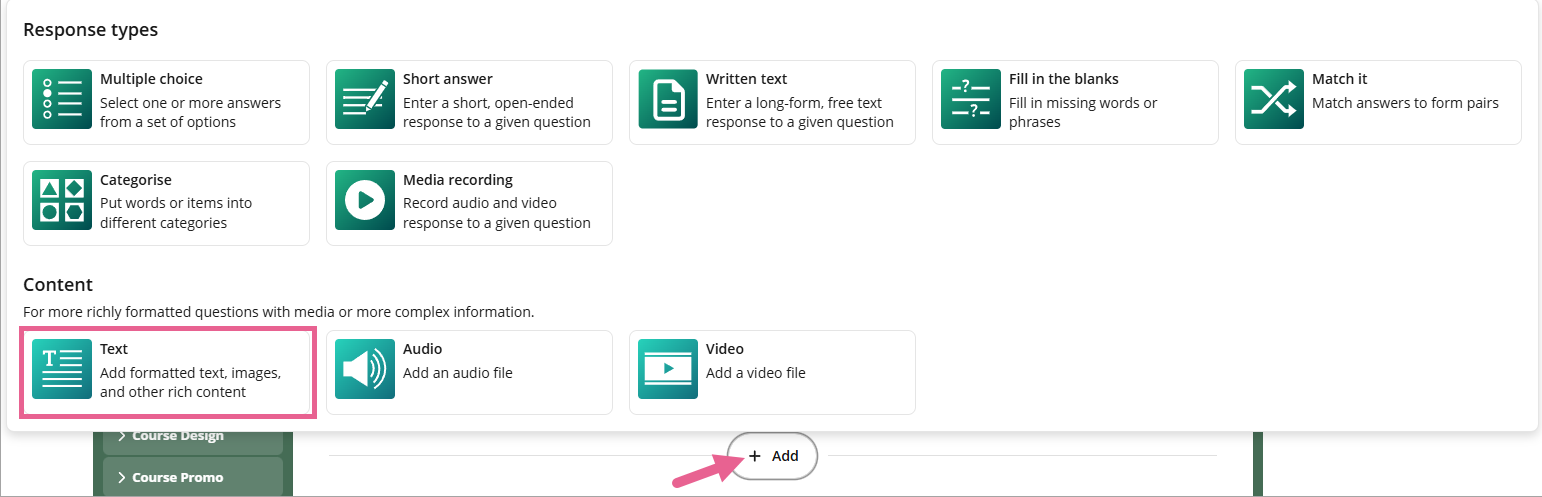
1) Response title: You can enter your question here. If you'd like to use formatted text or images, you can use the Text content instead and leave this box empty.
2) Size of input field: You can select the size of the answer box either Small or Large.
3) Placeholder text: You can replace the default "My response..." here.
4) Character limit: In this setting, you can limit the number of characters the learners can use. You can also remove the spaces from the answer by ticking on the box Automatically strip spaces from answer.
5) Automatic evaluation: The answer will be evaluated as correct if the learner enters text matching any of the conditions. You can set up conditions based on which the response will determine if the learner's answer was correct or incorrect (Note: if you leave this blank, any answer will be accepted as correct, but we advise this response type not to be used for open-ended questions. Assessment will not be possible). You can also add more than 1 condition by clicking on the Add condition button. If the response must precisely match the word in the condition, including capitalization, please tick the box Case sensitive next to the condition.
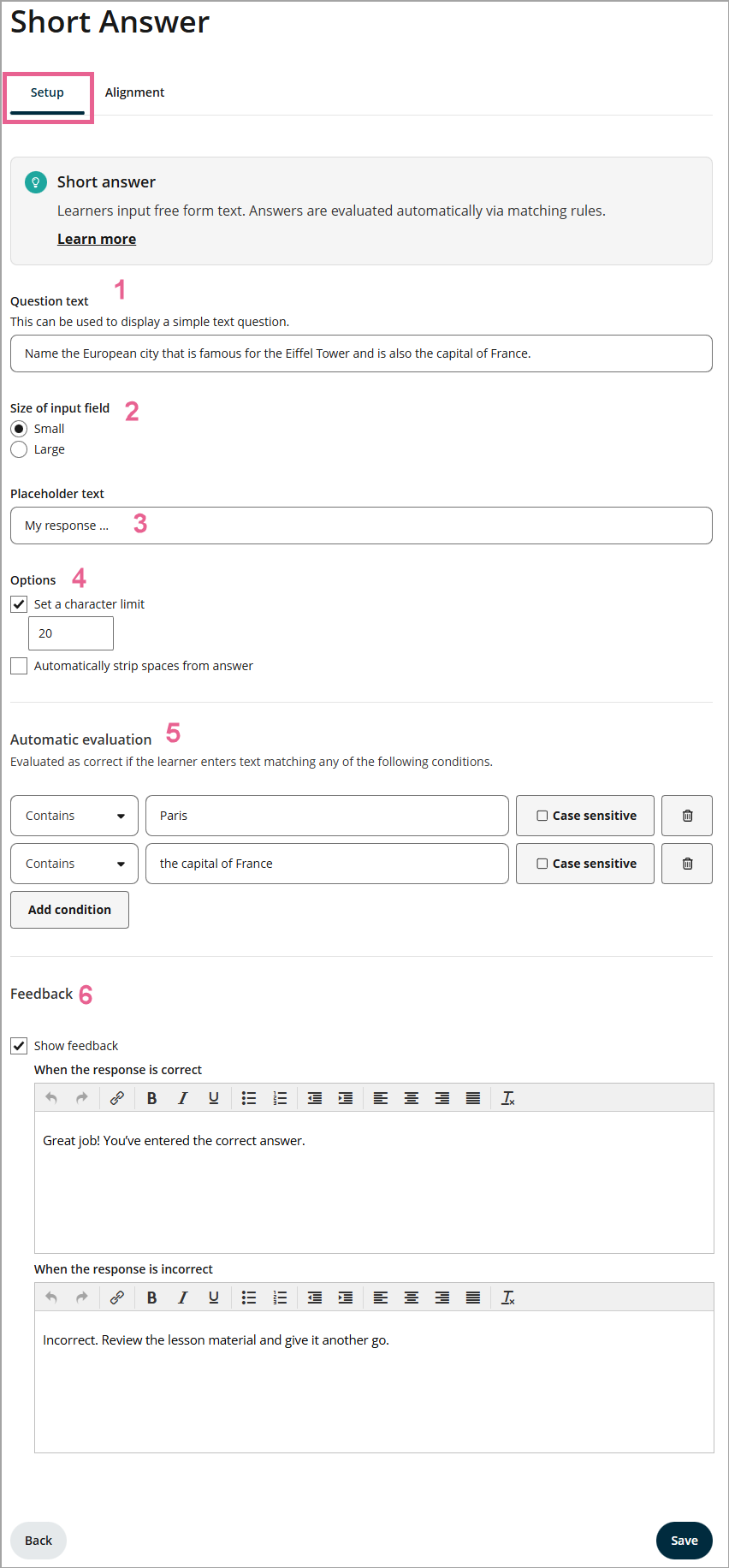
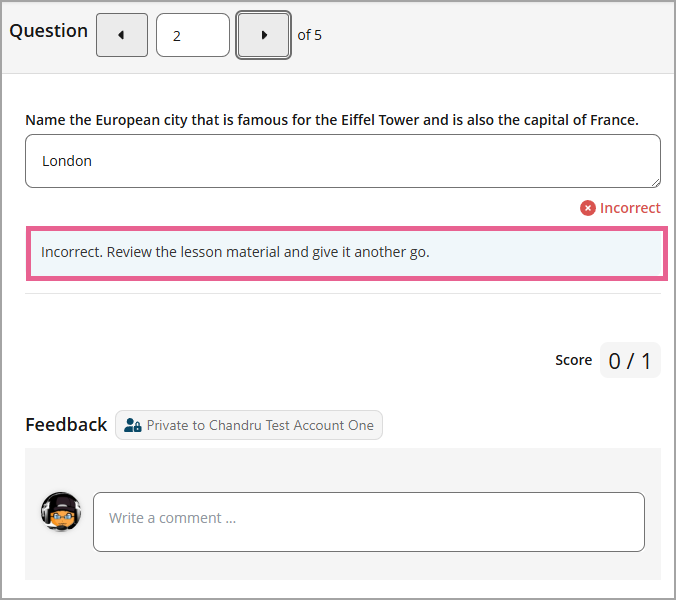
6) Show feedback (optional): Ticking this box will allow you to customise the feedback message when the learner has selected the correct or incorrect answer for that particular question. This feedback will be shown in the learner assessment report after it's released.
Step 7
Click Save to save the questions, and click Back to head to the main section.
 Pro tip: For open-ended questions, consider using the Written text response. It has an assessment guidelines section to better evaluate your learners' responses.
Assign course learning outcomes to the short answer response
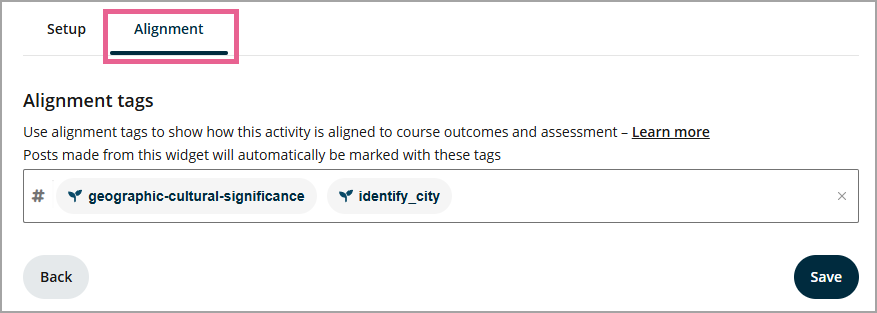
You can add outcome tags for each question in the Alignment tab.
You can now see the outcomes attached to your question in an exam setup.
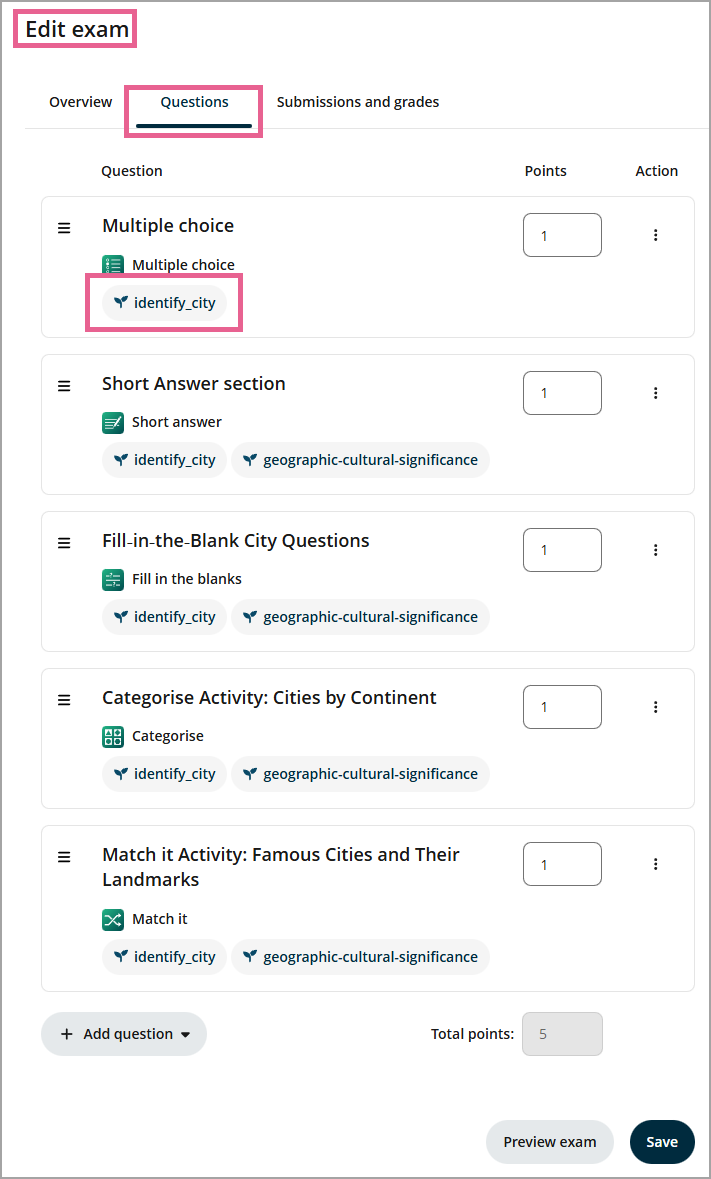
Tagging course learning outcomes (CLOs) here is an essential step in supporting the Learner Attainment Report — an exportable report available from the Assess Learners page. This report combines learner grades and CLO alignments to give educators a clearer view of learner progress.