
How do I use the Text content?
What is the text content
The text content can be used to share content with learners, such as text, images and tables. It allows you to format your text using a wide range of tools and features.
How to set the text content
Step 1
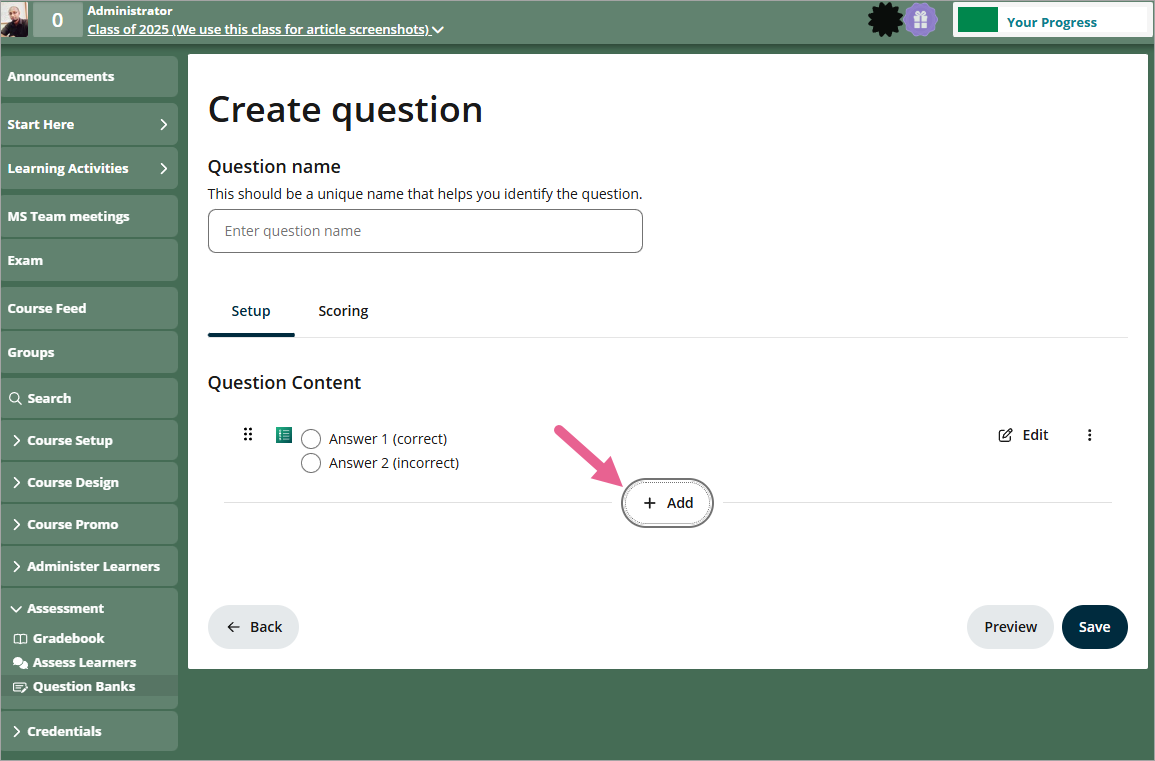
To add new text content, click on +Add.
Step 2
Click on the text content icon.

Step 3
After adding the text content, you will see icons and menus resembling a simple text editor.
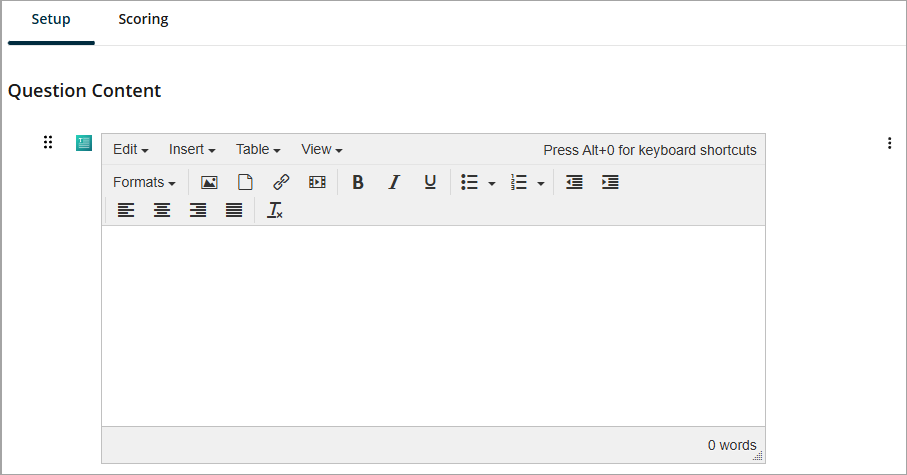
Let's dive into all the menus and icons to see what they offer!
The tabs/menus
There are 4 tabs you will see on the top:
- Edit
- Insert
- Table
- View
In the second line, you will see Formats followed by a number of icons as on the screenshot below:

Edit
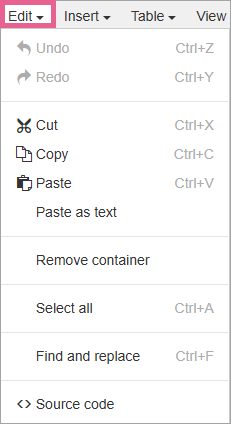
- Undo: Undo the last action.
- Cut: Cut the selected content.
- Copy: Copy the selected content.
- Paste: Paste the previously selected content into the widget.
- Paste as text: Paste the previously selected content into the widget as text.
- Remove container: To remove the container.
- Select all: Select all content in the text widget.
- Find and replace: Find a word or a phrase.
- Source code: View, edit or write the source code.
Insert

- Special character: Insert special characters simply by clicking on one in the chart.

- Latex: To be discontinued, please use Equation.
- Equation: This can be used to enter mathematical equations. To create one, you can:
a) point-and-click on the board
 or
or
b) if you're familiar with syntax, type and edit the green text:

- Paragraph divider: Inserts a line between the paragraphs.
- Nonbreaking space: Prevents an automatic line break at its position and prevents consecutive whitespace characters from collapsing into a single space.
Table
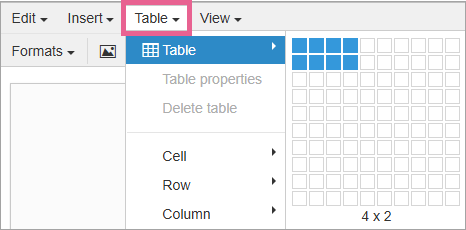
- Table: Insert table by dragging the mouse across the chart to choose the number of columns and lines.
- Table properties: You can choose additional table properties, such as width, height, border, etc.


- Delete table: Delete the selected table.
- Cell: Set up additional cell properties, merge or split cells.
- Row: Set up additional row properties, delete, insert, cut, copy and paste rows.
- Column: Insert or delete column.
View
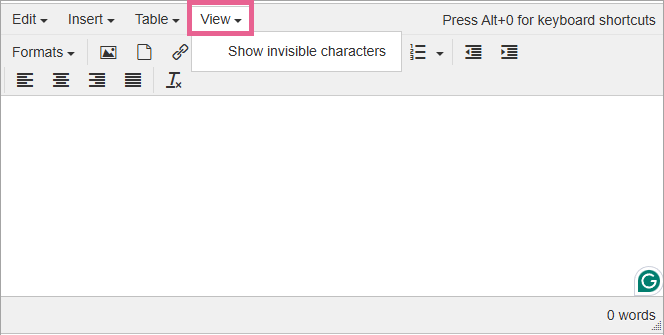
- Show invisible characters: This shows invisible characters, such as spaces.
Formats
- Headings
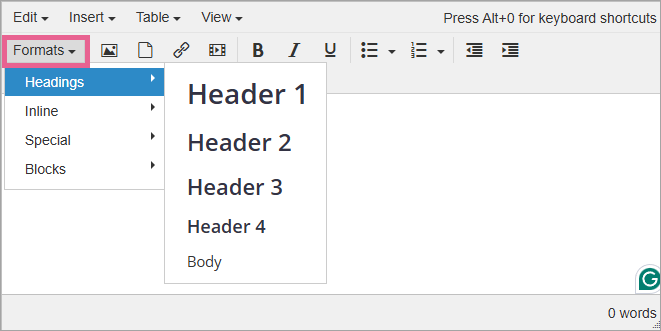
- Header 1-4: Defines the level of headings for the selected text.
- Body: Sets the selected text to the "default" font size.
- Inline
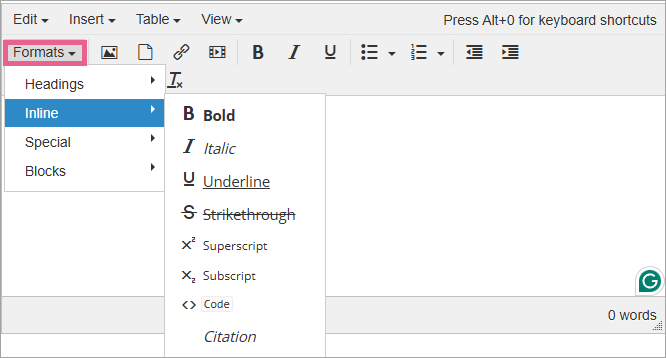
- Bold: Changes the text style to bold.
- Italic: Changes the text style to italic.
- Underline: Underlines the selected text.
- Strikethrough: Places a horizontal line over the selected text.
- Superscript: Specifies selected text to be displayed as superscript.
- Subscript: Specifies selected text to be displayed as a subscript.
- Code: Displays the selected text as computer code.
- Citation: This is used to describe a reference to a cited creative work, and must include the title of that work. The reference may be in an abbreviated form according to context-appropriate conventions related to citation metadata.
Example:

User view:

- Special
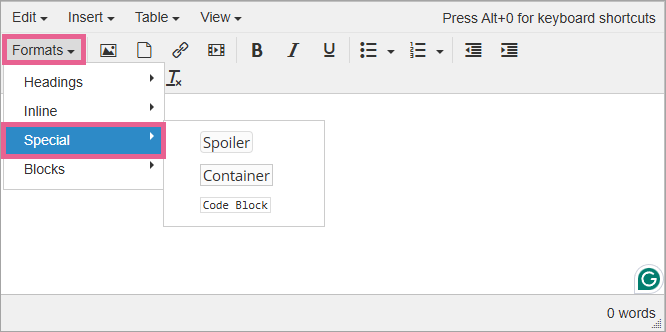
- Spoiler: Creates a special element that reveals hidden text upon clicking.
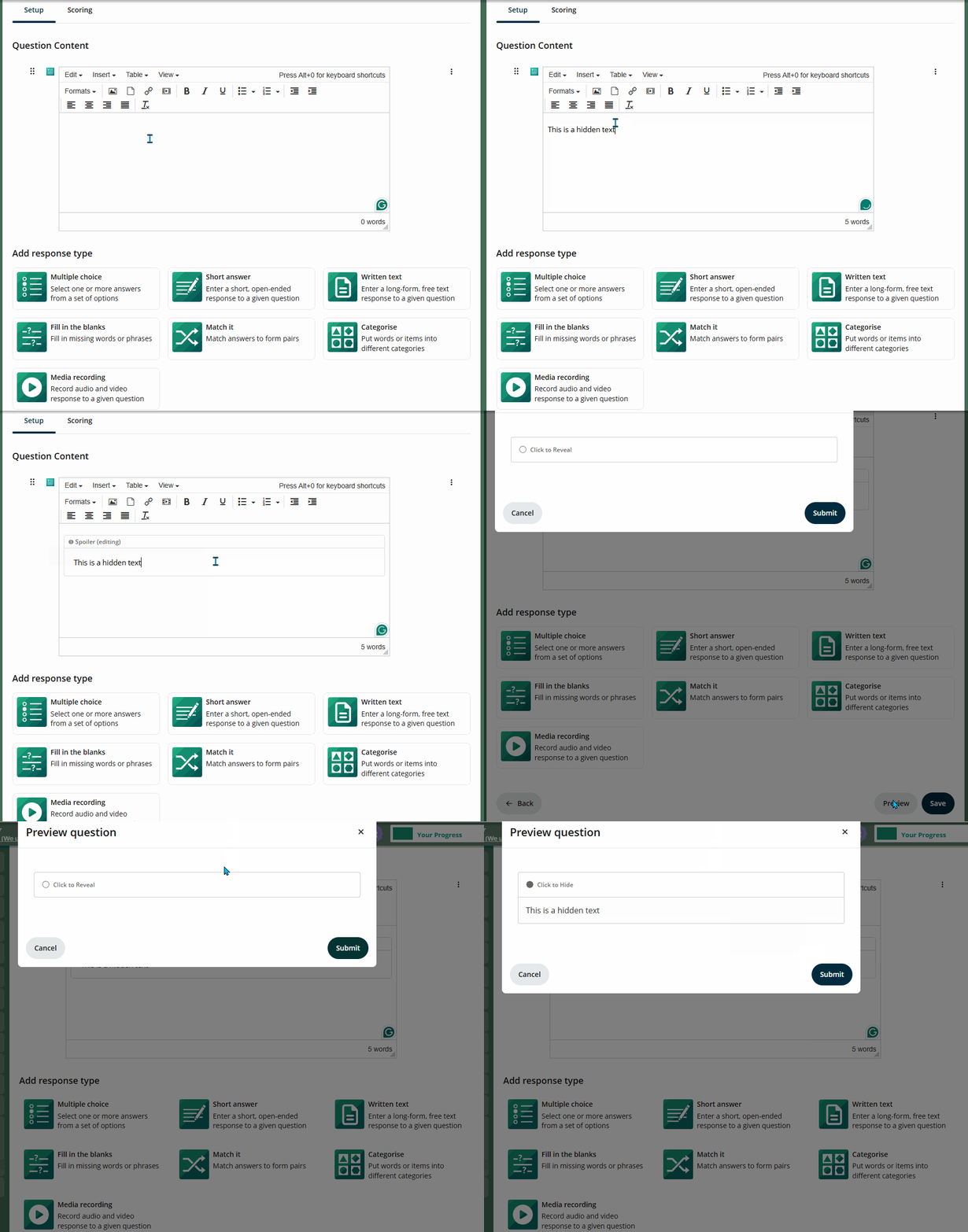
The instructions (Click to Reveal) can be edited in Source code. Click Edit > Source code.
- Container: Creates a container that can be used to emphasize a part of the page content. The background can be edited. (Here's how.)
- Code block: Can be used to display code.
- Blocks
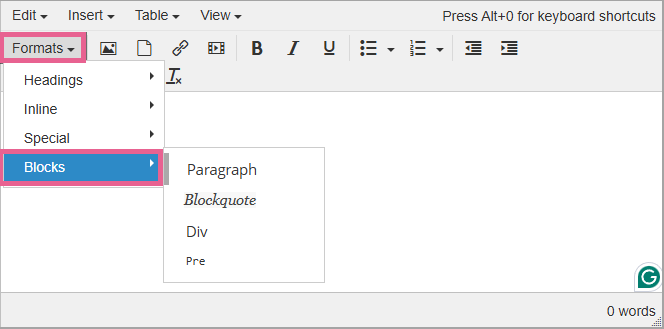
- Paragraph: Reverts to default text paragraph style settings.
- Blockquote: This can be used to indicate that the text is an extended quotation.
Example of learner view:

- Div: Defines a division or a section.
- Pre: Defines preformatted text. The selected text is displayed in a fixed-width font, and the text preserves both spaces and line breaks. The text will be displayed exactly as written in the HTML source code. You can use this to display code or any type of text where you would not want the lines to break.
The icons

Insert/Edit image
You can use this to insert (or edit) images in the text content. You can either upload it or enter the URL of the image that is located somewhere else.
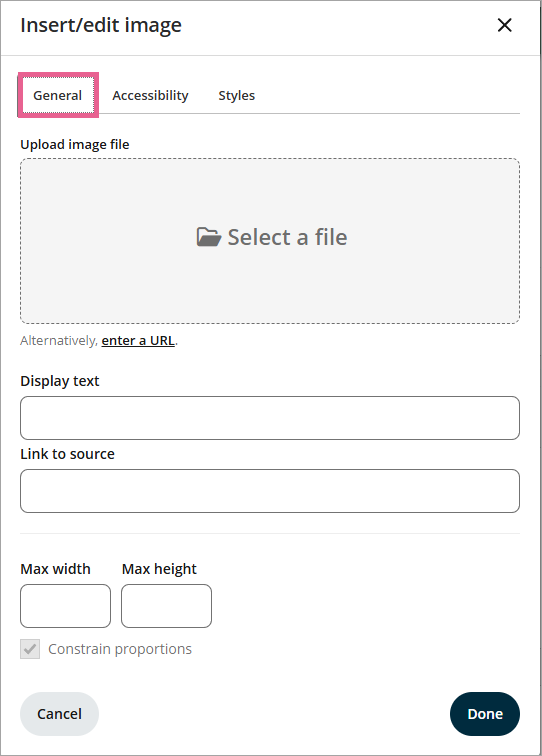
- To upload the file click on the grey area where it says Select a file.
- To insert an image residing elsewhere click on enter a URL.
- You can set dimensions by setting max-width and height.
- For citation purposes, you can enter Display text and Link to the source.
Click Done to upload the image.
Accessibility
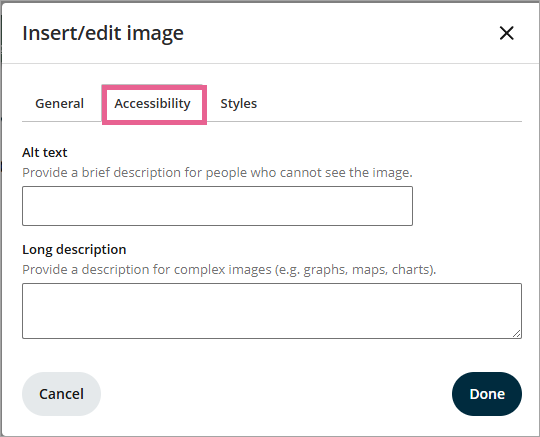
Alt text: You can enter a brief description for people who can't see the image.
Long description: You can provide a description for complex images.
Styles
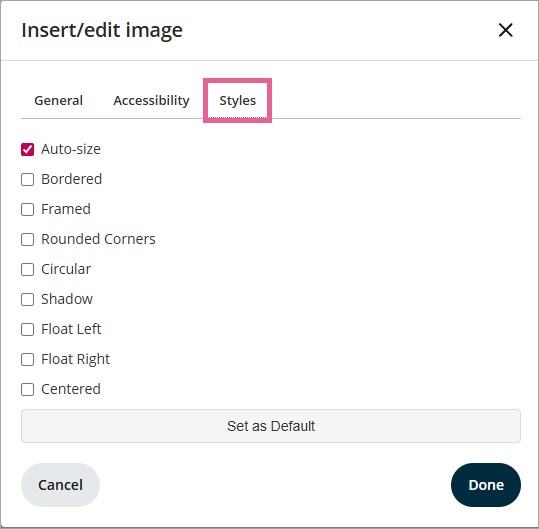
By ticking the box you can apply different styles to the selected image.
Insert/edit file

By clicking on this icon, you can insert a file into the text content.
Insert/edit link

By clicking on this icon, you can insert a link into the text content.
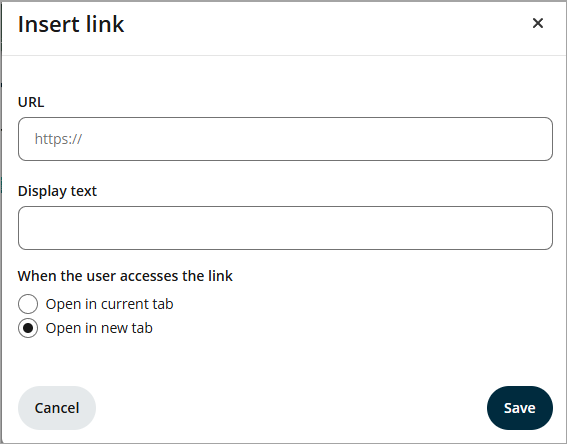
URL: Enter the URL here.
Display text: You can edit the text you'd like to display.
When the user accesses the link: Open the link in the same tab or open in a new tab.
Insert/Edit media


Media URL/Link: Link the media you'd like to embed within your text content.
Dimensions: You can set the height and width of the media.
Full-Width: Tick this box if you'd like the media to be full-width
Play Automatically: Tick this box if you'd like the media to play automatically when the learner lands on this page
Text styling
Bold - Changes the selected text to bold.
Italic - Changes the selected text to italic.
Underline - Underlines the selected text.
Bullet list or numbered list

These two can be used to create a bulleted or numbered list.
Indent and alignment

These can be used to decrease and increase ident and change the alignment of the text.
Clear formatting

Selecting text and clicking this icon will remove any formatting.