How do I use the Match it response?
What is a match it response
The Match it response type allows learners to pair related items from two lists — for example, matching terms with their definitions or questions with their correct answers.
Who can access the feature
Only accounts with the Assessment Designers role can access this feature. To learn more about course roles, please refer to the article What are the different roles within a course?
How to set the match it response
Step 1
Go to Assessment > Question Banks

Step 2
Click on Create new bank. Enter a name for your question bank and then click Create.

Step 3
Click the newly created Question bank from the list. Click on Add question > Create new question

Step 4
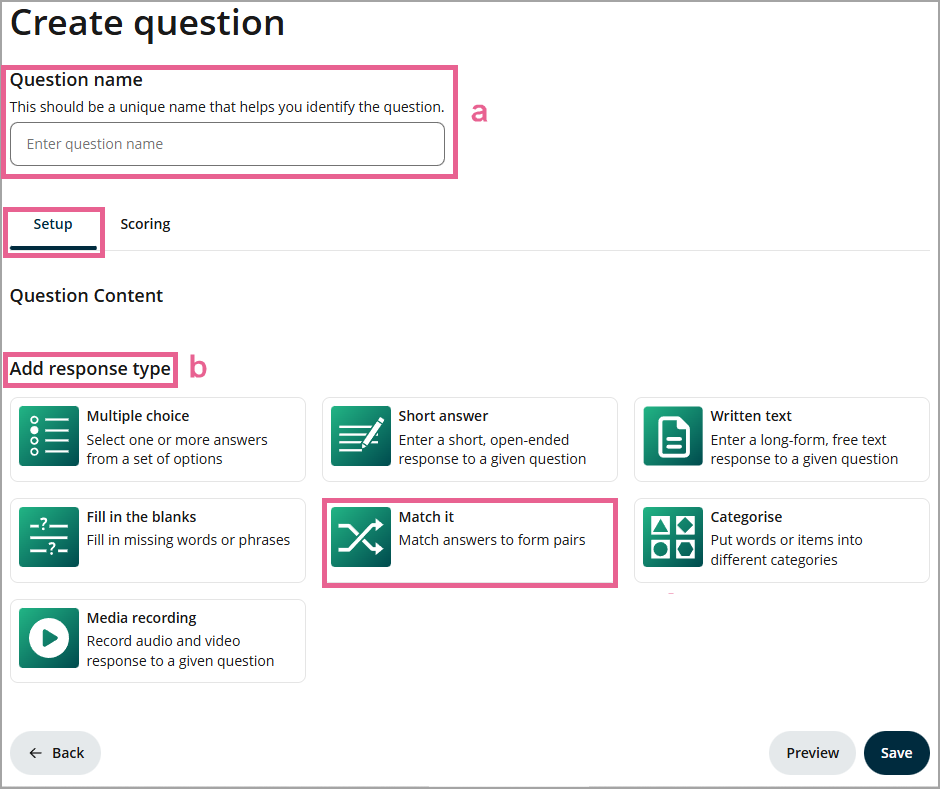
a) Enter a unique name for this question. This name is a unique identifier that helps you identify the question. It is not the question text.
b) Select the Match it response type.
Step 5
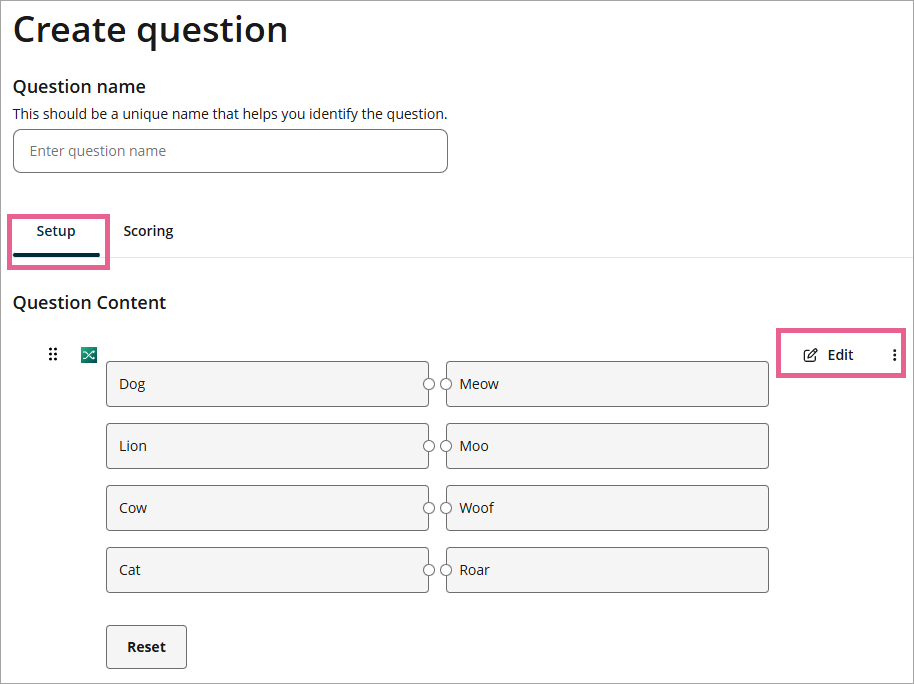
Click Edit to customise a few available settings.
Step 6
A drawer will open where you can configure your Match it question:
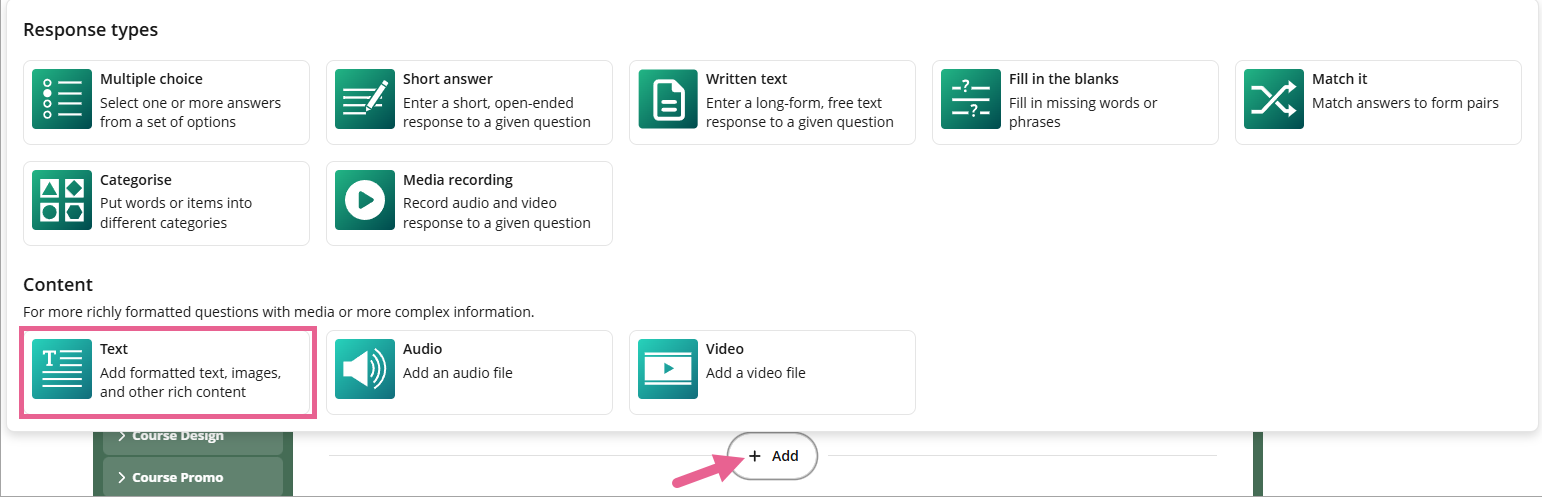
1) Response title: You can type in the question here. Note: If you need to include images or formatted text in your question, you can leave this blank. Instead, add a Text content above the Match it response and post the question there.
2) Matching item pairs: You can create matching item pairs and click on the Add match button to add more matching item pairs. 1 line indicates 1 matching item pair. You can also add images instead of text.
3) Display Order: By NOT ticking the Specify the order of list items box, each learner will see a different randomised order of items. To specify the order, tick the box and rearrange the order of the items.
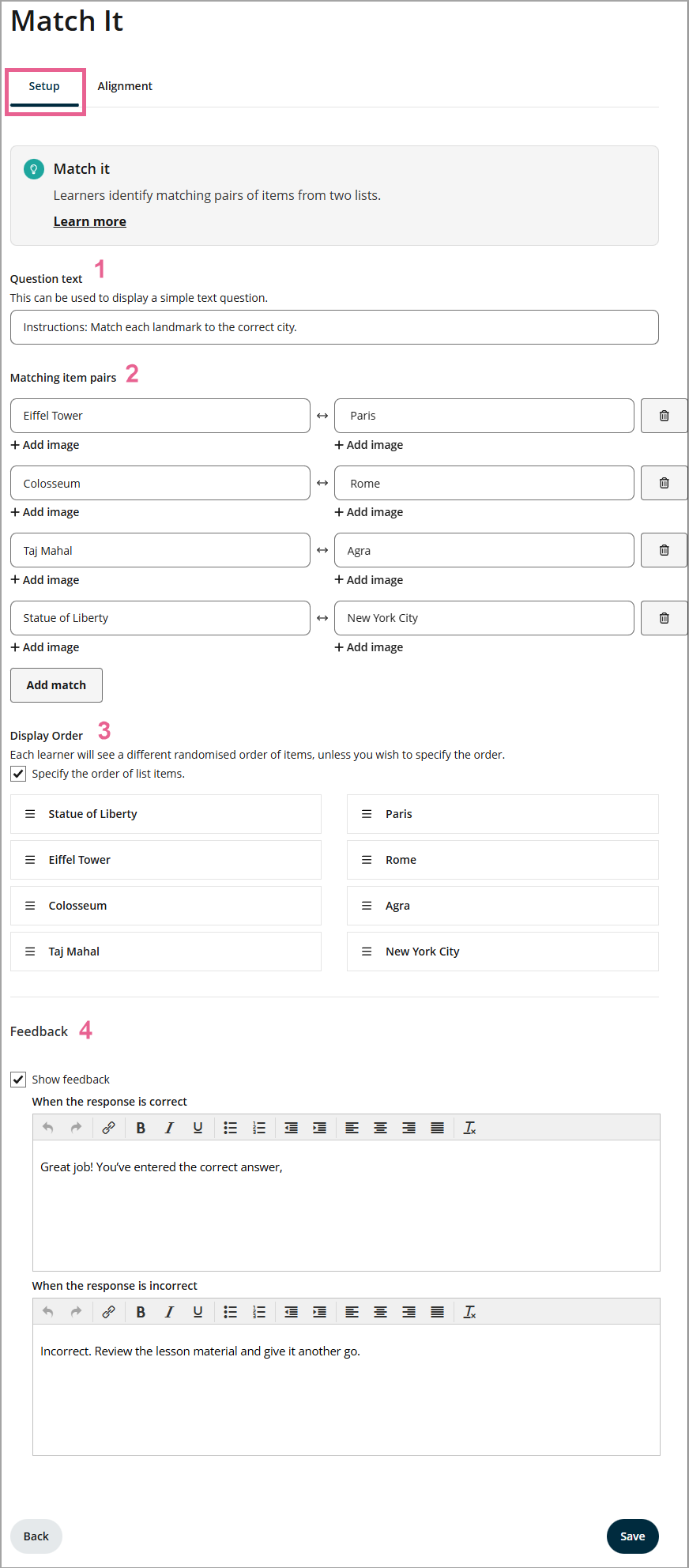
4) Show feedback (optional): Ticking this box will allow you to customise the feedback message when the learner has selected the correct or incorrect answer for that particular question. This feedback will be shown in the learner assessment report after it's released.
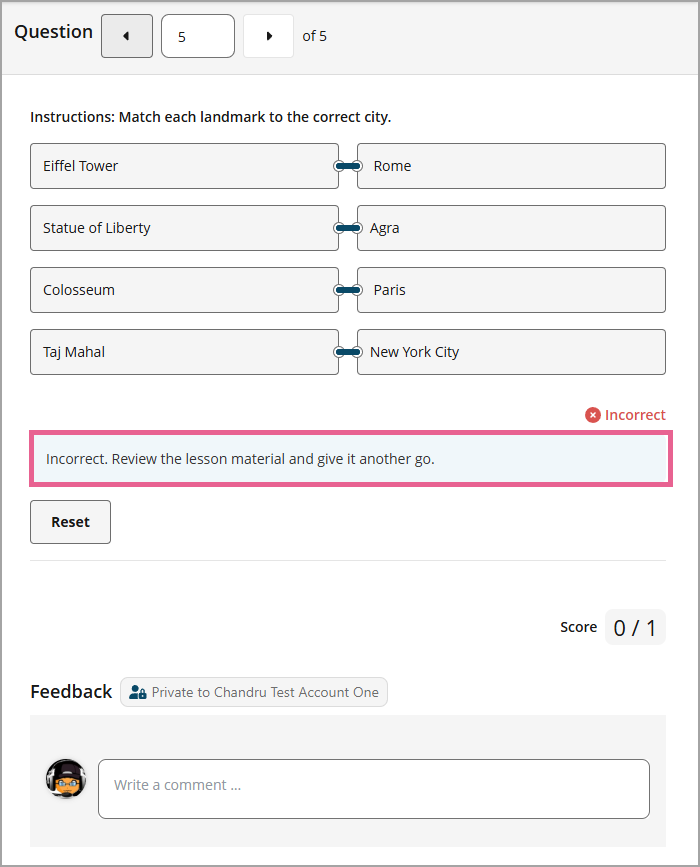
Step 7
Click Save to save the questions, and click Back to head to the main section.
How do the learners answer the question in the match it response
To answer the question, the learner can click on one of the items on the left and then click on the preferred matching pair item on the right as shown below:
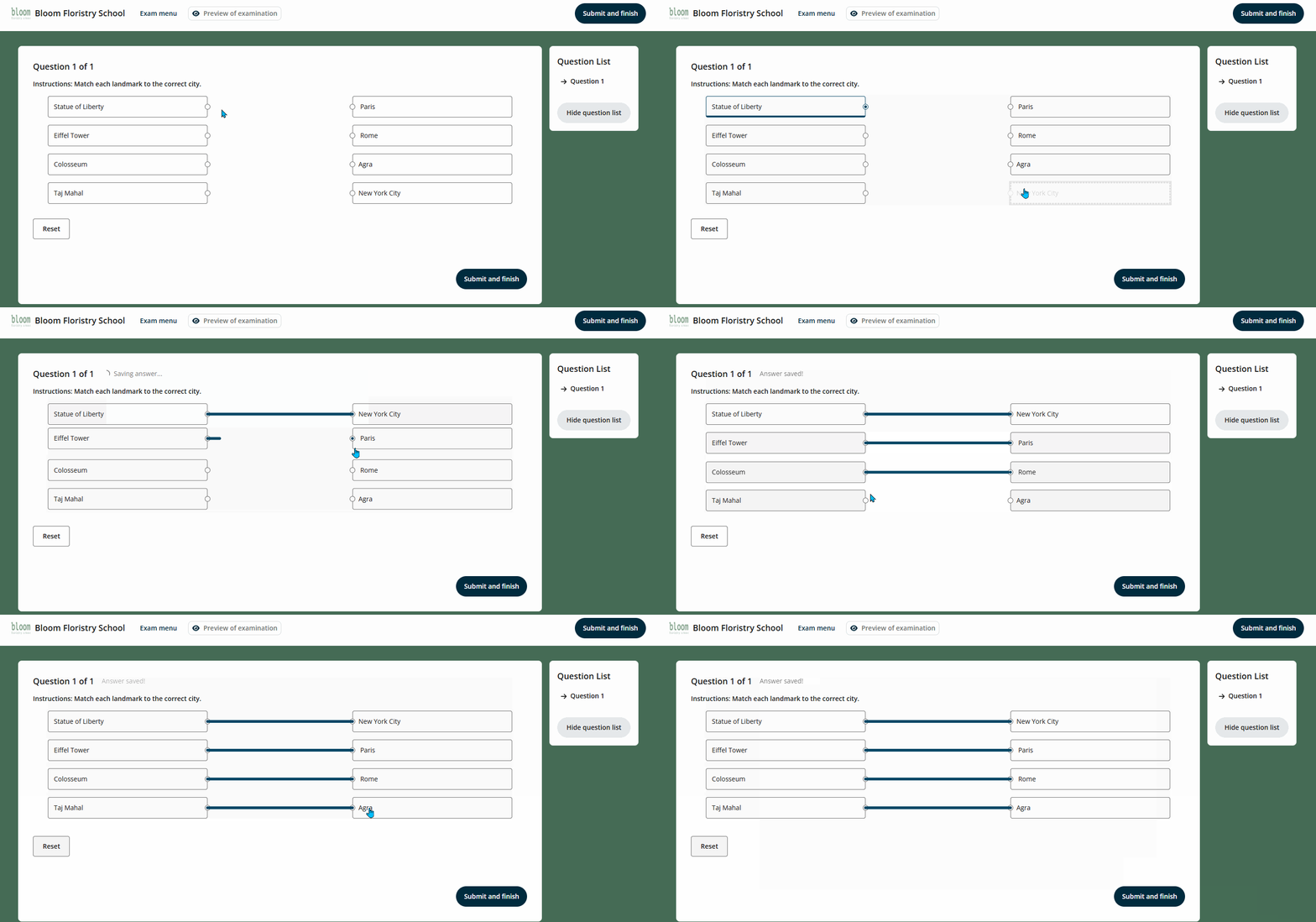
The learners can also use the Reset button to clear all the answers and start from the beginning again.
How can a learner undo their answers in match it response if they change their mind?
To undo an answer, the learner can click on the answer item on the left and then click on the new preferred matching pair item on the right to rectify the connection as shown below:
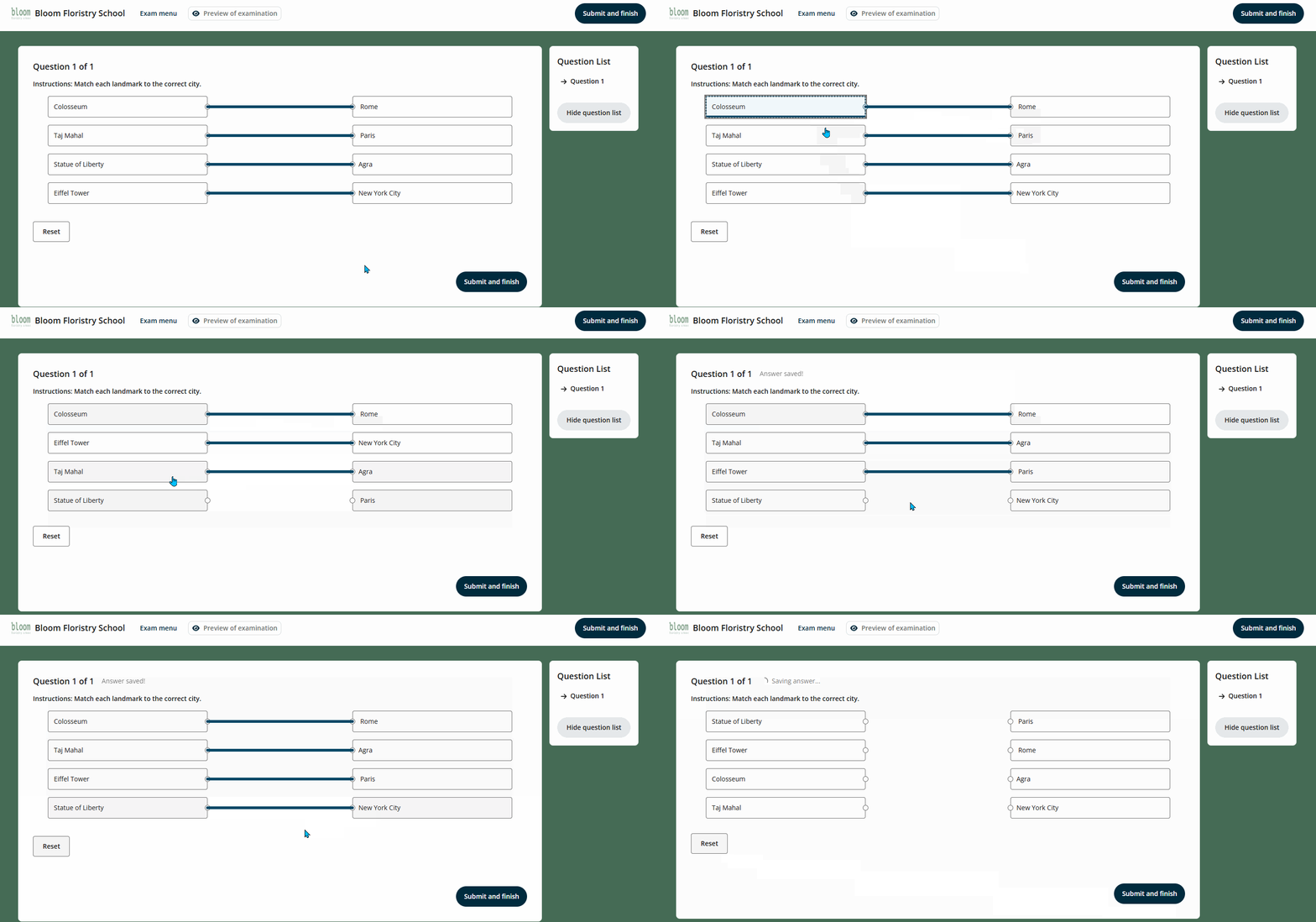
They can also click the Reset button to reset all matches or answers before submitting.
Assign course learning outcomes to the match it response
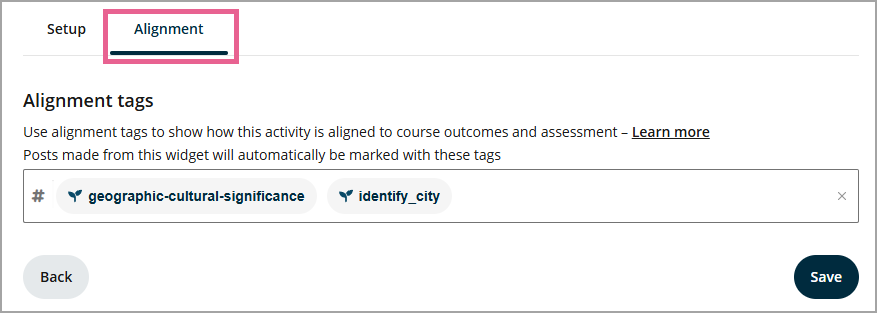
You can add outcome tags for each question in the Alignment tab.
You can now see the outcomes attached to your question in an exam setup.
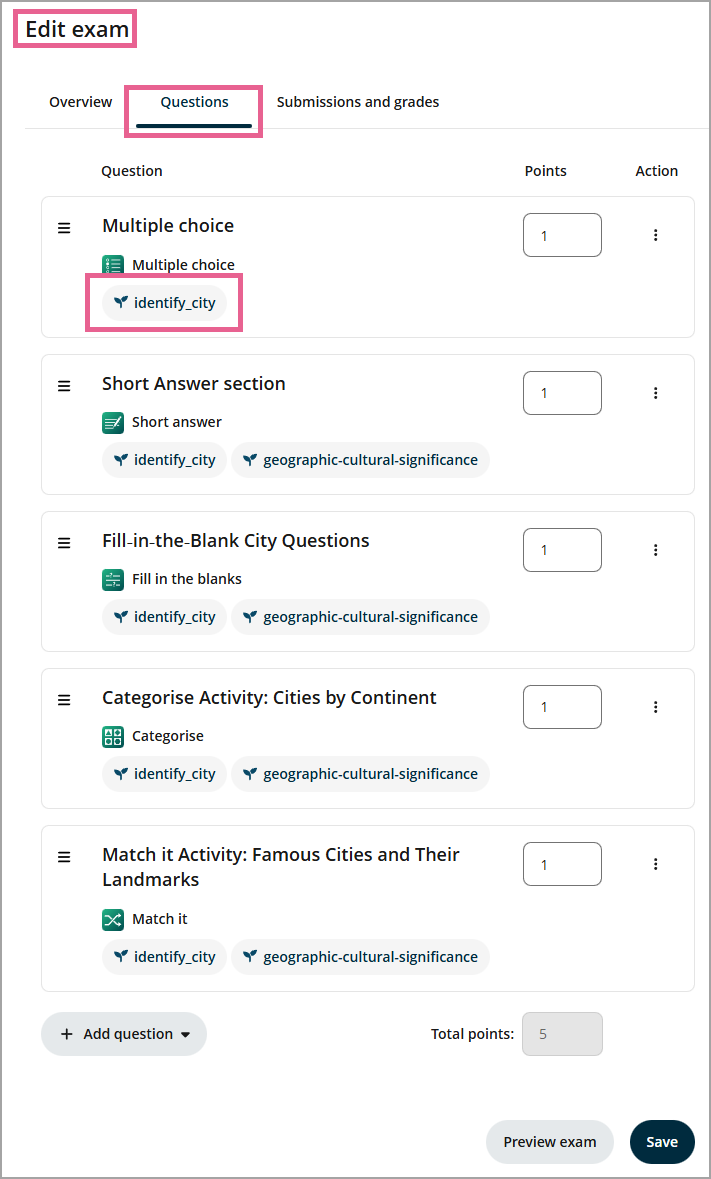
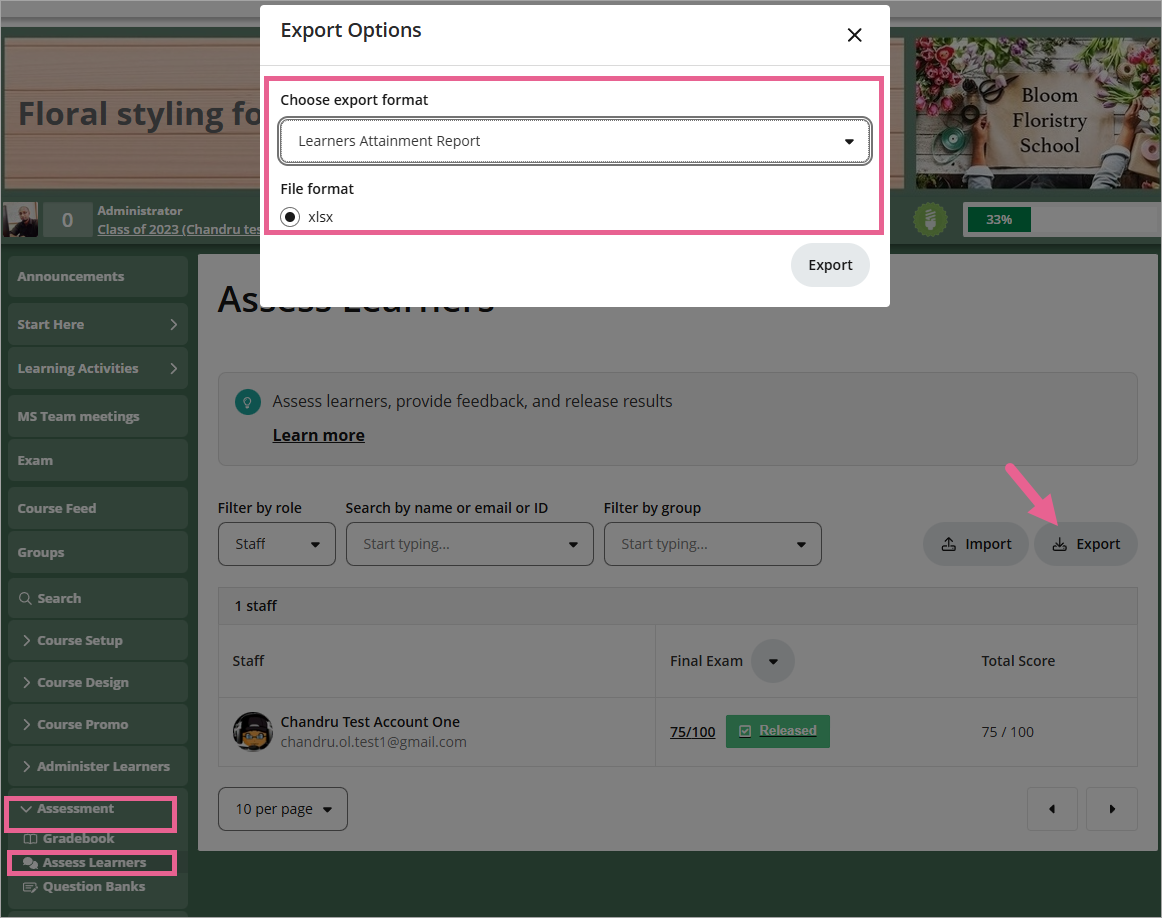
Tagging course learning outcomes (CLOs) here is an essential step in supporting the Learner Attainment Report — an exportable report available from the Assess Learners page. This report combines learner grades and CLO alignments to give educators a clearer view of learner progress.