
How can I enable multi-factor authentication (MFA) requirements in my institution’s access policy?
How to enable multi-factor authentication (MFA) requirements?
Institution administrators can now require multi-factor authentication (MFA) for all users accessing their institution on OpenLearning. When this setting is enabled, learners and educators who have not yet set up MFA will have restricted access until they complete the MFA setup process.
Step 1
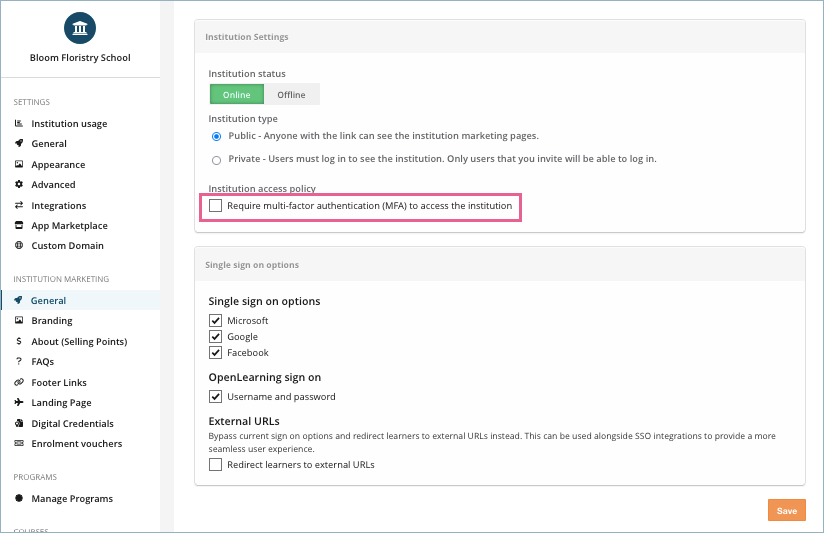
Go to the Institution Settings > Institution Marketing > General.
Step 2
Navigate to the Access Policy section. Tick the checkbox Require multi-factor authentication (MFA) to access the institution.
Step 3
Click the Save button to apply the changes.
 Once enabled, this setting will apply to all users within your institution, including both learners and educators.
What happens if a learner has not set up MFA yet?
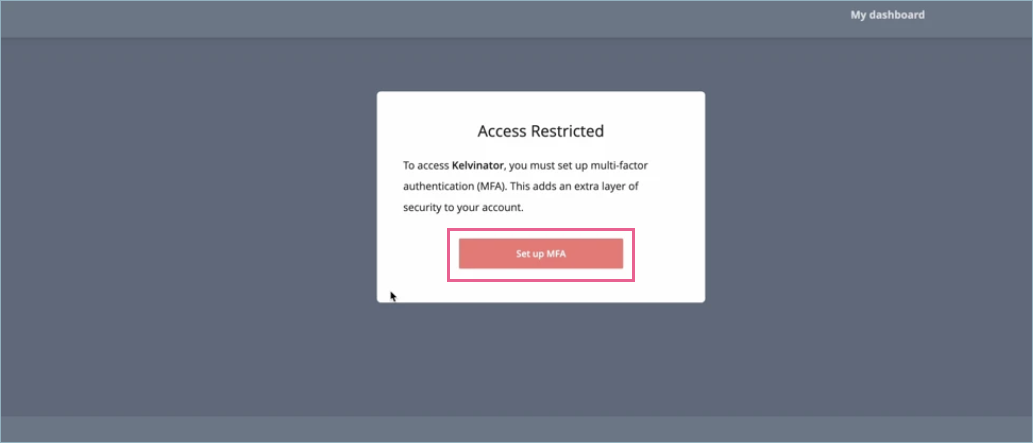
If MFA is required and a learner has not yet configured it, they will see a prompt when attempting to access the institution or any courses, and their access will be restricted until the setup is complete.
How do I set up MFA when prompted?
Step 1
When prompted, click the Set Up MFA button.
Step 2
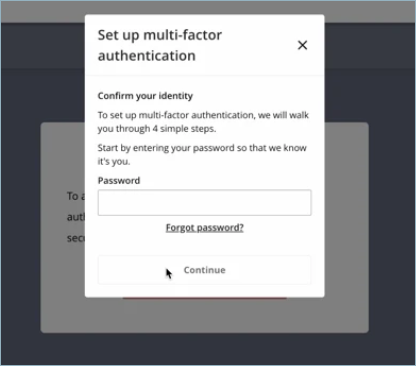
You’ll be redirected to the MFA setup flow. Simply follow the steps outlined in the MFA Setup Guide.
Step 3
Once MFA has been successfully set up, you’ll be able to access the institution and your courses as usual.
We recommend setting up MFA as soon as possible to avoid any disruption to your learning or teaching experience.
MFA Requirement: Key Information and Access Impact
Only institution administrators can enable or disable the MFA requirement via Institution Settings. When enabled, this requirement applies to all users within the institution, including both learners and educators.
Users who have already set up MFA will not be affected and can continue accessing the institution as usual. However, users who have not yet configured MFA will need to complete the setup process before they can access the institution or any associated courses.