Institution Memberships
Institution membership
OpenLearning Institution Portals allow you to add users, both managed and unmanaged accounts, as members of the institution. Institution members can be granted additional privileges, such as the ability to join courses at discounted prices or for free.
A managed account is a user account that has been provisioned and is managed by the institution. In contrast, an unmanaged account is a user account that was not provisioned by the institution, as it has already been created and is managed by another institution.
To view the membership status of each learner, go to the Institution Settings > People > Manage Learners > View Learners, and check the Institution Membership column.
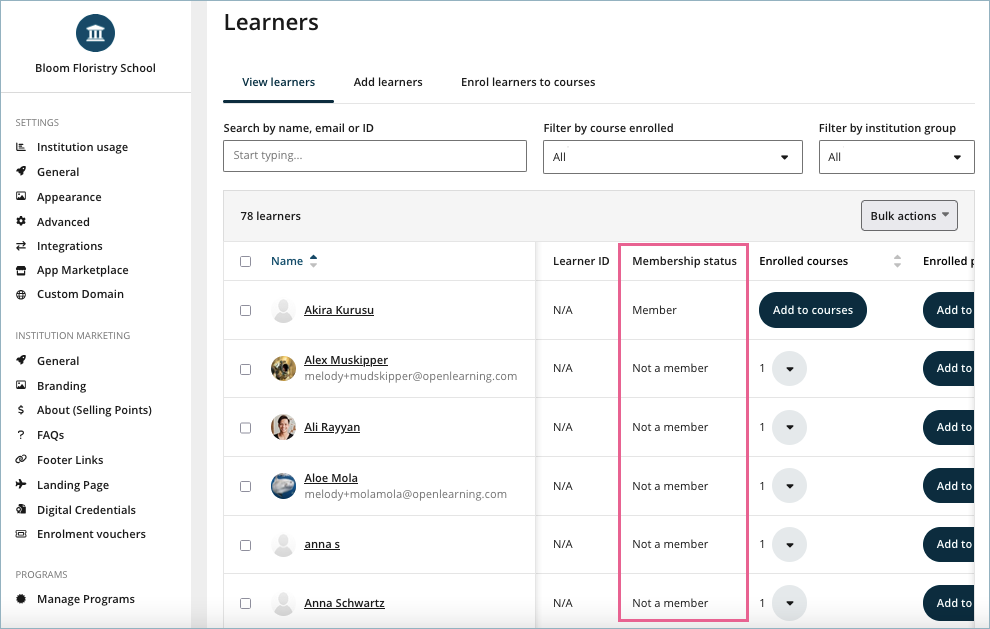
This column indicates whether a learner is an official member of the institution or is only associated with it through course enrolment.
This helps Educators and Administrators easily distinguish between:
- Learners who have been invited to join the institution, and
- Learners who are participating in only one or more courses within the institution.
Membership Status
Member
Learners who have been explicitly invited to join the institution will be marked as Member.Not a member
Learners who are enrolled in courses but have not been invited to join the institution itself will be marked as Not a member.
For example, a learner may appear in the Manage Learners table because they were invited directly to a course. In this case, they are associated with the institution through that course but are not considered an institution member, so they will be marked as “Not a member”.
How to change the membership status from the User Interface
Step 1
Go to the Institution Settings > People > Manage Learners > View Learners.
Step 2
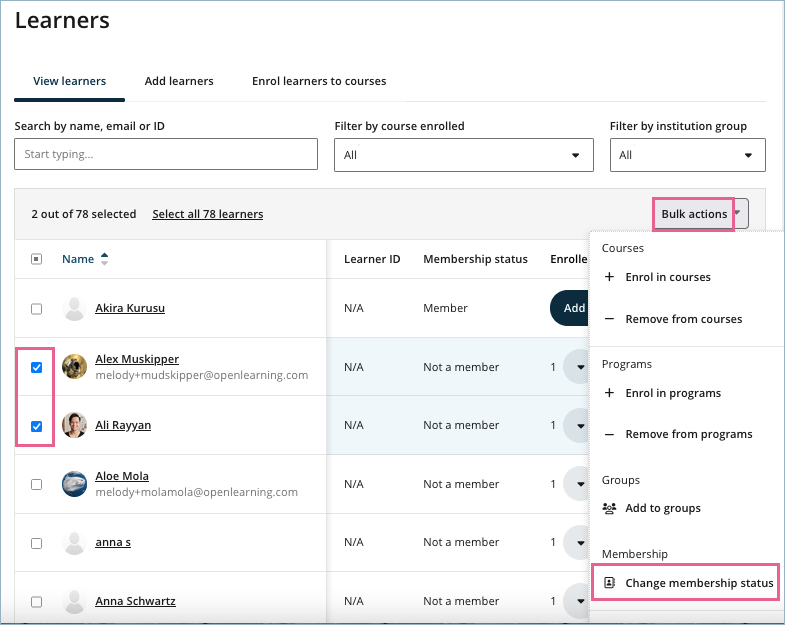
Select the learners from the list, click Bulk Actions, and then choose Change Membership Status.
Step 3
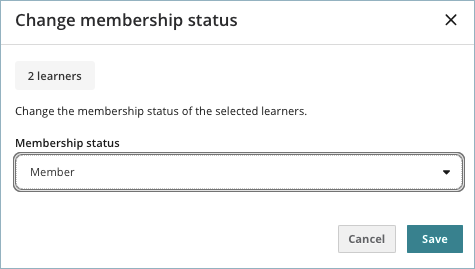
From the Membership Status dropdown, select either Member or Not a member, then click Save to apply the changes.
Flow for Removing Learners from an Institution
When an institution administrator removes a learner, the system will:
- Unenrol the learner from all courses within the institution.
- Delete the institution enrolment record.
- Save a record of the action in the Audit Log.
This ensures that learner removal is handled more consistently and that a proper record of the action is maintained.
Creating Institution Memberships for a New Institution
When an existing course is added to a new institution, the course’s learners and educators will also appear in that institution’s Manage Learners table.
However, these users will not automatically be marked as institution members unless they have been explicitly invited to join the institution.
For example, if a course from Georgiversity is added to the University of BLD, the learners and educators from that course will appear in the University of BLD’s View Learners table. However, they will be marked as Not a member unless they have also been invited to join the University of BLD as institution members.
This helps distinguish between:
- Users who are present due to course access, and
- Users who have formally joined the institution.
API, LTI and SAML
API, LTI, and SAML integrations also support institution membership. For API integrations, you can use the endpoints below to manage or update the institution membership status for learners.
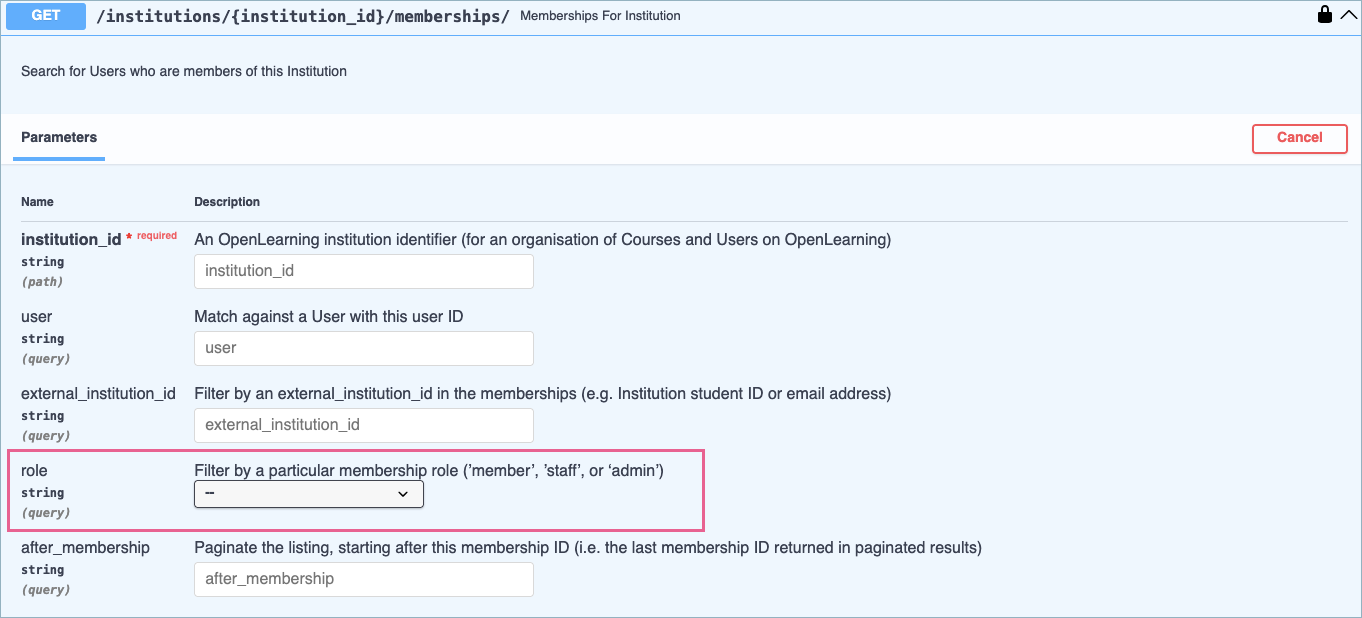
GET /institutions/{institution_id}/memberships/
You can filter out non-members using this endpoint by setting the role parameter.
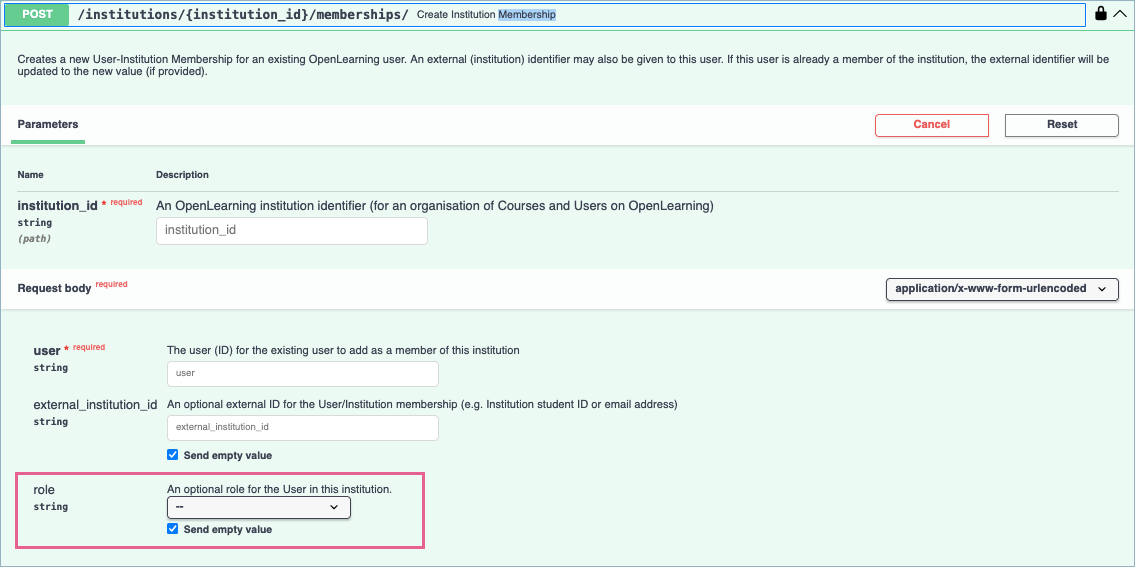
POST /institutions/{institution_id}/memberships/
You can set the membership status using this endpoint by specifying the role parameter.
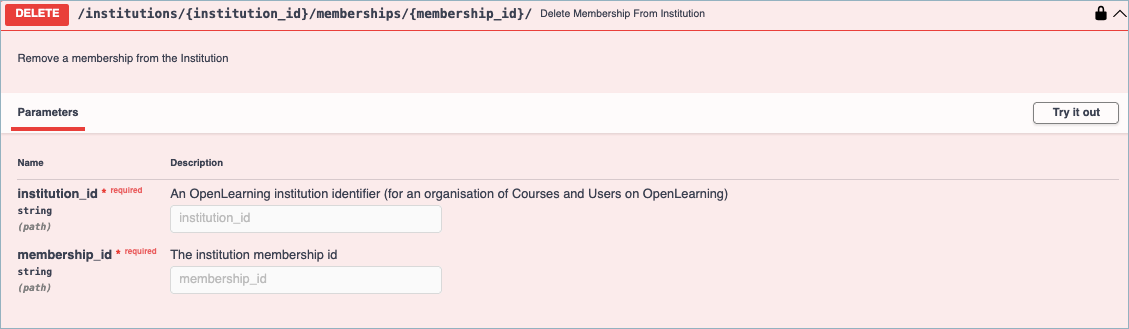
DELETE /institutions/{institution_id}/memberships/{membership_id}
When a learner is deleted using this endpoint, the system will:
- Unenrol the learner from all courses
- Delete the institution enrolment record
- Save a record of the action in the Audit Log