How to set up a paid class?
Things to check before setting up
Before setting up a paid class, ensure you have configured your default payment gateway settings. In OpenLearning, you can set up:
- OpenLearning Stripe Connect (default gateway): Learn how to set this up in How to set up Stripe Connect. Note: Only the Subscription Owner can set this up.
- External Payment Gateway: Learn how to set this up in How to set up an external payment gateway. Note: Only Institution Administrators can set this up.
This guide explains how to set up course fees, manage currency options, and configure advanced payment settings for individual classes.
How to set up a paid class?
Step 1
Go to Course Setup > Classes.
Step 2
Select the class for which you would like to set up payment. Click on Edit.

Step 3
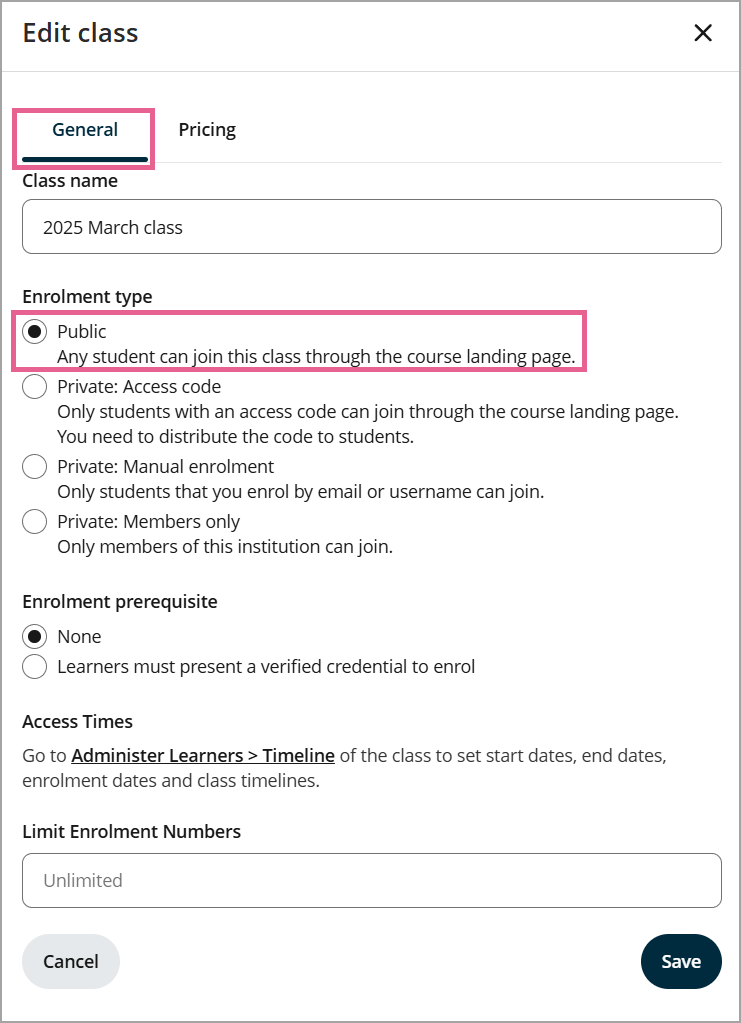
Under Enrolment type, set the option to Public.
Note: The Paid option is only available for Public classes.
Step 4
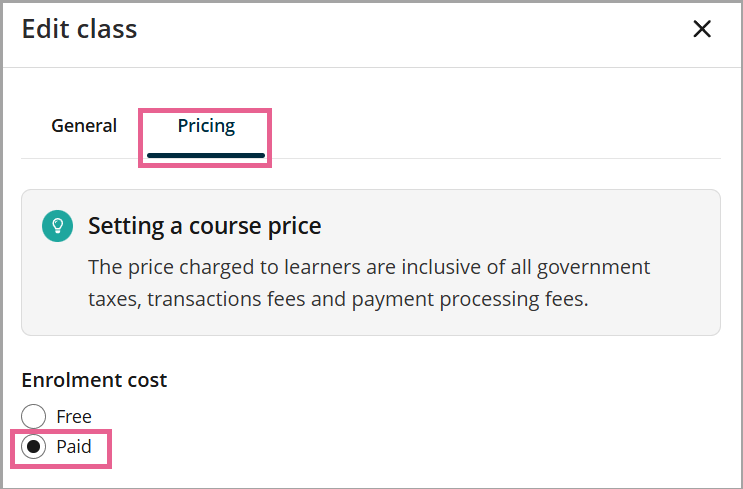
Navigate to the Pricing tab. Under Enrolment cost, select Paid
Step 5
- Currency: Select your primary course currency from the drop-down menu.
- Amount: Enter the price for your course.
- Payment methods: Choose your preferred payment gateway for this class.
Note: If you have not set up a payment gateway (such as Stripe Connect or an external gateway) yet, you will not be able to set up a paid class.
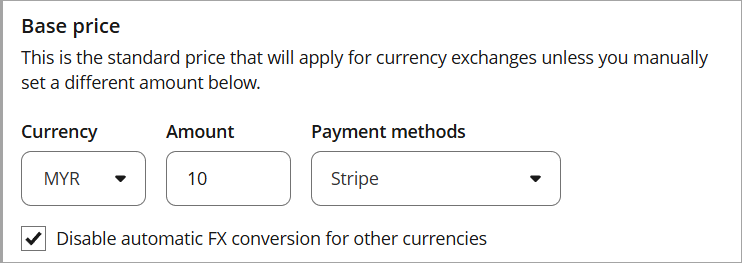
Note: Learners will see the price converted into their local currency automatically. To lock the price in your chosen currency, tick Disable automatic FX conversion for other currencies.
Step 6
Click Save.
Additional currencies
If you would also like to charge a different amount for a specific country, you can click on the Charge in additional currency button.
Example: If you are based in the UK charging £100, but want to ensure US learners pay a fixed rate of $130 USD (rather than a daily converted exchange rate), click Charge in additional currency and manually set the USD price to $130.
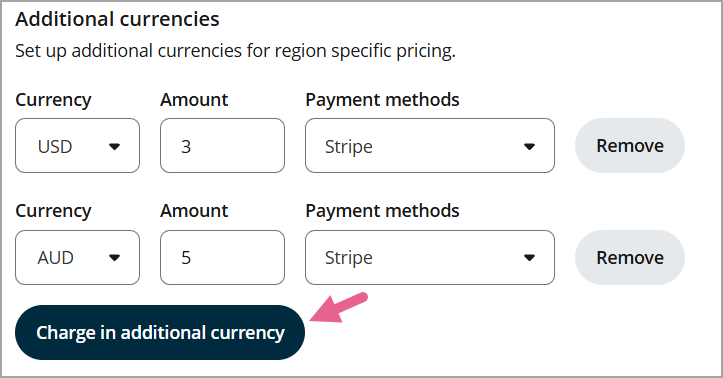
Note: If you do not set an amount, learners from those currencies will be charged based on the currency exchange rate calculated from the currency nominated in your payment gateway.
Advanced Options
1) Pay through iOS app store
If you would also like to allow learners to pay for your course via the iOS app store there are a couple more steps to follow.
By default, paid courses are not available for purchase via iOS devices. This is because Apple has special guidelines around the way content and services are priced in their store. You can learn more about this on their website here.
Therefore, if you would like your course to be available for purchase via iOS devices, you must set up a price that is within their pricing structure. (e.g. $ 19.99, not $ 20, etc)
To set up your paid course for iOS, tick the box next to Allow students to discover and pay for my course through the iOS app store.
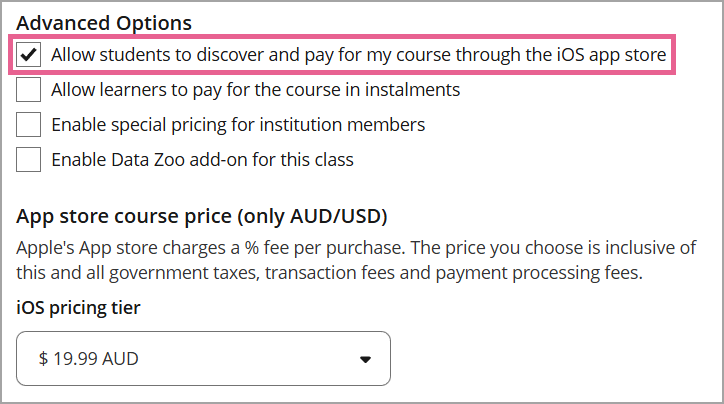
Once that box is ticked, a new section will appear beneath it prompting you to choose your iOS pricing tier. Toggle the menu to choose one. Click Save once you're done.
2) Instalment payments
This setting allows learners to pay for the course in instalments.
Example: For premium masterclasses costing RM1,200, price can be a hurdle. Enabling Instalment payments allows you to split the cost into manageable monthly payments (e.g. 4 monthly payments of RM300).
You can learn more about course instalment here: How do I enable instalments for my paid course?
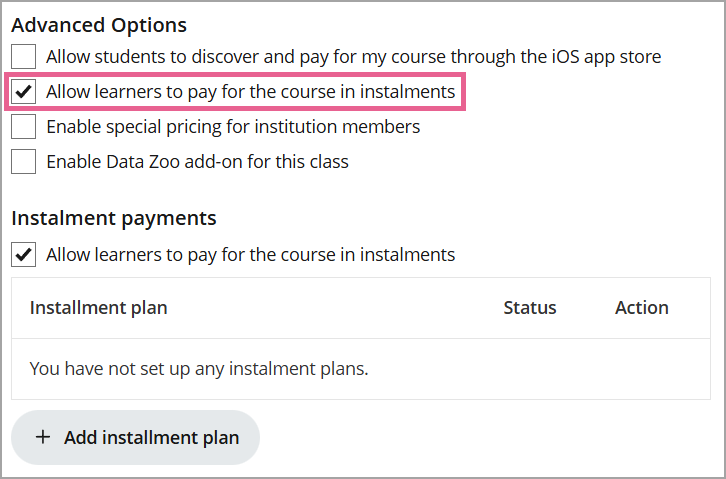
3) Enable special pricing for institution members
This feature enables institution members to get discounted or free learner access to institution courses that are otherwise paid for non-members.
Example: If a course is listed publicly for AUD250, but your institution member should get free or discounted access, enable Special pricing for institution members.
You can learn more about special pricing here: How to set up discounted or free learner access for institution members
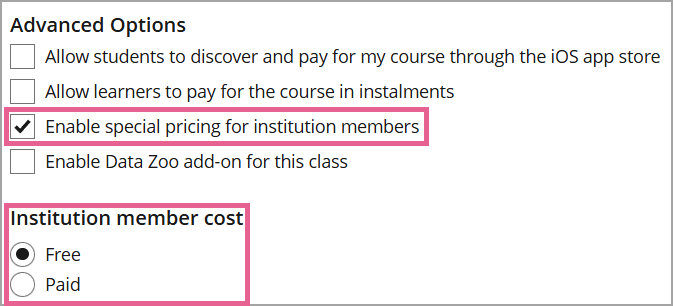
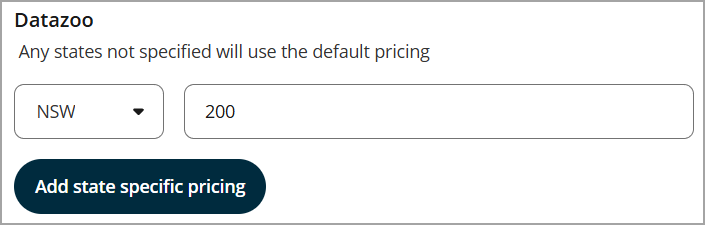
4) Enable Data Zoo add-on for this class
Data Zoo, or the Payment Location Verification feature enables learners to claim residency in an eligible Australian state to access discounted course pricing. You can learn more about this feature here: How to use the Payment Location Verification?