
What is an Outcomes report on OpenLearning and where can you create them?
To learn how to set up assessment, watch the video below.
Video guide on setting up assessment on OpenLearning
Updated video coming soon.
About assessments on OpenLearning
Assessment on OpenLearning is structured around Gradebook. These grade items define how an assessor should evaluate a learner's achievements in relation to the learning outcomes. This is done through defining assessment criteria, which flesh out learning outcomes and link them to relevant collections of learner work.

Things to check before setting up
- Before configuring Gradebook, you must first have set up the correct permissions in roles Learn more about roles
- You must also have specified your course outcomes. Learn more about course outcomes
Please make sure that you are able to see the Assessment tab in your course’s sidebar. The Assessment tab will appear to a Course Admin, Assessor and Assessment Designer.

How do I create an outcomes report for a criterion-based assessment?
Step 1
Go to Assessment > Gradebook

Step 2
Click Add grade item>Outcomes report

 Protip: You can use AI Outcome Rubrics Report Generator to automatically creates evaluation rubrics for your learning outcomes based on a template and configuration details you provide. Instead of building each rubric criterion one by one, AI generates a complete outcome report with all criteria in a single step. You can then review, keep, or discard the result before it's added to your Gradebook.
To learn how to use AI Outcome Rubric Report Generator, refer to our guide: OpenLearning AI Assistant - Outcome Rubrics Report Generator
Step 3
Enter your outcomes report name and description and click Add to grade book.

Protip: Click Copy reports from another class if you want to copy the outcomes report from a different class.

Step 4
This will take you to the main Gradebook section. In this section, you need to set up the following:
1) Weight: Assign the weight or score for your grade items.
2) Visibility: Select the appropriate visibility setting for your learners' view and click Save. The default visibility of the item is Full report. The only other available options are Full report on release, Score only and Hidden.

3) Action: Click the three dots, select Set up to continue modifying your grade item report, or choose Delete to remove the grade item.

Step 5
Click Add Criterion to begin setting up the criteria, the criteria weight and assessment type.

How do I set up the report - the criteria, the criteria weight and assessment type?
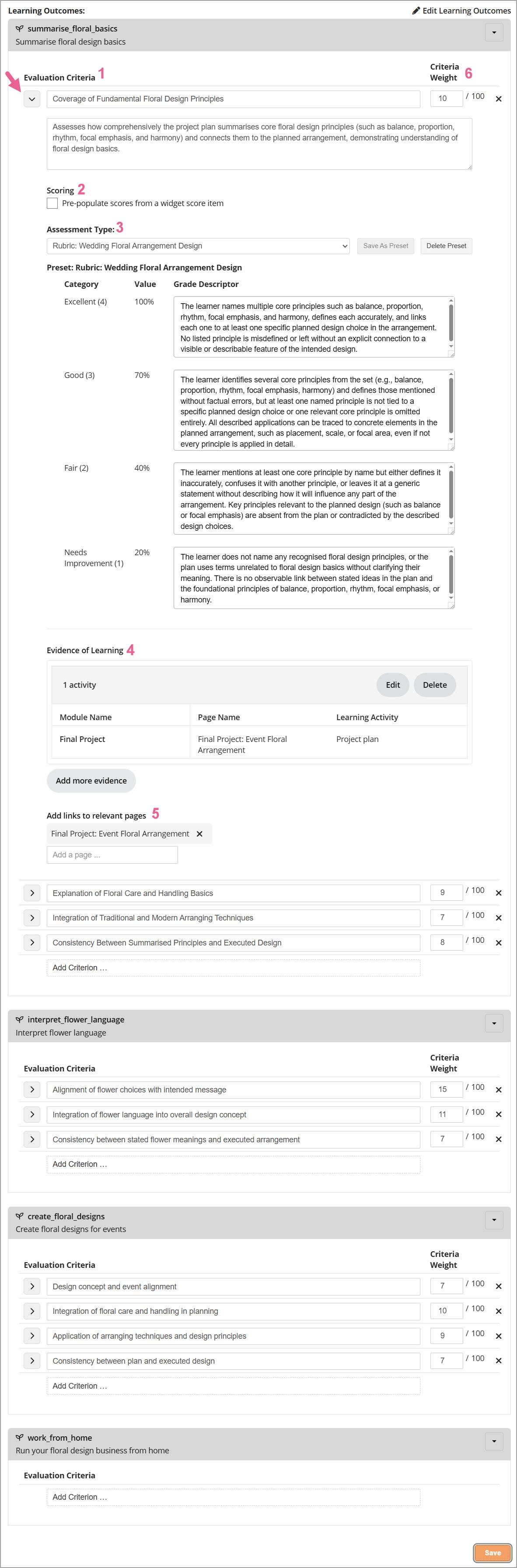
Open a criterion under a learning outcome and fill out the following fields:
1) Evaluation criteria: Enter a name and additional description for the criterion.
2) Pre-populate scores from a widget score item: This let platform capture granular, itemised scores from widgets — not just a single overall number. For example, a code submission post can now report separate scores for "Unit Tests," "Linting," and "Stress Tests" instead of lumping everything into one grade. See: How to report widget scores in Outcomes Report.
3) Assessment Type: Select an assessment type for the criteria. This specifies how the evaluation will be expressed. The available options are:
- Bands
- Categories (Likert scale)
- Numeric
- Binary (2 options)
Protip: If you set up a grading schema preset in the Grading Schema section, you will see it in the Assessment Type drop-down menu. Select your preset from this list to instantly apply it to the criterion.
Please note that grading schema presets are course-wide (usable across all Outcomes Reports in any of your course's classes), but they can only be applied to Outcomes reports in the Gradebook. They are not compatible with other grade item types.
To learn more about creating these presets, refer to our guide: How do I set up and use a Grading Schema?
4) Evidence of Learning: By default, the evidence of learning consists of any posts made by the learner which are tagged by this criterion's learning outcome. Learn more about outcomes tagging
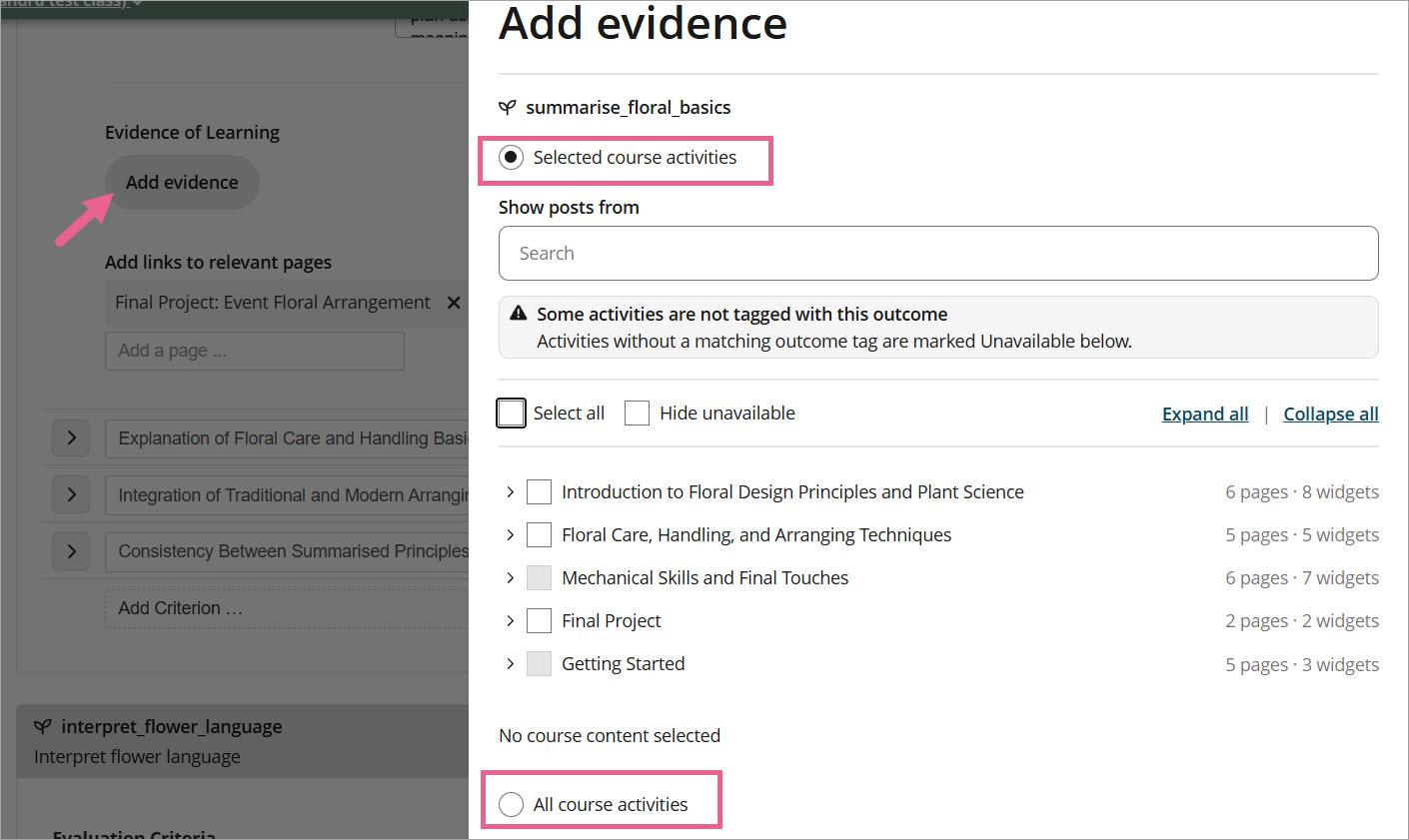
Click Add Evidence. A panel opens asking where you'd like to show posts from. You have two choices:
Option 1: Selected course activities
Choose this when you want evidence from specific activities only. A Select content dropdown appears, listing your course content. Pick or search the activities you want to draw evidence from.
Only activities that carry the outcome tag you're assessing are selectable — any content without that tag is greyed out, so you can't accidentally pull in irrelevant posts.
Option 2: All course activities
Choose this when you want to draw evidence from across your whole course. When you select it, the Narrow by tags checkbox is ticked automatically, and the outcome tag you're currently assessing is added to the Posts must be tagged with field for you.
From there you can refine further:
- Posts must be tagged with: the outcome tag being assessed (pre-filled). Posts must carry this tag to be included.
- And at least one of: add extra tags to narrow your results. Posts will need at least one of these as well.
- But not tagged with: add tags to exclude posts you don't want, such as drafts or practice work.
A note on alignment: If any of your selected evidence doesn't align with the outcome currently being assessed, you'll see a warning message: "Some of the evidence may not be aligned to the current outcome being assessed." This is a heads-up, not a blocker—you can still save your report if you're happy with your selection.
Once you've made your selection, click Save to apply it to your report. Click Cancel to close without changes.
5) Add links to relevant pages: You can also add additional focus pages where the evidence of learning is located.
6) Criteria Weight: Each criterion also has a weight that determines how much this criterion is worth relative to the rest of the report.
Step 6
Click Save at the bottom of the page to save your outcomes report.
Note: The same process applies every time you add new criterion in an Outcomes report. There is no limit to how many criteria you can set up under each learning outcome.
Protip: Once you have configured all your criteria, perform a final check of the following items:
- Make sure you have entered the criterion Name, optional Additional description, and selected the correct Assessment type.
- Verify that the correct learning outcome tags are selected in the Evidence of Learning section.
- Ensure you have linked the pages where this evidence is located in the Add links to relevant pages section (if required).
- Confirm that a Weight is assigned to each individual criterion.
How do I copy existing grade item when creating a new class
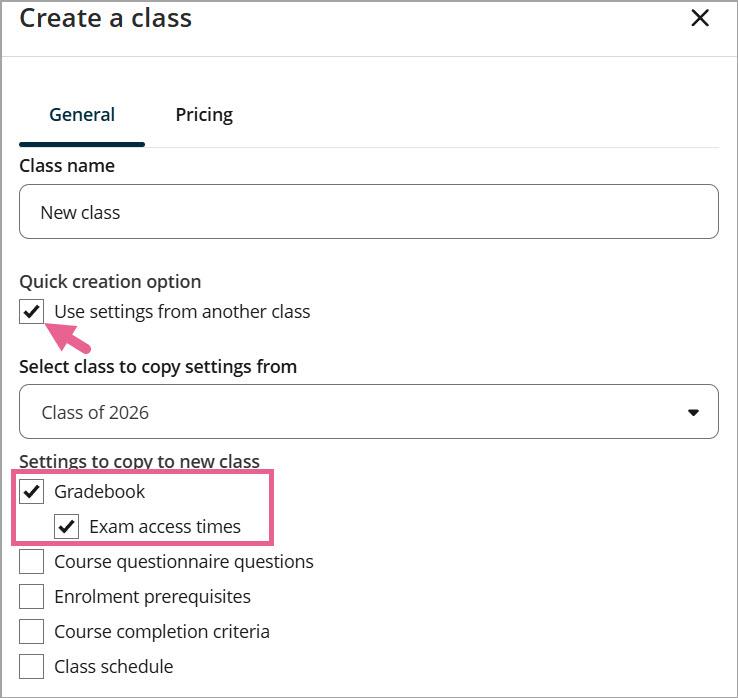
You can also choose to copy over the existing grade item when creating a new class from the Course Setup > Classes > Create a new class section by selecting the options highlighted in the screenshot below:
- Quick creation option: Tick Use settings from another class
- Select class to copy settings from
- Tick Gradebook to copy all grade items
Related links
How do I set up and use a Grading Schema?
OpenLearning AI Assistant - Outcome Rubrics Report Generator
How to use the redesigned assessor workflow for Outcomes Report?