
How to use the redesigned assessor workflow for Outcomes report?

What is the new Outcomes report assessor workflow?
The Outcomes Report is where assessors review learner evidence, apply rubric judgements, and provide structured feedback — all in one place. The redesigned assessor workflow brings the rubric and learner evidence side by side, so you're no longer switching back and forth between screens. It also introduces clear, separate feedback types so assessors and learners always know what the feedback means and who can see it.
Who is this for?
This feature is primarily for Assessors. Learners are also affected — they'll now see assessor feedback displayed in context within their outcomes report.
Why use the redesign?
The redesign makes grading faster and clearer by keeping your rubric visible while you review evidence, and by separating different types of feedback so nothing gets lost or confused. It's especially useful when grading at scale across multiple learners, posts, and criteria.
How do I assess the Outcomes report?
Step 1
Go to Assessment > Assess learners.

Step 2
On this page, you will find a table listing all your learners organised by their reports. Click on "Not graded" or "score" to access the detailed outcomes report.

Step 3
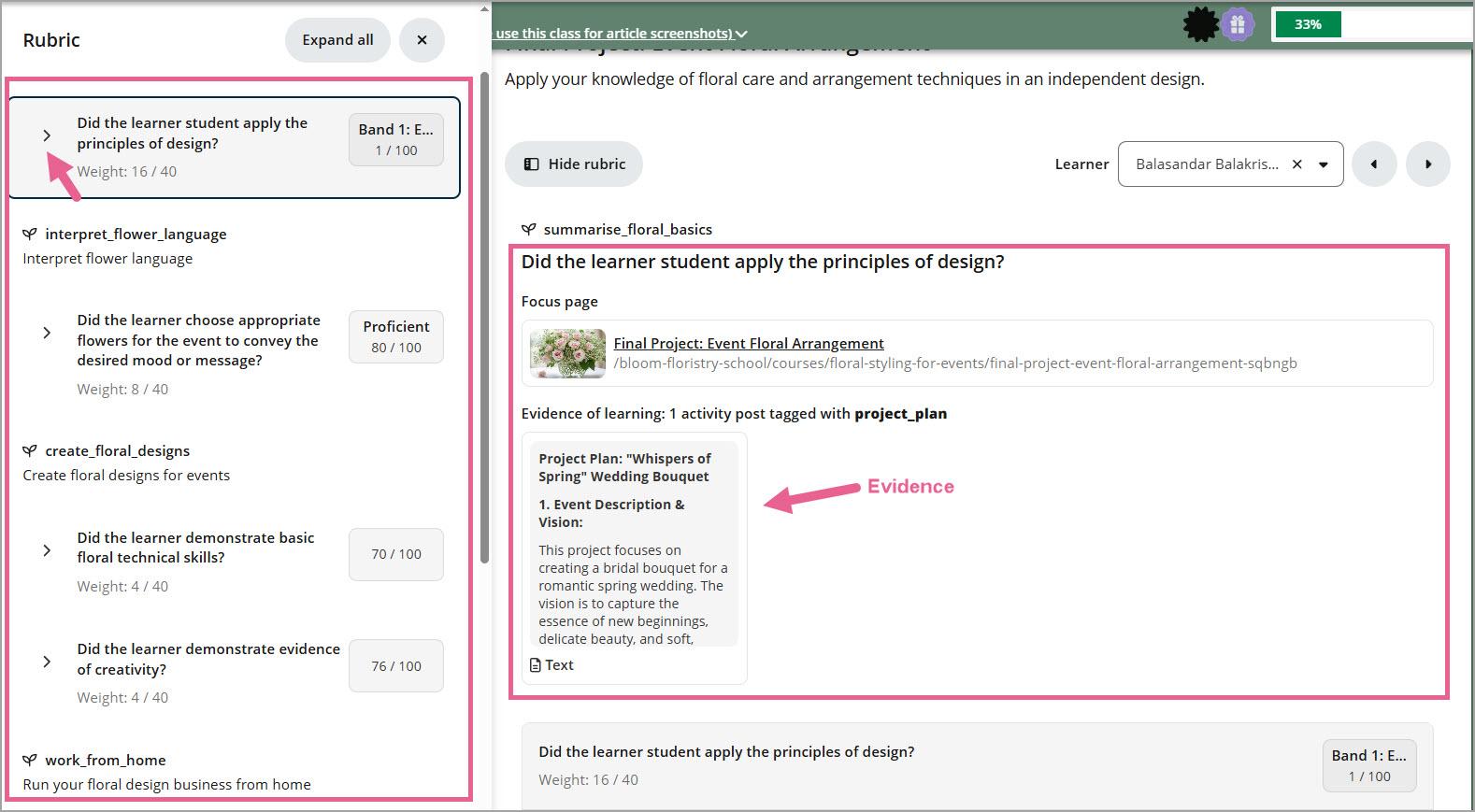
Inside, you'll see learner's evidence and rubric displayed side by side.
- The Rubric Menu on the left shows all the outcomes and criteria configured for this report.
- The Evidence on the right displays all submissions.
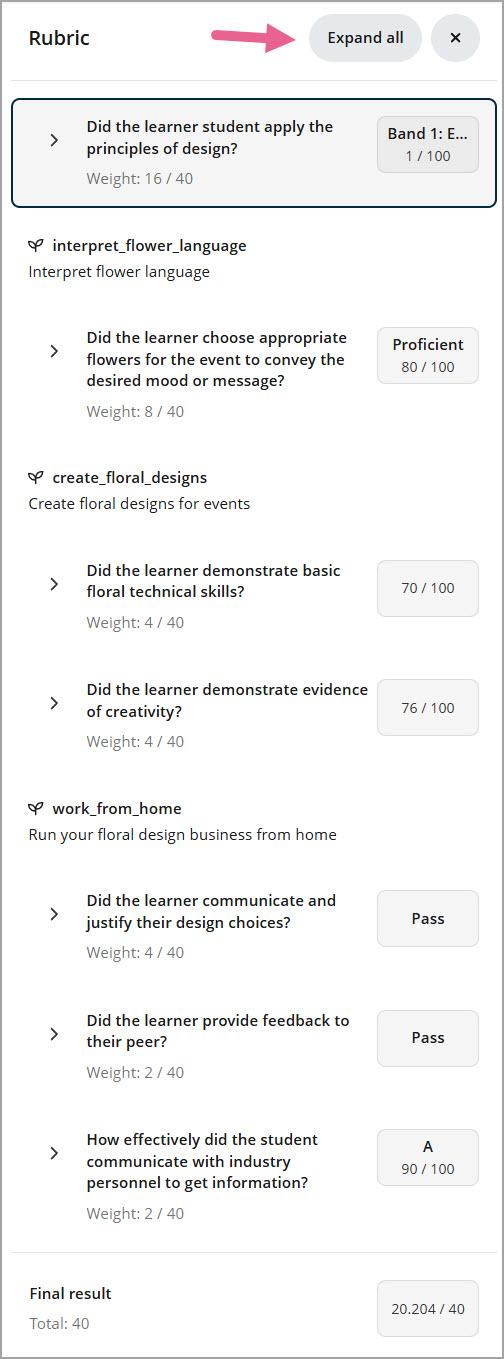
 Protip: Use the Expand all button to expand all the criteria on the rubric for efficient marking, and use the Collapse all button to collapse the rubric for easy navigation to the relevant section.
Step 4
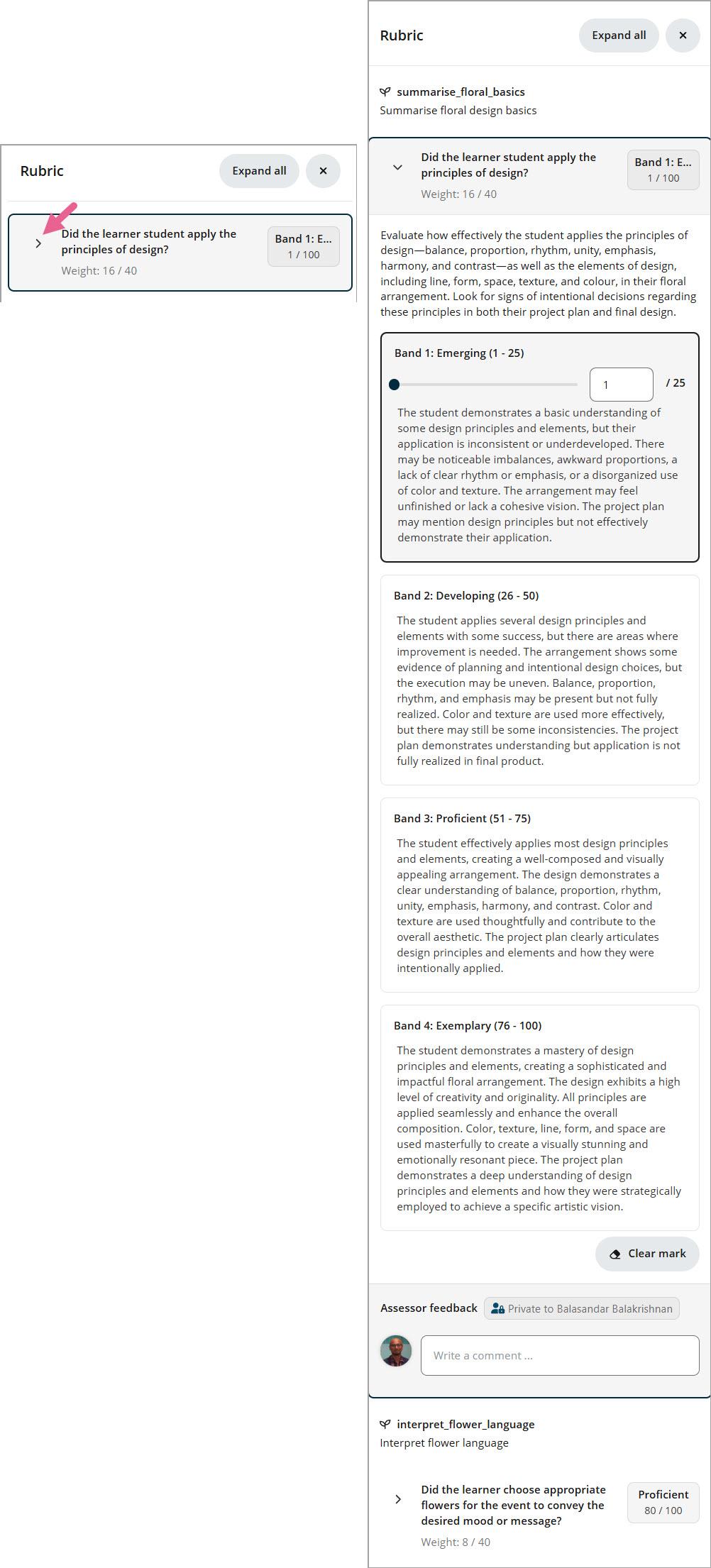
Select the criterion you want to assess from the Rubric menu on the left-side panel.
Step 5
Click the Evidence of learning to review the learner's submissions on the right-side panel.
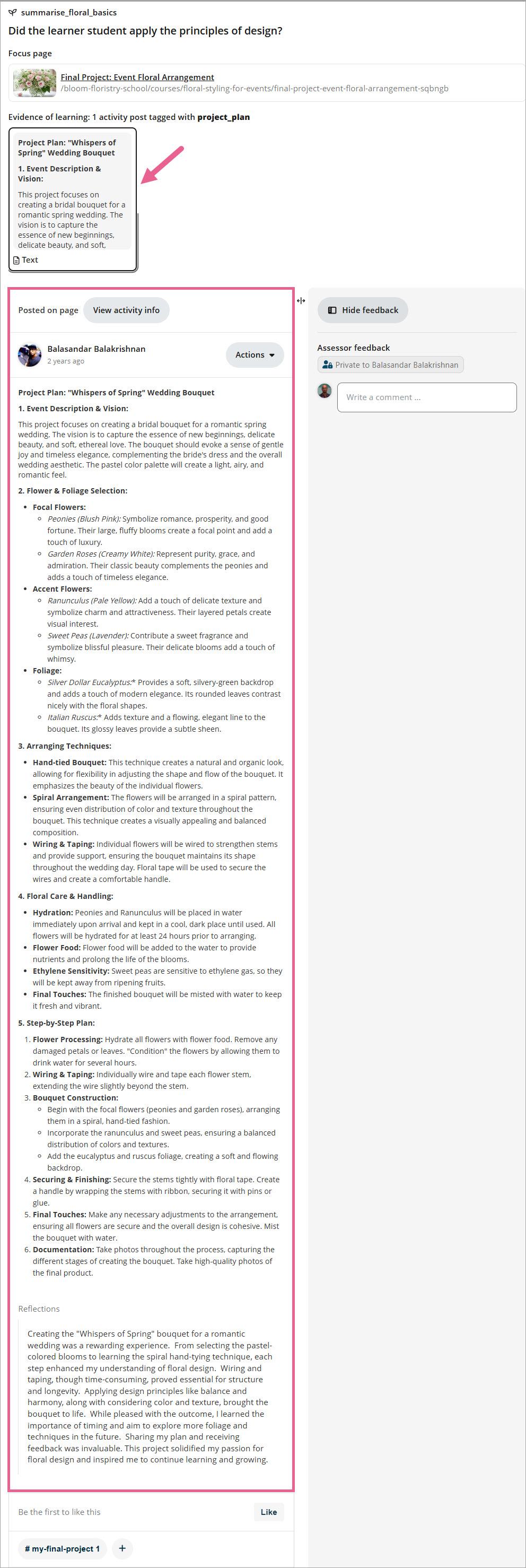
Protip: If no learner work appears, check that the related activities have been tagged correctly. Learn more about outcome tags.
Step 6
In Rubric menu, select an evaluation option (such as a mark, grade, or score) for the criterion.
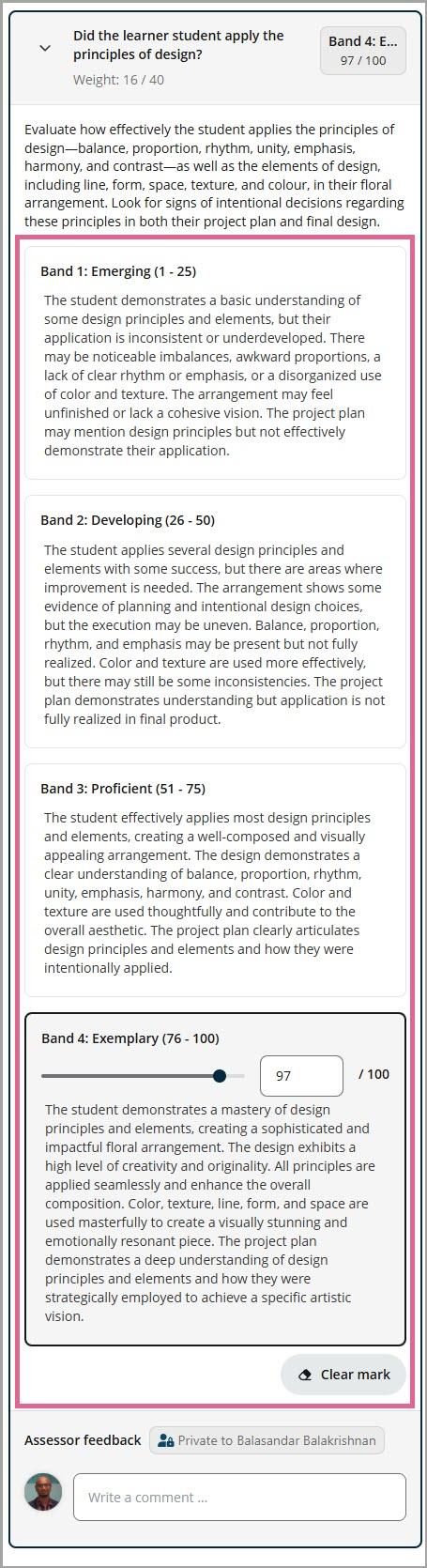
How the Grading Schema works here: If a grading schema preset has been applied to this criterion, you will not need to manually calculate percentages or type raw numbers. Instead, the pre-configured options (such as "Distinction", "Pass", or specific letter grades) will be displayed directly. You only need to select the appropriate option to instantly evaluate the learner's work.
Step 7
Add your private feedback at the appropriate level:
- Post-level feedback: Feedback tied directly to a specific piece of evidence in the gallery.
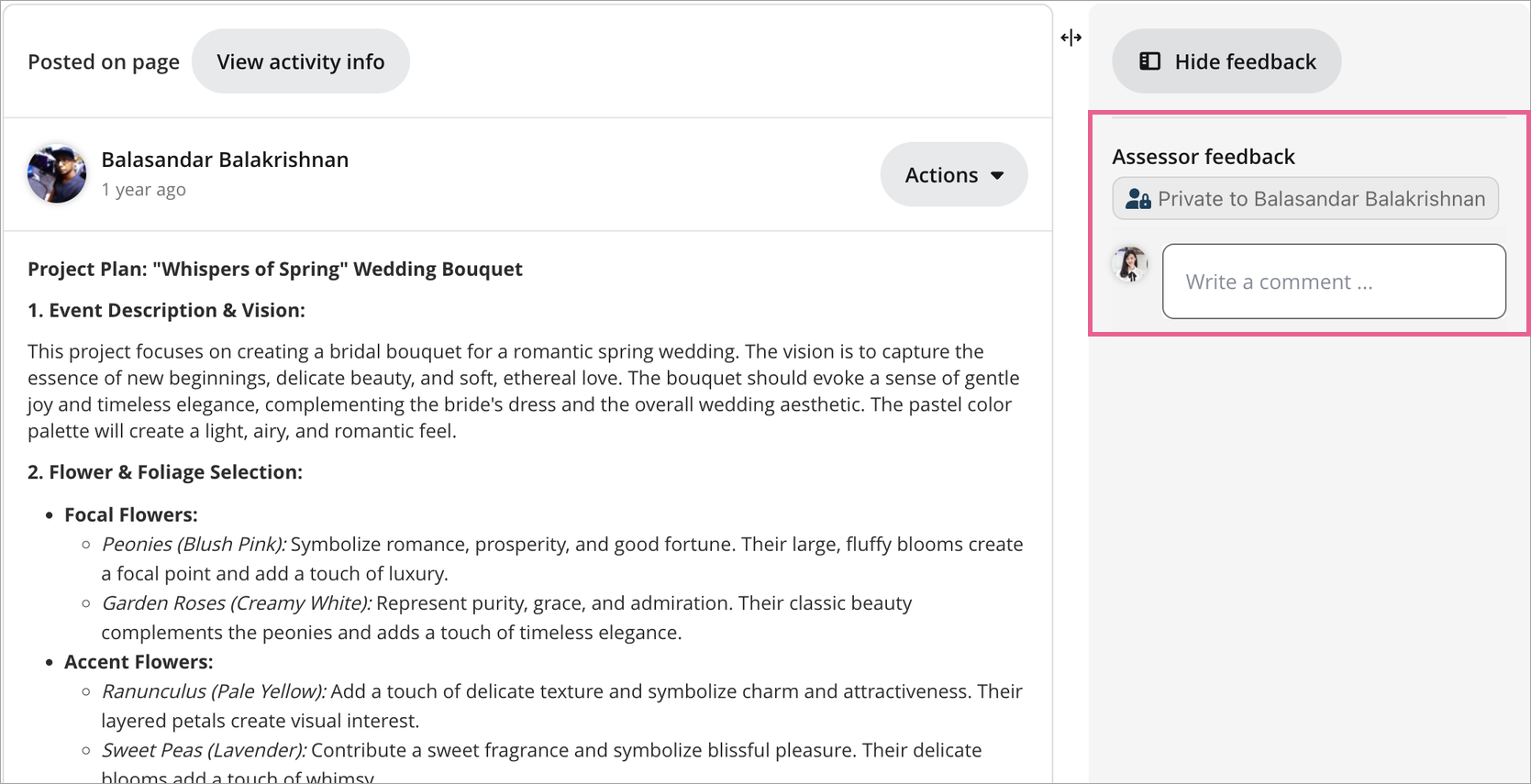
- Criterion-level feedback: Covering overall performance against a rubric criterion.
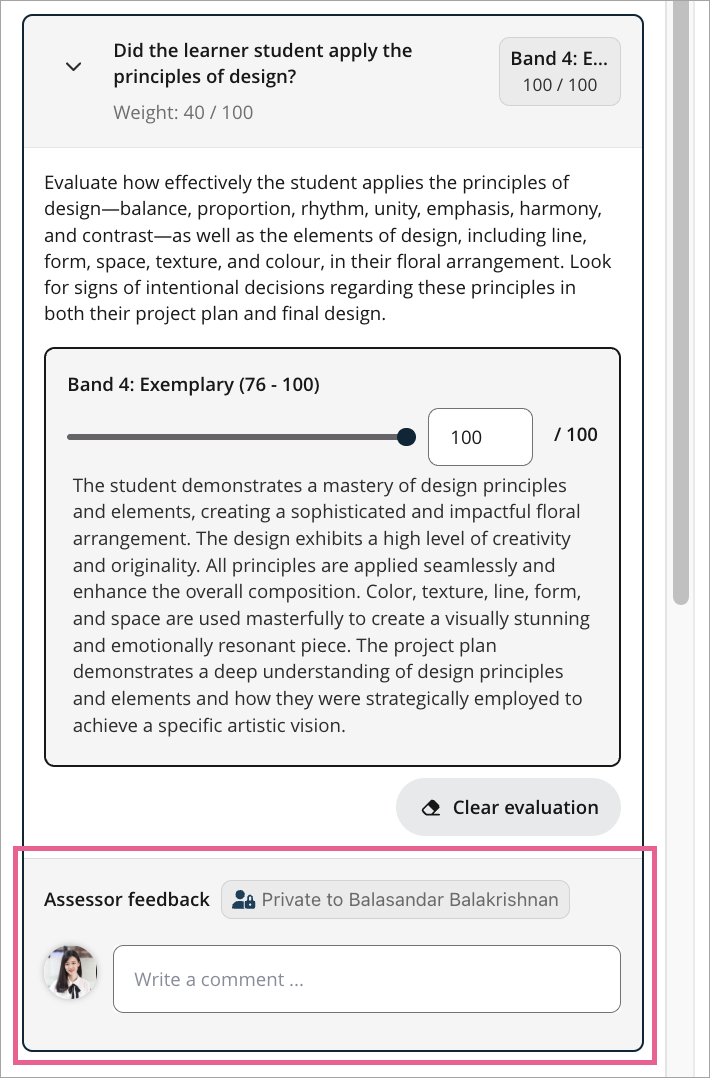
Important notes on Feedback:
- Assessor feedback (General feedback, criterion feedback, and post feedback) is always private to the learner. The interface clearly labels this (e.g., Private to "Learner name") so there is no confusion with public class comments that the whole cohort can see.
- Learners can only view their feedback and results after the results have been released.
- Learners cannot make top-level comments, but they can reply to the assessor feedback that you have provided.
Step 8
Repeat Steps 4 to 7 for all remaining criteria within the report.
Step 9
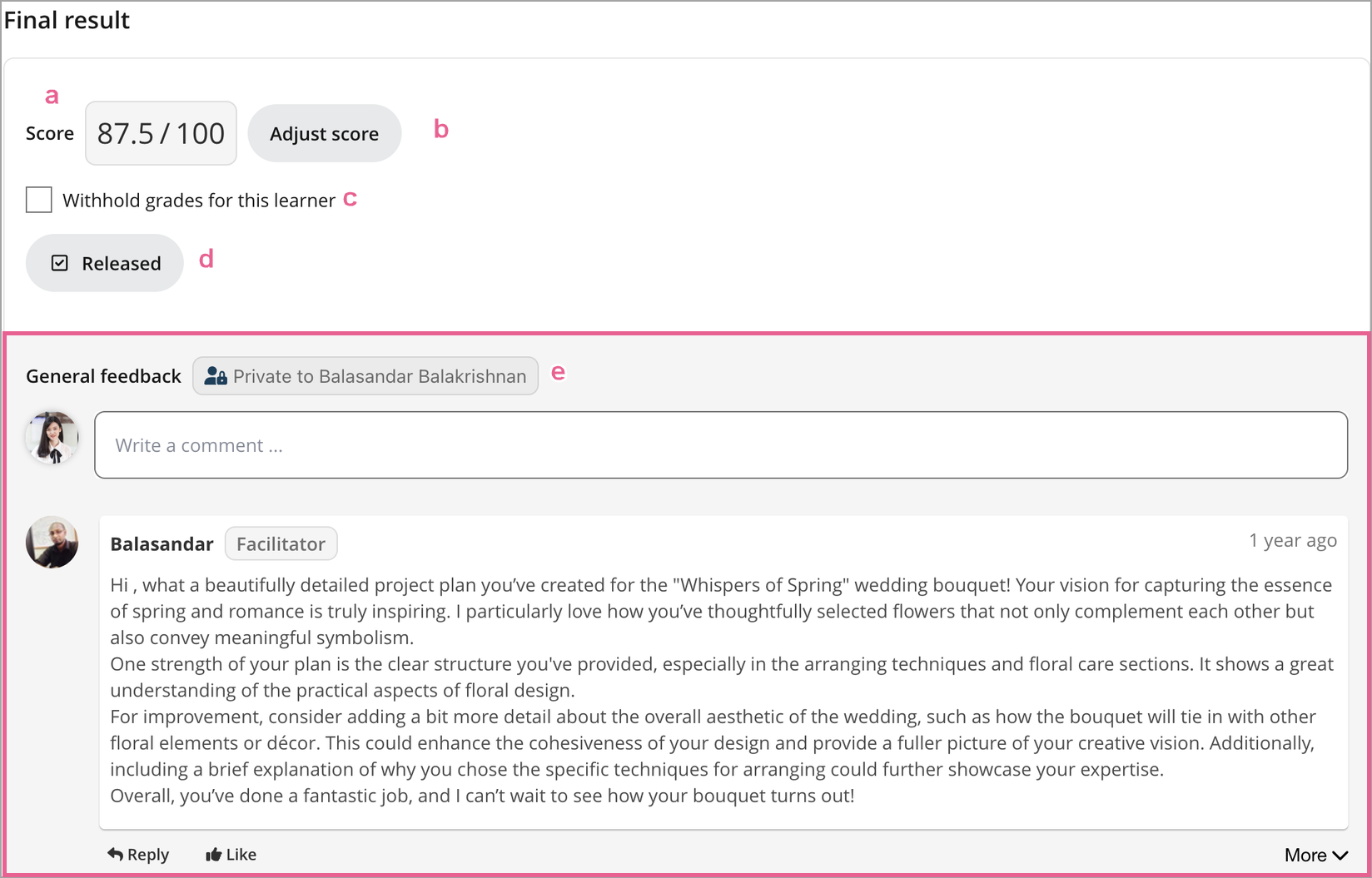
Scroll to the Final results section at the bottom of the report to finalise the evaluation. In this section, you will see:
a) Total report score: This displays the final score, which is automatically calculated based on the weights and scores of all evaluated criteria.
b) Adjust score: If you want to manually adjust or override the automatically calculated final score, click the Adjust score button to type your custom score.
c) Withhold grades for this learner: Tick this checkbox if you wish to temporarily withhold this specific learner's grades and feedback, even if you release the overall class results.
d) Release results: Click the Release results button to immediately make this report, final score, and your feedback visible to the learner.
e) General feedback: Use the General feedback text field to write overall, high-level assessment comments for the learner's entire report.
Protip: Use the show/hide buttons and resize panel controls to adjust your view, then use the learner navigation controls to move to the next learner without losing your rubric context.
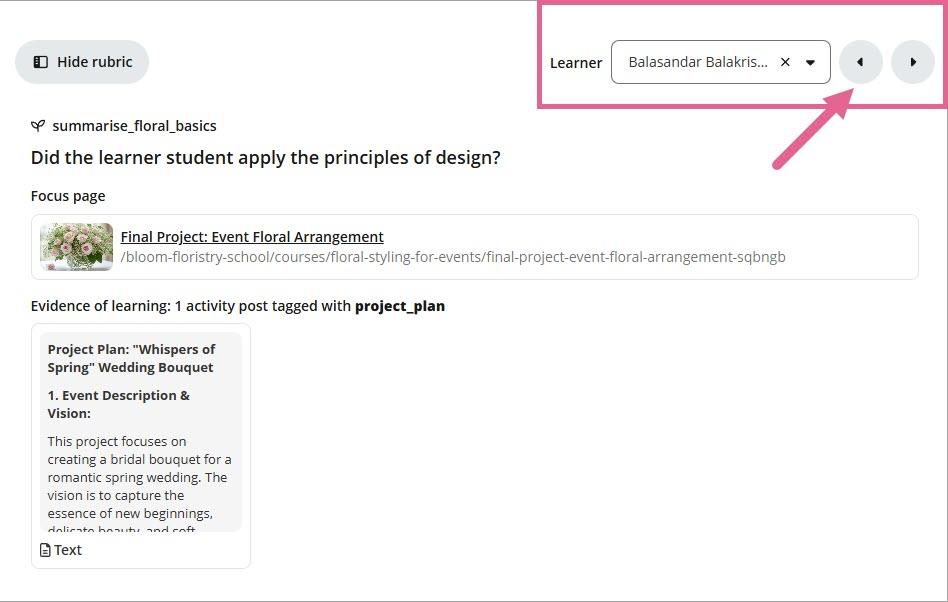
Step 10
Once you have finished evaluating your learners, you can return to the learner list to release their results.
- Release individually: Click the Release button next to an individual learner's name on the list.
- Release in bulk: Select the option to Release all results to publish grades and feedback to your entire class at once

Why is there a "Release" step?
Releasing results is a quality-control step that lets assessors review grades before learners see them or certificates are issued.
Note: When you release a report, the report results become accessible to the learner. The learner will receive a notification that their results are available. They can then access their report results from the notification or their progress page.

What are “new” and “late” post indicators?
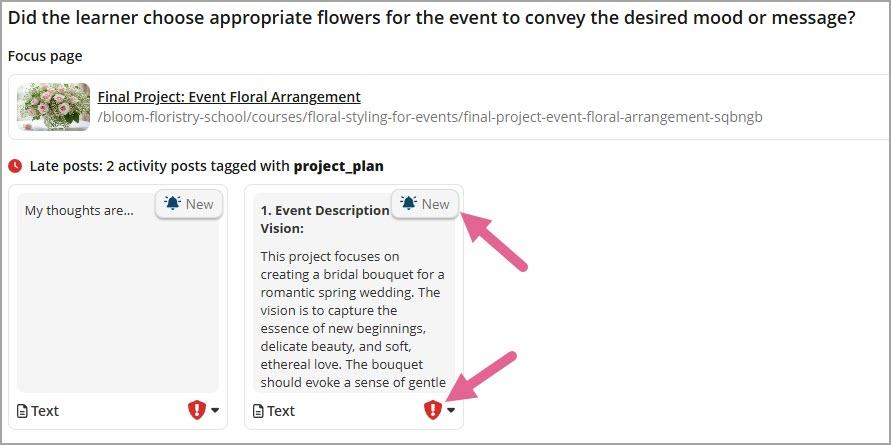
New and Late indicators are visual markers that help assessors quickly identify:
- New posts – posts that were added after the assessor last interacted with an evaluation (eg. giving a score), or after the results have been released.
- Late posts – posts that were made after the due date.
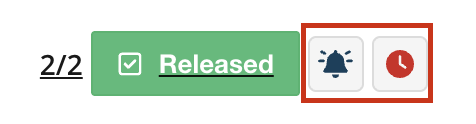
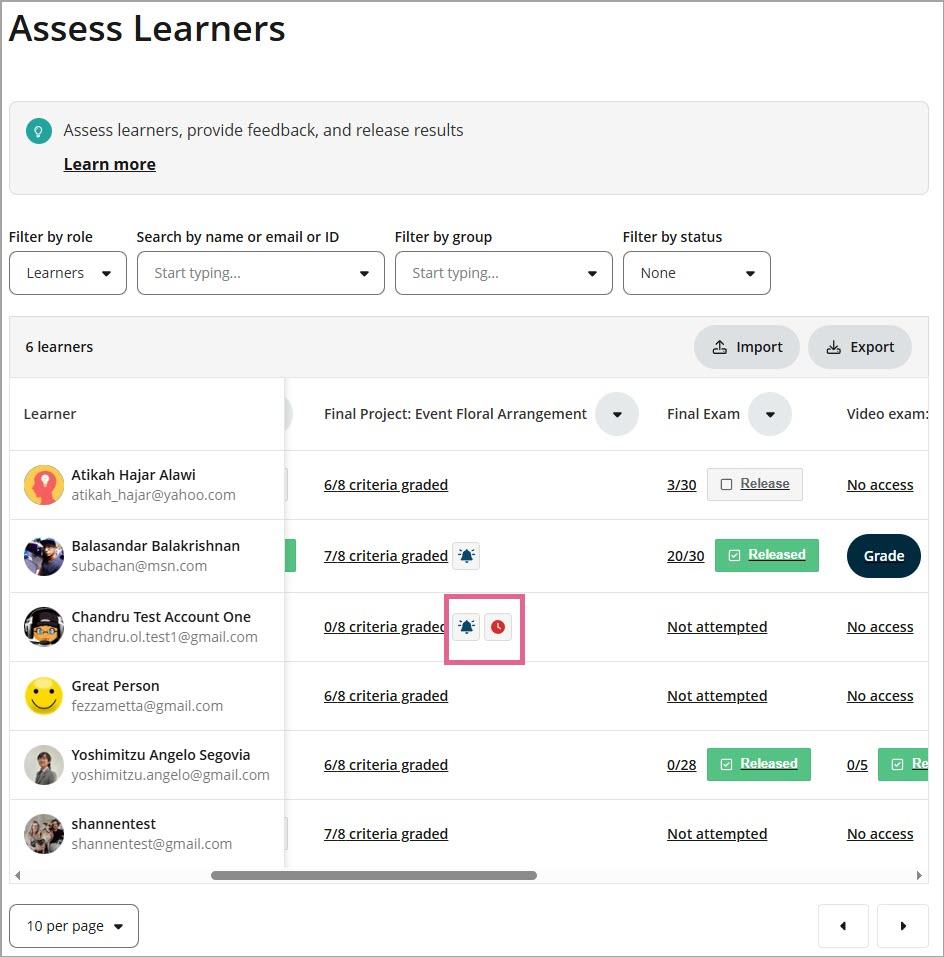
These indicators appear on:
The Assess Learners page (table of learners/reports).
The Outcomes report (rubric menu and Evidence of learning section).
They are designed to reduce the need for assessors to click through every learner and criterion to find changes or late submissions.
How to dismiss the "new" post indicator?
The "New" post indicator can be dismissed by updating the evaluation of a specific criterion, or by releasing the results of a report
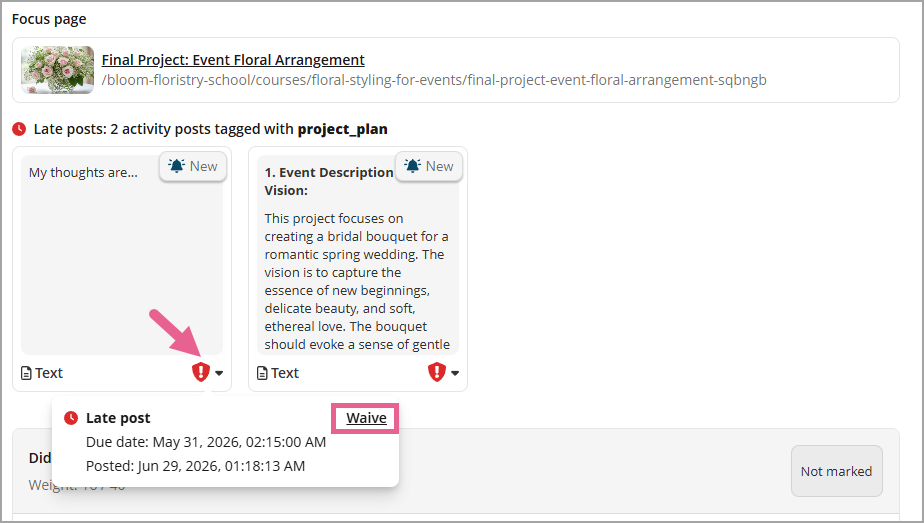
How to dismiss the "late" post indicator?
The "Late" post indicator can be dismissed by waiving the Late post status.
When do learners get notified of their assessment report and feedback release?
By default, learners will receive notifications for assessment report and feedback when the results are released. Afterwards, any additional feedback given by assessor will also send a notification to the learner.
Assessors will also receive notifications if the learner replies to the feedback.
Before releasing results, learners will not receive notifications for any feedback or evaluation given. Refer to this article: Where do learners view the grade item results?
How do I export report feedback for archival or reporting purposes?
Assessments feedback export is available on all assessment and feedbacks. Refer to this article: How do I export and import learners' assessments results?
2 replies
-
It's nice
-
It's nice